



TheRumblerDev
Members
-
Joined
-
Last visited
Everything posted by TheRumblerDev
-
-
VEHICLES CREATED FOR FIVEPDMOMENTUM Not available for download Still learning dont be a dick!! Feel free to join ! https://discord.gg/6dpqRDdJG5
-
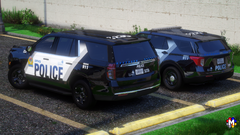
From the album: FIVEPD_MOMENTUM
TAHOE 23 VEHICLE Vehicle base by Razer Liveries/reflective by Jay Metas & by MSGT. Parent & by Jay EXTERIOR Whelen ION by CEO Whelen ION T-Series by Belly Code 3 MR6 by Cj24 (Double stacked by MsgtParent & Jay) Whelen ION Pillar Outer Edges by Chungah Setina Pushbar by Chungah Whelen Ion 45-degree Angled Push bar Mount by Tturner ES100C speaker by Joshua Tanner LTE Antenna by Georgiemoon Laird_GPS_WIFI_3G_4G antennas by KLE0 SAAQ sticker by MSGT. Parent INTERIOR Whelen FST by Chungah Whelen RST by Othrin Setina RP by Chungah Troy Console by Barsotti Cencom Controller by Ad Dev Whelen Mic modeled & textured by Karn Panasonic TB CF-33 laptop by Raz3r Motorola APX 6500 radio by Dan with da Van Brotherjetprinter by Recon BOOT Setina Cargo Barrier by Chungah Setina SUV Trunk Organizer - Sniper67 FPIU 20 VEHICLE Vehicle base by Kane104 Metas & by Kane104 & by Jay EXTERIOR Federal Signal Integrity by Twurtleee Ford RFR by CEO Whelen Ion by CEO Whelen linv2 by OfficerFive0 Setina PB by Sniper67 Whelen SA315 speaker mount by Blackcloud Whelen SA315 by CJ24 Laird_GPS_WIFI_3G_4G antennas by KLE0 LTE Antenna by Georgiemoon INTERIOR Whelen Ion by 0taku 2020 Havis Console by Brando 2020 Fpiu Partition by Chungah 2020 Setina Cargo by Krul Whelen Mic modeled & textured by Karn Cencom Controller by Ad Dev Brotherjetprinter by Recon CF-33 by Raz3r Motorola APX 6500 by Dan da van Pro-Gard Interior Light - BC DESIGNS BOOT Setina SUV Trunk Organizer - Sniper67 Stop Stick + Mounting Tray by Barsotti Police tape & bag modeled Billy Johnson, textured by Billy Johnson & MSGT. Parent Fire extinguisher by Markthedev Cones & Flares by Billy Johnson Stop Stick + Mounting Tray by Barsotti Police tape & bag modeled Billy Johnson, textured by Billy Johnson & MSGT. Parent Fire extinguisher by Markthedev Cones & Flares by Billy Johnson -
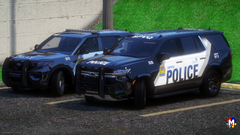
From the album: FIVEPD_MOMENTUM
TAHOE 23 VEHICLE Vehicle base by Razer Liveries/reflective by Jay Metas & by MSGT. Parent & by Jay EXTERIOR Whelen ION by CEO Whelen ION T-Series by Belly Code 3 MR6 by Cj24 (Double stacked by MsgtParent & Jay) Whelen ION Pillar Outer Edges by Chungah Setina Pushbar by Chungah Whelen Ion 45-degree Angled Push bar Mount by Tturner ES100C speaker by Joshua Tanner LTE Antenna by Georgiemoon Laird_GPS_WIFI_3G_4G antennas by KLE0 SAAQ sticker by MSGT. Parent INTERIOR Whelen FST by Chungah Whelen RST by Othrin Setina RP by Chungah Troy Console by Barsotti Cencom Controller by Ad Dev Whelen Mic modeled & textured by Karn Panasonic TB CF-33 laptop by Raz3r Motorola APX 6500 radio by Dan with da Van Brotherjetprinter by Recon BOOT Setina Cargo Barrier by Chungah Setina SUV Trunk Organizer - Sniper67 FPIU 20 VEHICLE Vehicle base by Kane104 Metas & by Kane104 & by Jay EXTERIOR Federal Signal Integrity by Twurtleee Ford RFR by CEO Whelen Ion by CEO Whelen linv2 by OfficerFive0 Setina PB by Sniper67 Whelen SA315 speaker mount by Blackcloud Whelen SA315 by CJ24 Laird_GPS_WIFI_3G_4G antennas by KLE0 LTE Antenna by Georgiemoon INTERIOR Whelen Ion by 0taku 2020 Havis Console by Brando 2020 Fpiu Partition by Chungah 2020 Setina Cargo by Krul Whelen Mic modeled & textured by Karn Cencom Controller by Ad Dev Brotherjetprinter by Recon CF-33 by Raz3r Motorola APX 6500 by Dan da van Pro-Gard Interior Light - BC DESIGNS BOOT Setina SUV Trunk Organizer - Sniper67 Stop Stick + Mounting Tray by Barsotti Police tape & bag modeled Billy Johnson, textured by Billy Johnson & MSGT. Parent Fire extinguisher by Markthedev Cones & Flares by Billy Johnson Stop Stick + Mounting Tray by Barsotti Police tape & bag modeled Billy Johnson, textured by Billy Johnson & MSGT. Parent Fire extinguisher by Markthedev Cones & Flares by Billy Johnson -
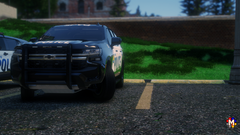
From the album: FIVEPD_MOMENTUM
TAHOE 23 VEHICLE Vehicle base by Razer Liveries/reflective by Jay Metas & by MSGT. Parent & by Jay EXTERIOR Whelen ION by CEO Whelen ION T-Series by Belly Code 3 MR6 by Cj24 (Double stacked by MsgtParent & Jay) Whelen ION Pillar Outer Edges by Chungah Setina Pushbar by Chungah Whelen Ion 45-degree Angled Push bar Mount by Tturner ES100C speaker by Joshua Tanner LTE Antenna by Georgiemoon Laird_GPS_WIFI_3G_4G antennas by KLE0 SAAQ sticker by MSGT. Parent INTERIOR Whelen FST by Chungah Whelen RST by Othrin Setina RP by Chungah Troy Console by Barsotti Cencom Controller by Ad Dev Whelen Mic modeled & textured by Karn Panasonic TB CF-33 laptop by Raz3r Motorola APX 6500 radio by Dan with da Van Brotherjetprinter by Recon BOOT Setina Cargo Barrier by Chungah Setina SUV Trunk Organizer - Sniper67 FPIU 20 VEHICLE Vehicle base by Kane104 Metas & by Kane104 & by Jay EXTERIOR Federal Signal Integrity by Twurtleee Ford RFR by CEO Whelen Ion by CEO Whelen linv2 by OfficerFive0 Setina PB by Sniper67 Whelen SA315 speaker mount by Blackcloud Whelen SA315 by CJ24 Laird_GPS_WIFI_3G_4G antennas by KLE0 LTE Antenna by Georgiemoon INTERIOR Whelen Ion by 0taku 2020 Havis Console by Brando 2020 Fpiu Partition by Chungah 2020 Setina Cargo by Krul Whelen Mic modeled & textured by Karn Cencom Controller by Ad Dev Brotherjetprinter by Recon CF-33 by Raz3r Motorola APX 6500 by Dan da van Pro-Gard Interior Light - BC DESIGNS BOOT Setina SUV Trunk Organizer - Sniper67 Stop Stick + Mounting Tray by Barsotti Police tape & bag modeled Billy Johnson, textured by Billy Johnson & MSGT. Parent Fire extinguisher by Markthedev Cones & Flares by Billy Johnson Stop Stick + Mounting Tray by Barsotti Police tape & bag modeled Billy Johnson, textured by Billy Johnson & MSGT. Parent Fire extinguisher by Markthedev Cones & Flares by Billy Johnson -

From the album: FIVEPD_MOMENTUM
14 CHARGER VEHICLE Vehicle base by GeorgieMoon Metas by GeorgieMoon & Jay & MSGT.Parent EXTERIOR FedSig Arjent by S2 Whelen Vertex by Tyler Design Motorola HAF4017A Antenna by Kle0 LTE Antenna by Georgiemoon INTERIOR Whelen Ion by 0taku Havis Console by Brendo Computer mount from 20FPIU by Brendo Panasonic TB CF-33 by Raz3r Setina Partition by Jophics Motorola APX 6500 by Dan with da Van Havis Overhead Console - AyyCee Ztep 102 (Ztep 103 by LeGeorgettier) mod by Jay Pro-Gard Interior Light - BC DESIGNS BOOT Stop Stick + Mounting Tray by Barsotti Police tape & bag modeled Billy Johnson, textured by Billy Johnson & MSGT. Parent Fire extinguisher by Markthedev Cones & Flares by Billy Johnson 11 CVPI VEHICLE Vehicle base by 0taku Liveries/reflective by Jay Metas & by MSGT. Parent & by Jay Handling by MSGT. Parent EXTERIOR FedSig Arjent by S2 Hideaway strobes by Cj24. SAAQ sticker by MSGT. Parent INTERIOR Whelen Avengers by 0taku Pro-Gard Interior Light by BC DESIGNS Havis Overhead Console by AyyCee Setina Partition CVPI by Cj24 Havis Console by Cj24 Panasonic TB CF-33 laptop by Raz3r Motorola APX 6500 radio by Dan with da Van Brotherjetprinter by Recon Ztep 102 (Ztep 103 by LeGeorgettier) mod by Jay -

From the album: FIVEPD_MOMENTUM
VEHICLE Vehicle base by OfficerUnderwood Liveries/reflective by Jay Metas by Jay EXTERIOR Code 3 RX2700 by Cj24 Whelen Outer Edge Micron Traffic Advisor by CEO Whelen Dominator by OfficerFive0 Whelen LINZ6 by Tyler Designs INTERIOR Code 3 MR6MC made by krul Havis console by Cj24 Panasonic TB CF-33 by Raz3r Motorola APX 6500 by Dan with da Van Ztep 102 (Ztep 103 by LeGeorgettier) mod by Jay Pro-Gard Interior Light - BC DESIGNS SAAQ sticker by MSGT. Parent -
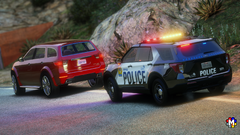
From the album: FIVEPD_MOMENTUM
VEHICLE Vehicle base by Kane104 Metas & by Kane104 & by Jay EXTERIOR Federal Signal Integrity by Twurtleee Ford RFR by CEO Whelen Ion by CEO Whelen linv2 by OfficerFive0 Setina PB by Sniper67 Whelen SA315 speaker mount by Blackcloud Whelen SA315 by CJ24 INTERIOR Whelen Ion by 0taku 2020 Havis Console by Brando 2020 Fpiu Partition by Chungah 2020 Setina Cargo by Krul Whelen Mic modeled & textured by Karn Cencom Controller by Ad Dev Brotherjetprinter by Recon CF-33 by Raz3r Motorola APX 6500 by Dan da van Pro-Gard Interior Light - BC DESIGNS BOOT Setina SUV Trunk Organizer - Sniper67 Stop Stick + Mounting Tray by Barsotti Police tape & bag modeled Billy Johnson, textured by Billy Johnson & MSGT. Parent Fire extinguisher by Markthedev Cones & Flares by Billy Johnson -
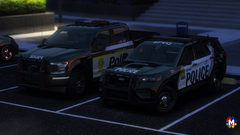
From the album: FIVEPD_MOMENTUM
FPIU SPVQ VEHICLE Vehicle base by Kane104 Metas & by Kane104 & by Jay EXTERIOR Federal Signal Integrity by Twurtleee Ford RFR by CEO Whelen Ion by CEO Whelen linv2 by OfficerFive0 Setina PB by Sniper67 Whelen SA315 speaker mount by Blackcloud Whelen SA315 by CJ24 INTERIOR Whelen Ion by 0taku 2020 Havis Console by Brando 2020 Fpiu Partition by Chungah 2020 Setina Cargo by Krul Whelen Mic modeled & textured by Karn Cencom Controller by Ad Dev Brotherjetprinter by Recon CF-33 by Raz3r Motorola APX 6500 by Dan da van Pro-Gard Interior Light - BC DESIGNS BOOT Setina SUV Trunk Organizer - Sniper67 Stop Stick + Mounting Tray by Barsotti Police tape & bag modeled Billy Johnson, textured by Billy Johnson & MSGT. Parent Fire extinguisher by Markthedev Cones & Flares by Billy Johnson SQ 18 F150 Vehicle base by GeorgieMoon Liveries/reflective by MSGT. Parent Metas by MSGT. Parent EXTERIOR Pro-Signal Legion made by MSGT. Parent, from Bradstr90 RSG Legion base, modules from XLR, feet from BC Designs Whelen Inner Edge RTX by Krul Whelen Ion by CEO Federal Signal MicroPulse Ultra by Jophics Setina PB-450L pushbar by TerrySloman Federal Signal AS124 siren by Thehurk Laird antenna by Eknjack Motorola HAF4017A antenna by KLE0 Motorola 800 MHz antennas by CEO Reece Towball by Officer Pringle Info-Crime sticker by MSGT. Parent Quebec sticker by MSGT. Parent SAAQ sticker by MSGT. Parent INTERIOR Gamber Jonhson console by Chungah Laptop rack by Twurtleee Panasonic TB CF-33 laptop by Raz3r L3 Harris 7100 radio and handbook by Jakub Motorola APX 6500 radio by Dan with da Van ZTEP-103 controller by LeGeorgettier Kustom Signals Golden Eagle II radar by Jakub Setina RP partition by Chungah mPower shrouds by Magicmods BOOT Police tape & bag modeled Billy Johnson, textured by Billy Johnson & MSGT. Parent Fire extinguisher by Markthedev Cones & Flares by Billy Johnson -
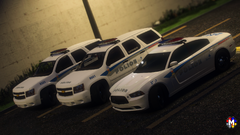
From the album: FIVEPD_MOMENTUM
-
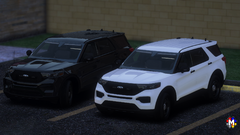
From the album: FIVEPD_MOMENTUM
-
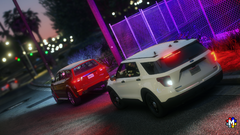
From the album: FIVEPD_MOMENTUM
-

From the album: FIVEPD_MOMENTUM
VEHICLE Vehicle base by OfficerUnderwood Metas by Jay EXTERIOR FedSig Arjent by S2 Motorola HAF4017A Antenna by Kle0 SAAQ sticker by MSGT. Parent SUPERVISEUR sticker by MSGT. Parent INTERIOR Whelen Ion by 0taku Havis console by Cj24 Panasonic TB CF-33 by Raz3r Motorola APX 6500 by Dan with da Van Ztep 102 (Ztep 103 by LeGeorgettier) mod by Jay Pro-Gard Interior Light - BC DESIGNS BOOT Setina SUV Trunk Organizer - Sniper67 Stop Stick + Mounting Tray by Barsotti Police tape & bag modeled Billy Johnson, textured by Billy Johnson & MSGT. Parent Fire extinguisher by Markthedev Cones & Flares by Billy Johnson -

From the album: FIVEPD_MOMENTUM
-

From the album: FIVEPD_MOMENTUM
-

From the album: FIVEPD_MOMENTUM
VEHICLE Vehicle base by GeorgieMoon Metas by GeorgieMoon & Jay & MSGT.Parent EXTERIOR FedSig Arjent by S2 Whelen Vertex by Tyler Design Motorola HAF4017A Antenna by Kle0 LTE Antenna by Georgiemoon INTERIOR Whelen Ion by 0taku Havis Console by Brendo Computer mount from 20FPIU by Brendo Panasonic TB CF-33 by Raz3r Setina Partition by Jophics Motorola APX 6500 by Dan with da Van Havis Overhead Console - AyyCee Ztep 102 (Ztep 103 by LeGeorgettier) mod by Jay Pro-Gard Interior Light - BC DESIGNS BOOT Stop Stick + Mounting Tray by Barsotti Police tape & bag modeled Billy Johnson, textured by Billy Johnson & MSGT. Parent Fire extinguisher by Markthedev Cones & Flares by Billy Johnson -
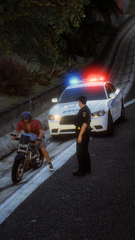
From the album: FIVEPD_MOMENTUM
-

From the album: FIVEPD_MOMENTUM
-
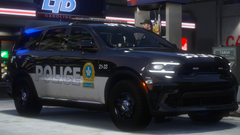 Pas gênant une fois de plus avec des photos de piètres qualités **sarcasme ici** XD Solide mon George 👌
 -
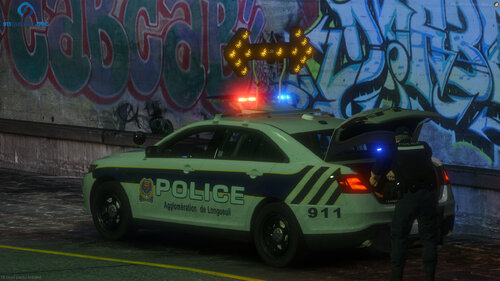 Just change the ID in the carcoals and meta to something higher random like 9343242. At this point chances are that you probably dont have any other car than this one... 68 could be allready used and that could brake this car.
 -
-
Learning how to make cars! No need to be an assh*le in comments.... doing it for fun! 😄
-
-
-






