.png.43b1cd3eaf28452e20044fffd85cc348.png)

Everything posted by SSStuart
-
 That's weird... it looks like the criminals no longer exist (or are dead) even before the fight starts. I'll add additional checks in any case to prevent a crash in this scenario.
- 17 comments
- 2 reviews
-
Hello, Could you send the entire log (or at least from the start of the callout*)? *a line containing "Creating RE_CountrysideRobbery"
- 17 comments
- 2 reviews
-
 Hello, Thanks for reporting this. I think I'd already noticed similar behavior, but I assumed it was related to the trainer's god mode. It might actually be related to the plugin... I'll look into this more closely 👀 Fixed, player is no longer affected by the longer fire
- 12 comments
- 7 reviews
-
-

- 3
-
-
 I received an email from lcpdfr asking if I wanted to leave a review for ELS. I guess that since I've downloaded it more than ten times, it must be a good script 😆 On a more serious note, a must have script.
- 2,702 comments
- 241 reviews
-
-
 When I saw the "Train accident" callout, I wanted to give the pack a try... Here are my first impressions: In many callouts, the suspect(s) starts to walk away, but comes back toward the player/scene once you arrive on scene. In some callouts, the suspect falls/gets stuck under the map. Most callouts seem to conclude as soon as you arrive at the scene, or when you're close enough to one of the people involved (except for callouts where a suspect starts to flee). Some callouts seem to spawn too close and immediately stop (Code 4). Specific callouts feedback: Abandoned briefcase (2×) No briefcase. Suspicious package ... no package. Person wandering on highway "The person is walking in a dangerous area." *Walking on the sidewalk* Arson No sign of a fire, a gas can, or anything else. Just a person walking. Railroad accident *Callout is located on a beach* 🤔 (seem to be able to spawn anywhere) ... no train, or anything else 😥
- 65 comments
- 8 reviews
-
- it
- us
- lore
- lspdfr callout
-
Tagged with:
-
-
Oops, that's my bad. I forgot to build the plugin with the correct assembly version 🤦. You shouldn't receive any more update notifications for now, until I fix the issue in the next version. Fixed
- 12 comments
- 7 reviews
-
-
- 1
-
-
Yes, that would be much better. It even seems like there's a native (function) that would help me, but I can't get it to work... 🫤
- 12 comments
- 7 reviews
-
-
- 1
-
-
Okay, thanks 👍. That's similar to what Yasd told me. So I'll remove that code.
-
I'd prefer a human response, especially regarding RPH/LSPDFR code
-
Hello, For callout packs, I use a code template with the following code in the Main.cs file: (excerpt - See entire file) # Main.cs public override void Initialize() { ... AppDomain.CurrentDomain.AssemblyResolve += new ResolveEventHandler(LSPDFRResolveEventHandler); } ... public static Assembly LSPDFRResolveEventHandler(object sender, ResolveEventArgs args) { foreach (Assembly assembly in Functions.GetAllUserPlugins()) { if (args.Name.ToLower().Contains(assembly.GetName().Name.ToLower())) { return assembly; } } return null; }Someone (@Yasd) pointed out something to me about this code and its purpose on one of my callout pack, but I have no idea what LSPDFRResolveEventHandler is actually used for. Could someone explain to me what this does technically, and in what situations it's needed? Thank you :) I hope this fits this forum.
-
 A useful tool to familiarize yourself with the controls of a new plugin. It's also helpful for adjusting the controls while playing.
 -
Could you send the RPH log from when the crash occurred? (Here, or preferably on Discord (@ssstuart))
- 17 comments
- 2 reviews
-
-
Thank you! I have three more callouts to add (based on random events). I'll keep your suggestion in mind for later 🙂 I use InteriorsV, but I suppose any script that allows access to interiors should work.
- 17 comments
- 2 reviews
-
-
- 1
-
-
Replay the story missions from the cops' perspective. Pack of 25 (+1) callouts based on missions from the story mode. Callout list(Prologue, disabled by default) Franklin and Lamar The Long Stretch Carbine Rifles Bugstars Equipment BZ Gas Grenades The Jewel Store Job Dead Man Walking Hood Safari Trash Truck Tow Truck Blitz Play Military Hardware The Paleto Score Pack Man Legal Trouble The Bureau Raid Driller The Big Score Obvious Subtle The Third Way Paparazzo - The Meltdown The Hotel Assassination Grass Roots - The Pickup Getaway Driver (Random event) Countryside Robbery (Random event) Countryside Gang Fight (Random event) Callouts details Preview/Trailer Configuration[General] useStoryModeCharacters : Use characters from Story Mode, or random characters (if you want to avoid repeatedly stopping or killing the same characters). [Difficulty] disablePedRagdollWhenShot : Prevents suspects from ragdolling when they are shot. [Difficulty] healthMultiplier : Adjust suspects' health. [Interiors] forceInteriorsEnabled : Some callouts use interiors if available (requires a third-party script); by default, the presence of an interior is detected automatically. If this is not the case, you can enable this option. [Callouts] : Enable/Disable each callout. Know issuesSee Callouts details list for individual callout issues. ELS option “ElsTrafCtrlOn” can brake the AI driving tasks. InstallationPrerequisites(Both Legacy and Enhanced should work) RAGE Plugin Hook LSPDFR CalloutInterfaceAPI.dll (included) Recommended: InteriorsV (or any interiors script) InstallationOpen the downloaded .zip archive, then drag and drop the contents of the “Grand Theft Auto V” folder into your game folder. After installation, you should have the following files: [Game folder]/plugins/LSPDFR/StoryCallouts.dll [Game folder]/plugins/LSPDFR/StoryCallouts.ini [Game folder]/CalloutInterfaceAPI.dll ContributeI'm not very good at coming up with appropriate callout descriptions, suitable audio messages for dispatch, and additional messages for the Callout Interface. Feel free to suggest improvements. (about this or anything else) LinksSource code: github.com/SSStuart/StoryCallouts_LSPDFRCallouts Discord: @ssstuart Fluxer: SSStuart#2026 🇫🇷 La description étant longue, je n'ai pas fourni de version en français. N'hésitez pas à me contacter si vous avez des questions ou des problèmes.
- 17 comments
- 2 reviews
-
-

-
- 10
-
-
-
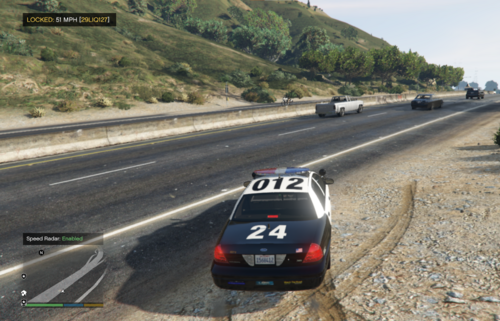 Hello, I have some feedback: As others have pointed out, I find the mod thumbnail misleading, especially since there isn't a gameplay screenshot showing the actual display. So here's one: The area in which vehicles are detected seems small; it would be nice to have a larger area. The installation instructions are unclear : If I drop the "plugins" folder (from the zip) inside my game directory, the plugin files will be in "plugins/" instead of "plugins/LSPDFR/". You should correct the folder structure of the downloaded zip file.
- 7 comments
- 1 review
-
-
- 3
-
-
 That's definitely better 👍
 -
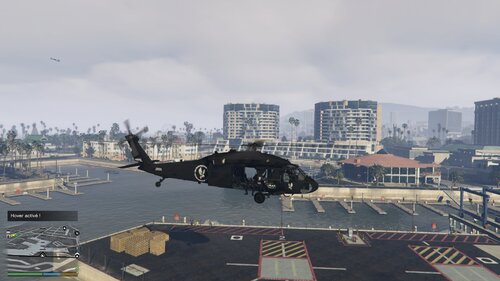
Great script. However, the “hover” mode is a bit abrupt, and if possible, it would be nice if it automatically deactivated when the rappelling is finished.
-
 Ideally, you should start by testing the plugin without any trainer/mod menu installed. If it works without those, it would confirm that the problem is related to them. FYI: According to my tests, this plugin is incompatible with Menyoo + LSPDFR.
- 18 comments
- 2 reviews
-
You're not the first to ask ^^. I'm working on it, but so far I haven't been able to achieve consistent results. Related Github issue : https://github.com/SSStuart/DeathCam_RPHPlugin/issues/1
- 18 comments
- 2 reviews
-
-

- 1
-
-
Hello again, It's the expected behaviour, yes. Yeah, i can't do much about that, the plugin seem's to be incompatible with LSPDFR+Menyoo (since each of them handles the player's death at the same time). In the new version a warning is displayed if Menyoo is detected. I'm not sure I understand what the point of this is (it seems more complicated to have to open a menu and select an option than to simply press a button). I've added a settings for this in the new version. In the new version, the wanted level is removed after the player dies, so the police stop targeting the player. In other cases (other types of enemies), I haven't been able to make them ignore the player.
- 18 comments
- 2 reviews
-
-
- 1
-
-
Hello, Make sure you don't have a trainer setting related to player death/respawn enabled. (or another similar script/plugin) If you need additional help, you can contact me on Discord. (link in description)
- 18 comments
- 2 reviews
-
-
- 1
-