
J. Cooley
Members
-
Joined
-
Last visited
Everything posted by J. Cooley
-
From the album: Pics from patrol
-
From the album: Pics from patrol
-
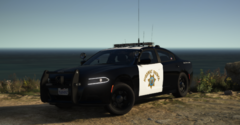
From the album: Pics from patrol
-
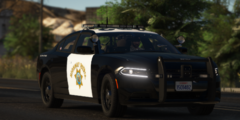
From the album: Pics from patrol
-
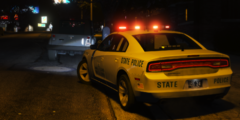
From the album: Pics from patrol
-
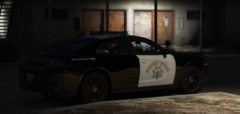
From the album: Pics from patrol
-
-
-
From the album: Pics from patrol
-
From the album: Pics from patrol
-
From the album: Pics from patrol
-
From the album: Pics from patrol
-
-
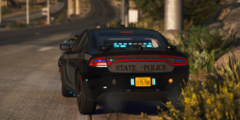
From the album: Pics from patrol
-
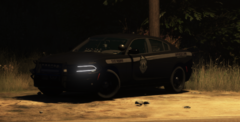
From the album: Pics from patrol
-
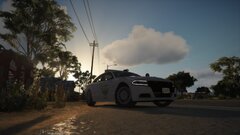
From the album: Pics from patrol
-
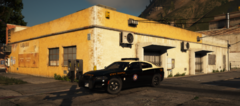
From the album: Pics from patrol
-
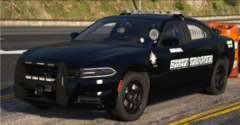
From the album: Pics from patrol
-
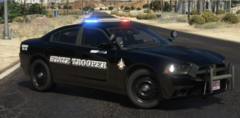
From the album: Pics from patrol
-
-
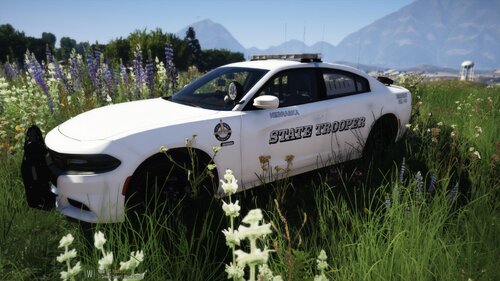 Thank you so much! There are so many states that don't have a lot of skins for lspdfr, so I decided to take the opportunity to make some lol
 -
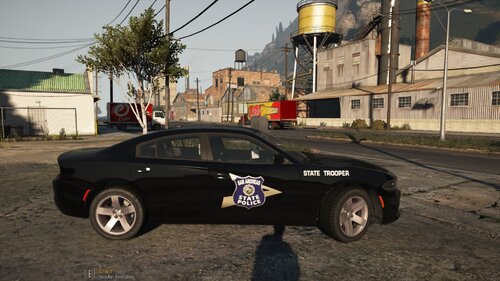 It's what the title says. These are the vehicles I recommend (sorted by pack): Marked 18 Charger Marked 14 Tahoe 14 Charger Slick top 18 Charger 16 FPIU Slick top 14 Tahoe
 -
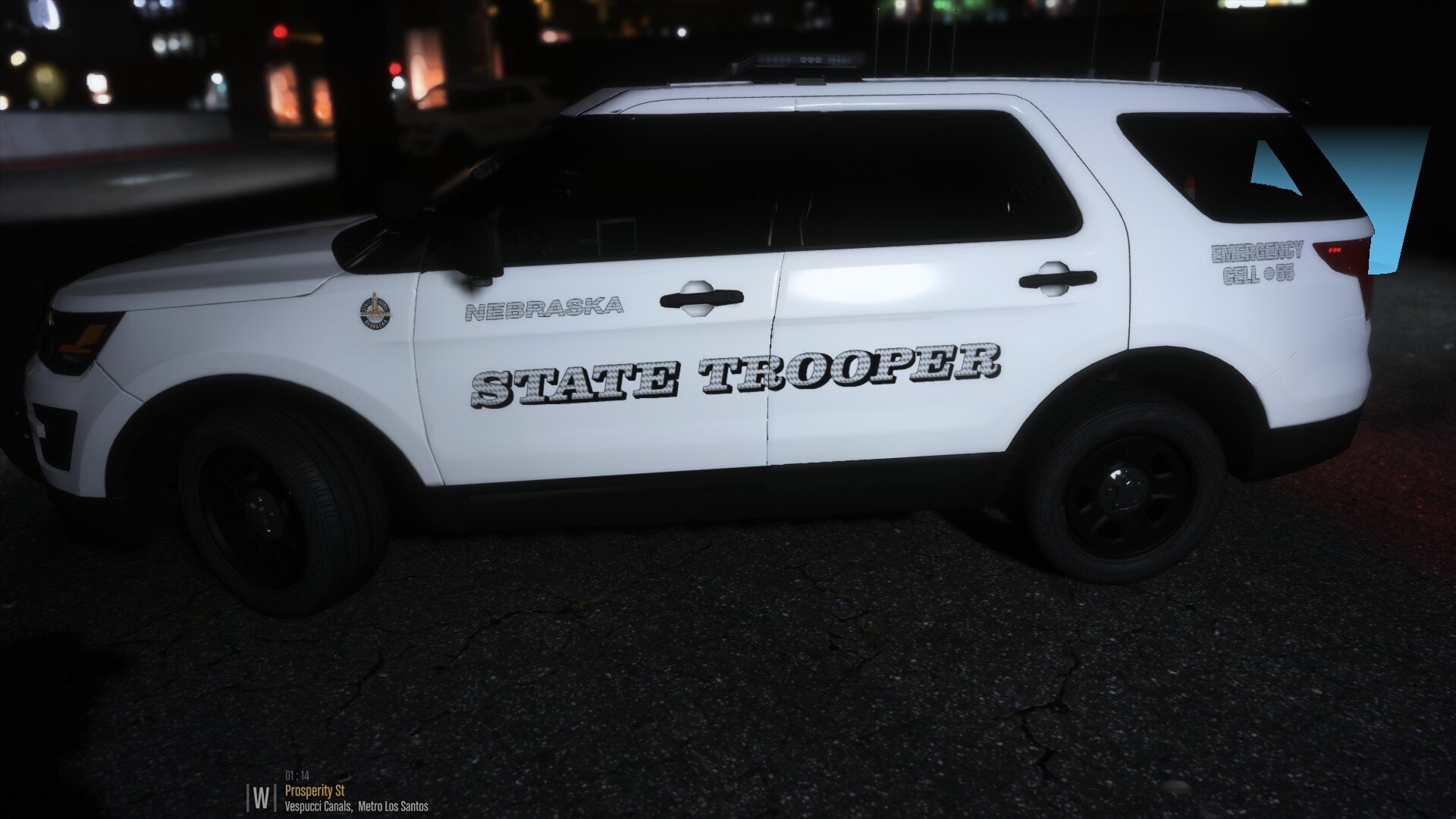
As the title states, this skin pack is not entirely accurate. The pack is based off of the Nebraska State Patrol. From the TickleMyElmo LSPD pack: 2018 Charger 2018 Ram 2013 Harley From the AST pack: CVPI 2010 Charger 2008 F250 16 FPIU 14 Charger 16 FPIS 14 unmarked Tahoe
-
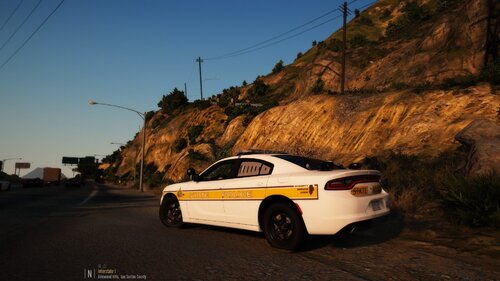 Honestly, I didn't really know what to do with the back of the charger, so I decided to separate the "State" and "Police" like they do on the back of the newer FPIU models. I thought about doing it like Vermont does the back of their chargers. (Sorry for the blurry image, but it was pretty much the only picture I could find) Also, thank you, I appreciate it!
 -
Howdy, this is my first skin, and I know there's some work that needs to be done, but I thought this would be interesting to see. This was made for the 2018 charger by TickleMyElmo.