Yard1
Friends of LSPDFR
-
Joined
-
Last visited
Everything posted by Yard1
-
@NefariousBonne and @Aquamenti will shoot themselves if they are forced to make a 90s pack xD So many models!
-
I'll PM it to you.
-
 If you have installed LSPDFR after RDE, then it has overwritten RDE's backup.xml.
- 1,524 comments
- 85 reviews
-
Try removing all trainers and scripts you have, I know for a fact that SNT has a Never Wanted Option that may be set to be always on. How chaseme works is up to LSPDFR and we have nothing to do with it.
-
-
-
I can happily help with configuring that. I know exactly which model goes where :)
-
-
1. There are too many things to note down, sorry. We wanted to release ASAP. Important things to note are: completely overhauled wanted system thanks to a custom script, integration of Arrest Warrant & Better Chases script, new agencies which spawn in correct jurisdictions (both ambient cars and peds, parked cars and during wanted levels), tons of new models and textures. 2. Maybe your trainer prevents you from having a wanted level? When you get a wanted level and nothing but helicopters spawns, make sure you have both Scripthooks and updated Microsoft .NET framework (https://www.microsoft.com/en-us/download/details.aspx?id=53344) and Visual C++ redistributable (https://www.microsoft.com/en-us/download/details.aspx?id=48145) 3. We have provided a Simple Native Trainer config file which adds all of the added vehicles to Custom Spawning menu. In order to obtain the names of vehicles, use OpenIV and go to mods\update\x64\dlcpacks\rde\dlc.rpf\x64\levels\gta5\vehicles\rdevehicles.rpf (similar paths for rdesheriff, rdefbi and rdeemergency) and look at the file names - they are the names you want for the console. 4. They are quite rare, you might have been unlucky. 5. Ignore, doesn't mean anything.
-
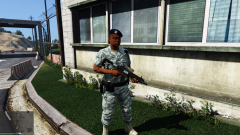 It's included in Realism Dispatch Enhanced 3.0 and above.
 -
-
-
 Well, if you expose the models present in each scene to XML, I'll be happy to change it so that RDE's peds and models are used where appropriate. It's just strings, yeah (eg. lssheriff instead of sheriff). Just so we are clear, the actual models would be spawned by your plugin, but their name should would be taken from the XML config file.
- 166 comments
- 75 reviews
-
-
-
-
-
The order doesn't matter, but if you had the newest Scripthooks, those errors would not show up. Also make sure to install those two things, which are required for Scripthooks to work: https://www.microsoft.com/en-us/download/details.aspx?id=53344 https://www.microsoft.com/pl-pl/download/details.aspx?id=48145
- 1,524 comments
- 85 reviews
-
Those errors are caused by not having the newest versions of both Scripthooks.
- 1,524 comments
- 85 reviews
-
Hey man, great pack! Would it be somehow possible to expose the models that spawn at each location (ped and vehicle) to an XML file? I think it would be great if people were able to set what kind of units spawns where - it would allow for the plugin to take advantage of Realism Dispatch Enhanced's vehicles and peds (SAHP, BCSO, LSSD, etc.) in their correct jurisdictions.
- 166 comments
- 75 reviews
-
-

- 1
-
-
-
-
-
-
If the mod works anyway, ignore that notification, it shows up every time you reload scripts.
- 1,524 comments
- 85 reviews