



londonrials
Members
-
Joined
-
Last visited
Everything posted by londonrials
-
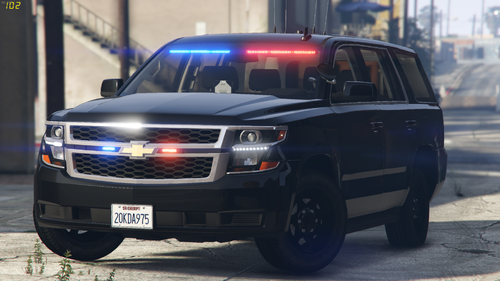 This is a pretty nice FIB pack. 🚗 😀 Please note this review will not include feedback on the crown vic, as I did not intend to use that vehicle only the tahoe. First Impressions: Just by looking at it in game, I can see that the tahoe had a pretty nice interior. No disrespect to other vehicle modelers. Everyone works hard and deserves at least a thumbs up and a cookie. But the reality is that not every car model on this website has a good or even a finished interior but this pack does! I love how the computer is positioned and its raised height compared to the seats. The style of the turn signals is a favorite of mine too. Things I Would Change: Only reason I gave this car model pack a 4 star instead of a 5 star is because of a few different things. Nothing too major, just quality of life features that I would've loved to see within the tahoe. First thing is that I didn't like too much that there wasn't some good extras. Personally I feel like the availability to turn on and turn off certain extras based on what and how you're on duty, can really make the roleplay seems that much more fun. For example, with the tahoe if I could add a rambar to it, I could use it as a SWAT SUV. If I could toggle off the antennas on the roof, I could just use Simple Trainer to change the color and use it as a deep deep undercover vehicle. I hope what I'm saying is making somewhat a dent of sense. With this second thing it's more of a suggestion rather than "an opportunity you missed" like how the last one was. With defaut solid black vehicles like these, I feel like blue lights would look so nice on them. I see the last few comments was in 2020 so I doubt you're still working this is specific model but if you are consider some ELS blue light file options. It'll make things really POP and make those night time screenshots look marvelous. Last thing I do what to say is that I wish there was some type of stuff in the trunk. Granted I'm pretty sure IRL FBI agents or anyone who would realistically use an unmarked tahoe wouldn't have traffic cones, and other traffic tools like regular plain clothed officers would BUT I do wish there was something back there. Like maybe an small AR rack with some heavy duty storage boxes (references: https://media.tractorsupply.com/is/image/TractorSupplyCompany/1090993?$456$ OR https://target.scene7.com/is/image/Target/GUEST_5e7959f2-a908-493a-acf4-f8d1d318affe). Doesn't have to be a gun rack or storage boxes. I just want something that makes it feels like the tahoe is alive and didn't just get bought and customized by the department 2 weeks ago. With all of that said and done, like I said in the start this is a good pack. Only reason I didn't use the crown vic is because I found a charger I liked from another pack that I used instead for the FIB slot. Otherwise, I would've used this entire pack up!! Thanks for the hard work on this vehicle pack and I hope you take care ❤️.
- 19 comments
- 6 reviews
-
-

- 1
-
-
This was actually super helpful. Thanks Dehnzer! I was planning to post a few different tutorials since I only posted one like almost 2 years ago but what I think I'm going to do is have a simple computer things tutorial for stuff like clicking more than one file, how to make backups, where to find the root folder, pinning folders, etc. As Well as one for common requirements and where to install them like OpenIV, RageNativeUI, Scripthook, etc. Then when I do make the actually tutorials I'll briefly shoutout those videos with links in the description.
-
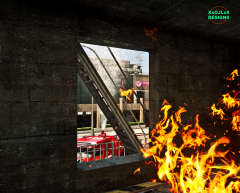 W framing! Really nice photo.
 -
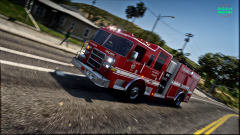 Nice textures. Ever thought about having a Los Santos variant of this same texture?
 -
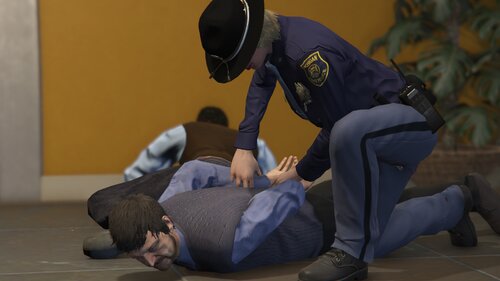 Nice callout ideas. Can't wait to try. I'll wait until some of the known fixes are fixed to write a balanced review on this callout pack.
 -
 Looks pretty promising! Very interested to try this and input in my LSPD duty routines.
- 238 comments
- 24 reviews
-
 Can't wait to download, install, and use this! This seem like a nice callout pack and ai theme. It's original as far as I know of, and I just can't wait to play with it. I'll post my review after a week of usage ❤️
- 346 comments
- 42 reviews
-
 This pack looks very promising. Downloading it right now, after a few days of usage I'll post an actual review including the pros and cons.
- 161 comments
- 24 reviews
-
-
-
-
-
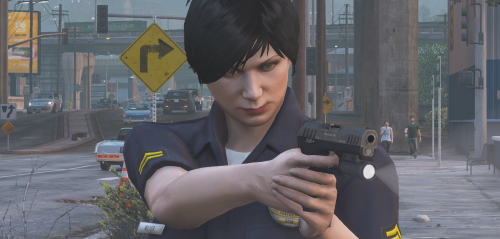 Outfit not included.
 -
𝐈𝐧𝐬𝐭𝐚𝐥𝐥 𝐈𝐧𝐬𝐭𝐫𝐮𝐜𝐭𝐢𝐨𝐧𝐬 1. Proceed to your Grand Theft Auto V root folder. 2. Click on the 'lspdfr' folder. 3. Go inside the 'chars' folder. 4. Drop and drag both the .bak and .ls (aka the two files included in this download) into 'chars'. 5. Start your game up (or restart if you never turned it off) and have fun!
-
-
-
-
-
-
-
-
A blocked off truck crash.
-
-
-
-




