bakerxgooty
Members
-
Joined
-
Last visited
Everything posted by bakerxgooty
-
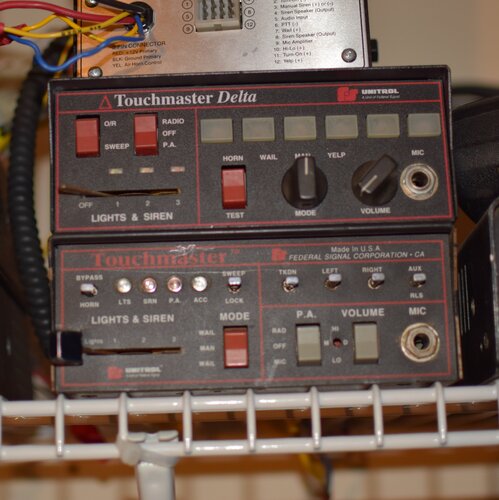
 It wont crash the game at all as long as you're putting it in he right file path
- 21 comments
- 7 reviews
-
-
-
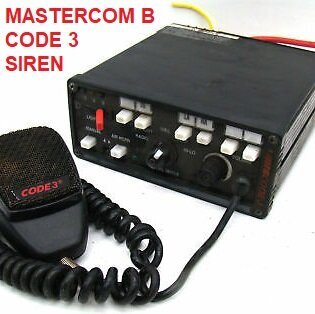
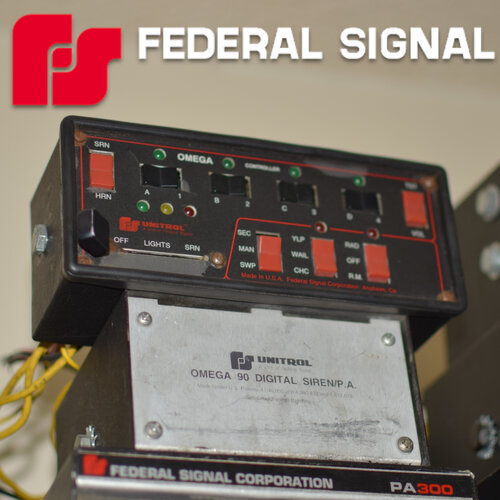 I made the siren but I don't give a shit if you use them on a twitch stream that's what they're for. To enjoy and use. Just dont reupload them taking credit, I find those people very easily.
- 36 comments
- 7 reviews
-
-
-
-
-
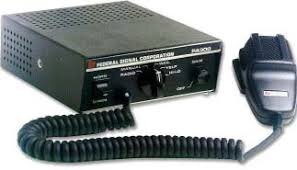 Where'd you get those tones from ? They sound awfully familiar. Tell me why these tones are the IDENTICAL tones I studio recorded with my real life siren here.
 -
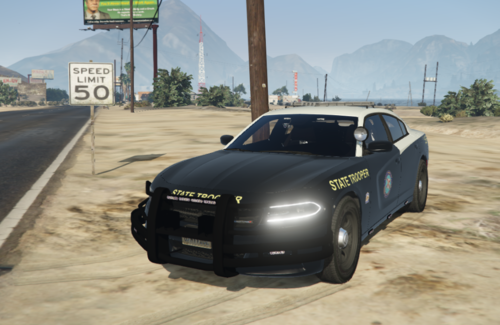 Did you actually repackage the Vcon tones.....
 -
-
-
-
-
-
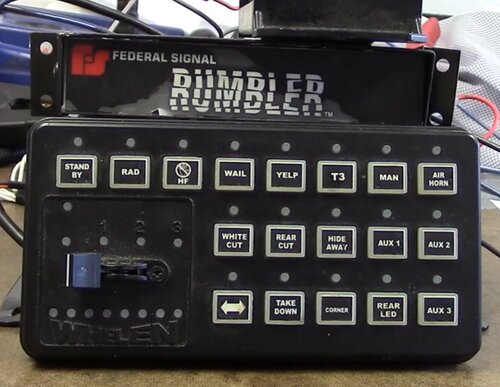 You can swap it with any tone you like. I believe that was for a size restraint on the file. Just make sure you name it the exact name.
- 14 comments
- 3 reviews
-
-

- 1
-
-
-
-
-
-
-
Yup, swap out the rpf and you're good to go. You can even swap out the RPF in the mods folder for LSPDFR.
- 36 comments
- 7 reviews
-
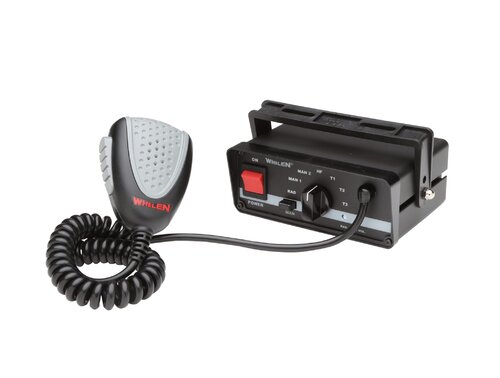 They aren't and he keeps messaging me to upload my stuff too. Getting tired of these people man....
 -
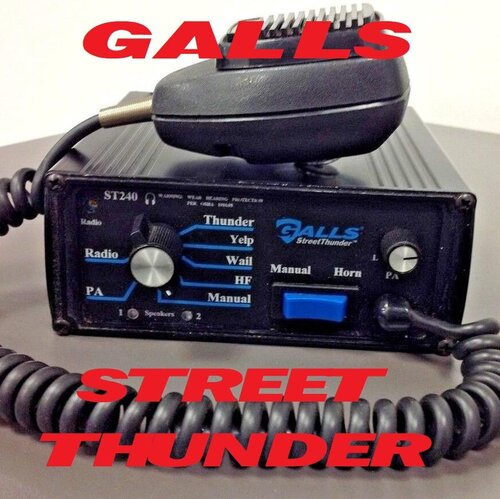 Click the twitch logo in the corner, its this website that all of a sudden had problems with the clips.
- 18 comments
- 2 reviews
-