RHefo96
Members
-
Joined
-
Last visited
Everything posted by RHefo96
-
-
 I've installed this mod via install instructions and any police car driving around the city or me calling back up they are stuck it's like the animation they are running our of fuel and the car just nudges small millimetres at a time
- 366 comments
- 32 reviews
-
@Albo1125 I have to say watching your stream earlier made me do this....Being from Ireland it gets me closer to Garda but yet people over here only develop attitudes not this type of stuff! Thank you for the inspiration!
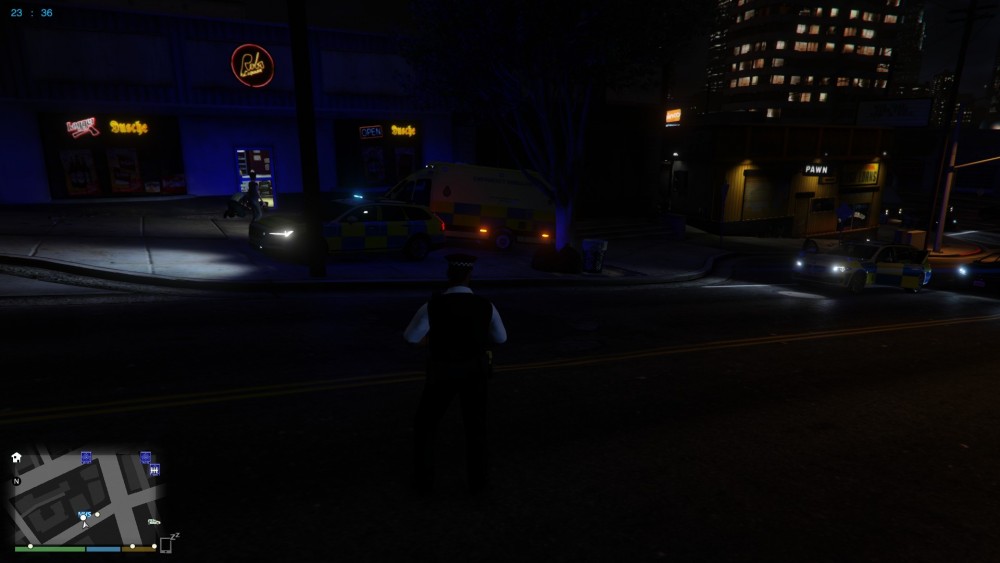
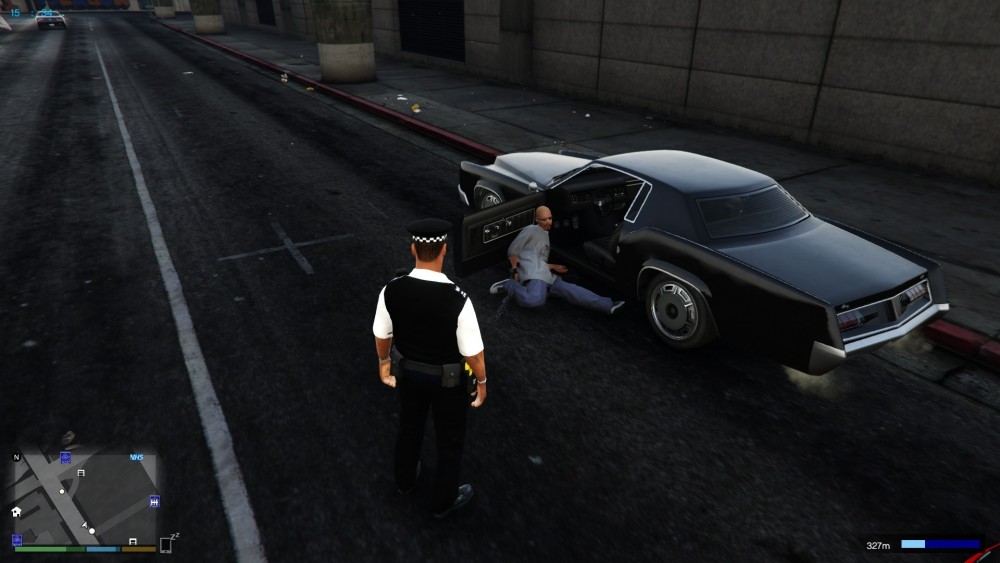
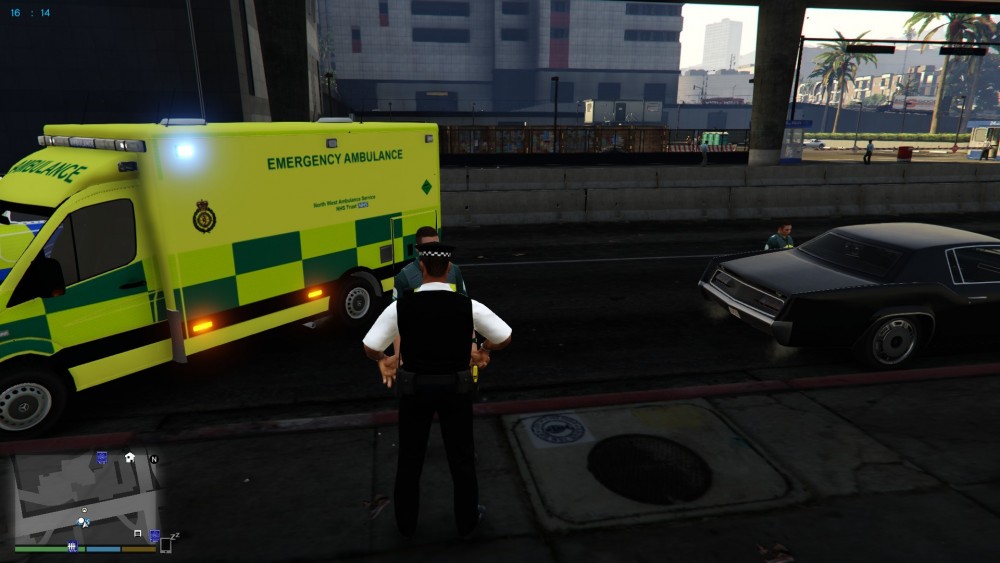
-
-
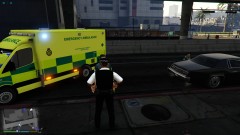
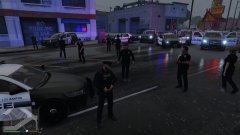
From the album: 0.4 says it all
-
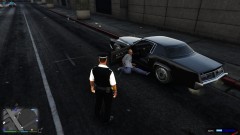
From the album: 0.4 says it all
-
From the album: 0.4 says it all
-
try re-downloading and installing make sure that you don't copy the SDK and Licenses folder over if you have delete them
-
Nope it has always been Pack Default Folder 🙂
-
Make sure Anti Virus is off and if that cannot fix it try these steps.
-
Your welcome @pulma35
-
Make sure the XML files you get with the vehicles are in the ELS>Pack Default Folder
-
http://www.dev-c.com/gtav/scripthookv Download and install, Should work fine.
-
No problem 🙂 Glad it all worked itself out for you.
-
install this. it will show up then once you follow the guidelines. If problem persists with vehicle try changing to a different model I am currently using this pack here and Police4 works perfect no bugs. I also have changed a couple of the vehicles to make them an addon by watching Albos videos if you have got the time to spare and mess around with things. Also note when you install the EUP settings any vehicles you want certain Agencies to use follow this file path and edit the Agency.xml file in here E:\Steam\steamapps\common\Grand Theft Auto V\lspdfr\data\custom
-
Try putting the replacement vehicle files into Patchday19
-
@boomer2840 Have you installed any addon vehicles lately?
-
Ai cops have badges for me, Please click the link here ^^
-
Step1. Load up GTA5 Story mode without RageHook being loaded. Step2. Walk around for about 5 seconds so the game is fully loaded. Step3. Minimize your game and double click RageHook. Step4. Go back into your game as soon as you click on RageHook. Step5. Enjoy LSPDFR. If I launch my game through RageHook I get a crash all of the time. If you do it my method it should load for you.
-
I too have same problem it say's the activation key is Space Bar but it does sweet absolutely nothing for me.
-
Load up your game into Story mode. When you spawn in walk around for like 5 seconds then tab out and double click rage hook. Tab back in and let it load, you shouldn't crash after that. I have same issue
-
Add your GTA folder to Exceptions on your Anti-Virus, If problem persists try running without any applications or files from your gta folder open in i.e Notepad etc.
-
Add GTA Root folder to your Exceptions on your Anti-Virus, If that does not work try heading to Rage Discord which you will find on they're website
-
add your GTA root folder to Exceptions on your Anti-Virus if that does not help try turning off your Anti-Virus.
-
I have added the vehicle spawn names into the Agency.xml file and they still ain't responding as back up, I also spawned the vehicles in via trainer and they spawn there no problem. They also don't spawn in the garage when selecting a vehicle --UPDATE-- I solved the problem, So I was changing the settings in the standard Agency.xml, I forgot about the custom one from the EUP settings, so I went in the put in the spawns names for the vehicles under SAHP as police6 & police7 and long behold the cars spawn with back up and I can select in pd garage now as well!! A+