
RoguePlus
Members
-
Joined
-
Last visited
Everything posted by RoguePlus
-
 ah ok no worries cant w8 to use it :)
 -
ooooohhh looks nice :) just my opinion here, but would it be possible to place a light bar on the front of the "box" like this?
-
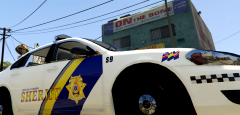 looks really nice
 -
-
-
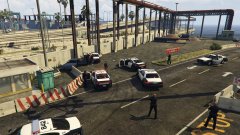
From the album: Rogue's Photos
-
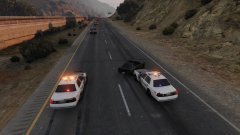
From the album: Rogue's Photos
-
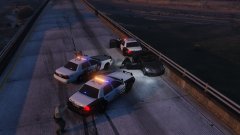
From the album: Rogue's Photos
-
From the album: Rogue's Photos
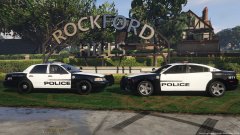
Made some LVPD based skins for LSPD. Testing the skins to see if they work for the city aspect. -
-
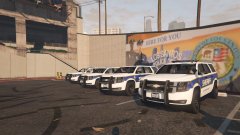 Cant wait to use / make a skin, About time a 2015 tahoe with a lightbar. Good job
 -
From the album: Rogue's Photos
-
From the album: Rogue's Photos
-
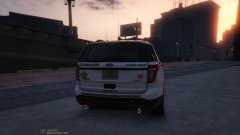
From the album: Rogue's Photos
-
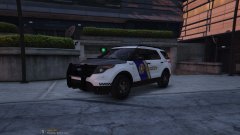
From the album: Rogue's Photos
-
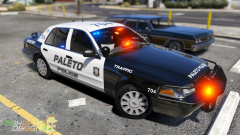 ah ok, looks really nice.
 -
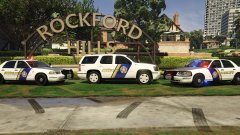 ya when I was looking on google the hood looked gray but im using the real skins as a base and not ment to be a 100% replica. Plus im not from BC so I dont see of them driving around lol. Thanks, glad you like it
 -
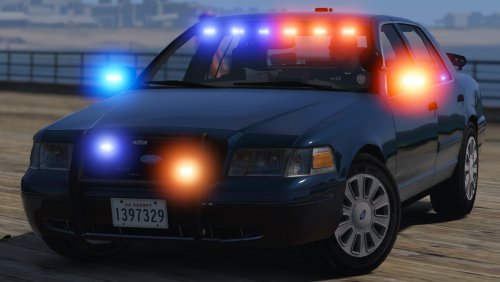 Damit!! I have all my slots filled then another awsome car comes out and now what do I replace? lol I will try and make some of my cars addon's now.
- 70 comments
- 26 reviews
-
From the album: Rogue's Photos
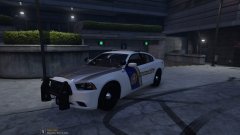
Really happy how these came out -
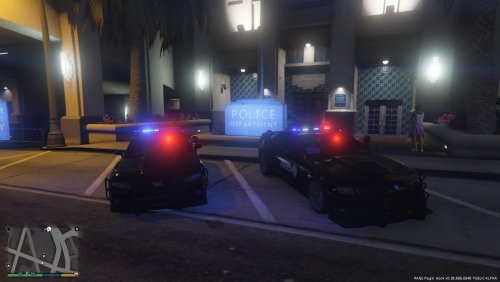 yes, it will make the car look more sleek and the push bumper will not stand out as much. I really think its up to you, but you could try and make it a addon. (if you know how to do that)
- 19 comments
- 3 reviews
-
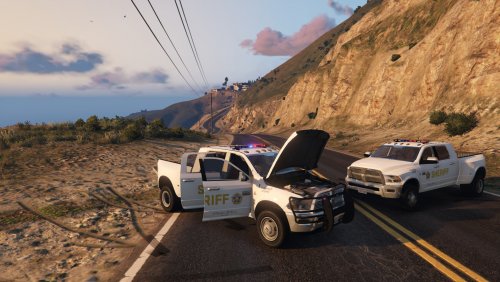
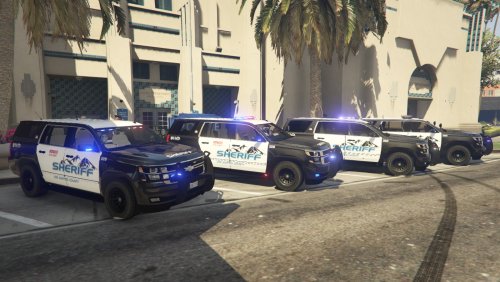
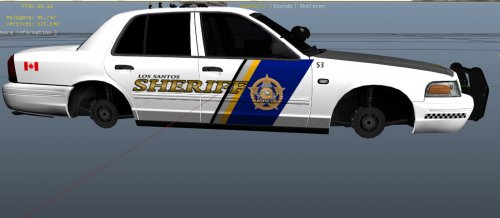 This skin is bassed off the New Britsh Columbia sheriff cars but with a LSSD theme Skins for other models will come when I have time. ENJOY:) NOT FOR REUPLOAD | PERSONAL USE ONLY
 -
np :) the spliter is the part that is under the front bumper. It provides down force to the front of the car.
- 19 comments
- 3 reviews
-
looks kool, but the push bumper looks out of place with that big of a spliter.
- 19 comments
- 3 reviews
-
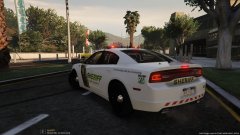 when I get some time I will be making another one to looking like this one but its the new BC sheriff's.
 -
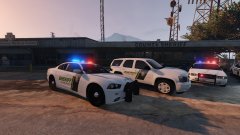
From the album: Rogue's Photos