
RoguePlus
Members
-
Joined
-
Last visited
Everything posted by RoguePlus
-
 Nice! I'm googling some security firms now :)
 -
I'm on it good sir!
-
-
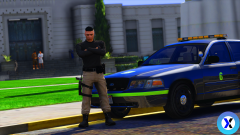
 Every criminal is kinda like a trophy once you catch them. lol
 -
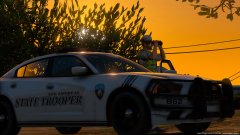
From the album: Skins Showcase
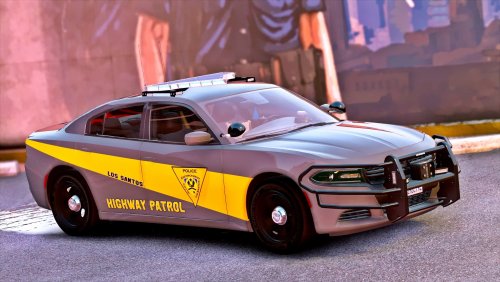
State Trooper concept, What do you think?? -
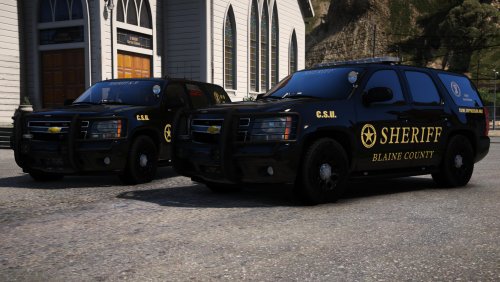
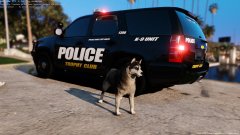
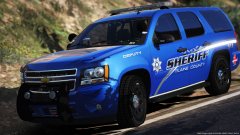 Hot Dam, a Tahoe with the proper push bumper!!. And options for w/ side runners and w/ out?
 -
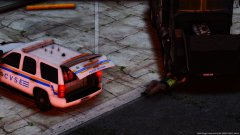
From the album: Skins Showcase
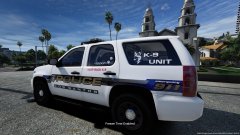
Based on British Columbia Commercial Vehicle Safety & Enforcement with San Andreas Theme. Tahoe By: Grump© NSD
-
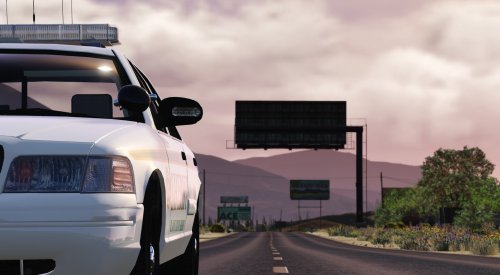 I will admit this car looks awsome, even though im not a big fan of the freedom lightbar. Awesome work my man.
- 21 comments
- 15 reviews
-
-

- 1
-
-
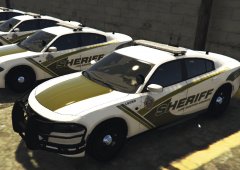 Very unique skin good JOB ¦-)
 -
-
-
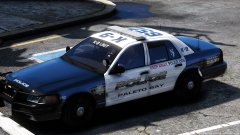
 The realism is getting closer and closer. Awesome work
- 42 comments
- 13 reviews
-
-
- 1
-
-
From the album: Skins Showcase
© NSD
-
-
-
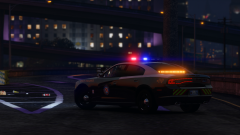 Have no fear, a state trooper is here!
 -
-
 You are a life saver! I can finally have the flashlight on while I use the traffic stop menu. Kinda like a real cop using his armpit to hold the flashlight.
- 60 comments
- 20 reviews
-
-
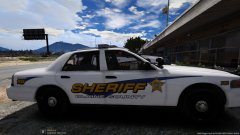
From the album: Skins Showcase
© NSD
-
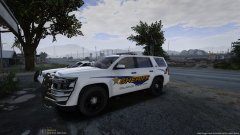
From the album: Skins Showcase
© NSD
-
-
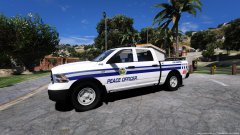 You have no idea! I LOVE THIS TRUCK!! I do think it needs some more parts but apart from that its my favorite model on here!
 -
From the album: Skins Showcase
I still have to scale"Peace officer" on the door and add "City of Los Santos" to the box.© NSD
-
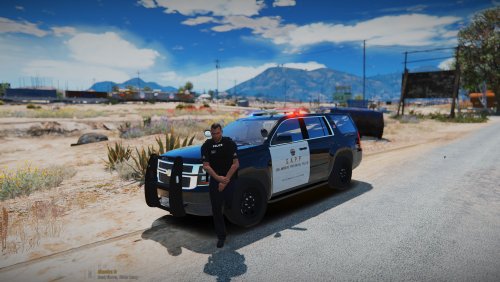 Cool idea