


Jetski343
Members
-
Joined
-
Last visited
Everything posted by Jetski343
-
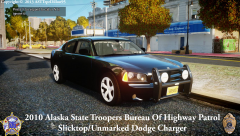 Looks really nice!
 -
Same here!
-
It's really amazing how far LCPDFR has gone..from that to this... http://www.youtube.com/watch?v=COsxvcT6nnU ...just really cool.
-
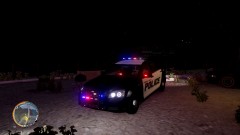 Where could I find that skin?
 -
So, Yeah, How did you find out about LCPDFR? Who brought you too it, showed you, or just how did you find out about it? Me: I started out watching xaPKPax's video's and then started playing LCPDFR. (After way to many computer upgrades) When xaPKPax stopped making videos he mentioned a guy called BayAreaBuggs. Turns out that his channel would become a big success and I have been a fan of his videos as well as all of the other CodeZer0 Gaming members. So ultimately it was xaPKPax that got me into LCPDFR. Also I would like to thank all of the G17 Team and all of the modders out there for making GTA IV into so much more of an adventure! (I know that there is another Topic like this, but it's over a year old and closed now)
-
-
Sweet! Here's a model. -
-
Yeah, That's what I'd like to see, so you can point it out the window.
-
It might be a challenge to make but what about a script similar to Sniper296's GTAPolcingTools radar gun. But be able to sit in the car and run radar out the driver side window.
-
The Police and Police 2 are for the spike strip. I haven't tried the BOOT yet so I don't know about that. Remember, this is an Alpha, which means it has bugs and glitches.
-
For the Boot- Try doing what it says in the GTAPolicingTools settings. BOOT] ModifyKey = Alt ToggleKey = Space PlaceKey = Q The mod is in alpha and it is now to have bugs.
-
Iv'e tried it with a lot of different numbers. I would just refer to what Beckugan1 said. I have the same issue.
-
Nope in the ELS.ini it look like this. FlashDelaySP = 1 // Flash speed delay for ELS lights in SP (in milliseconds) / higher is slower FlashDelayMP = 0 // Flash speed delay for ELS lights in MP (in milliseconds) / higher is slower Just edit the MP one.
-
I have the same issue. I tried making it slower in The ELS.ini but it didn't work.
-
-
-
Yeah, I just don't know witch one?
-
Does anybody have a guess what this siren could be?
-
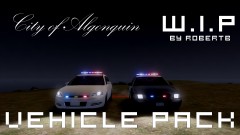 Are the Impala tail lights going to alternate flashing between the brake and reverse lights?
 -
Try this one. http://www.weebly.com/ Here's an example of what it can look like. http://azves.weebly.com/ (I'm not trying to advertise,The website is just a good example.
-
These contests are cool! If you plan on doing more I would suggest to keep the custom car option.
-
Ok, So I found a few different posts about people having this same issue. A simple restart of my computer fixed it. I'll send over a +1 for you. Other posts-
-
Thanks for finding that. I also found another issue. The trainer works fine if keys are enabled. But as soon as I disable keys it starts flipping out.
-
Thanks, I'll try that. Do you happen to know where I can get 6.4? I cant seem to find it anywhere.
-
Every time I start up GTA my trainer starts acting up. The map flashes red and it says "No Car Found" on the lower part of the screen. I'm using this trainer- http://www.gtagaming.com/downloads/gta-iv/script-mods/2115 It worked fine about 20 min. ago. Then I exited game and got back in a few minutes later and it started do this. Any help would be greatly appreciated. Thanks, Jetski343 - I have re installed the trainer multiple time. SOLUTION- Just restart your Computer


