


Creators: Due to background reprocessing of files, approvals and file security checks may be delayed. Thanks for your patience.

Jetski343
Members
-
Joined
-
Last visited
Everything posted by Jetski343
-
-
Either the six core or the four core. Depends on what you want to do with them. (gaming, video editing...)
-
-
EDIT: Post deleted..Nevermind
-
Yeah, wouldn't surprise me either....
-
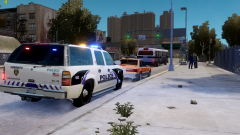 Strobes in the tail lights?
 -
Off Topic: Did my "Are you kidding me" meme face get removed by a moderator?
-
A Year or Two ago with GTA IV for PC. I bought GTA IV just for LCPDFR!
-
I think I might start doing that with the Popular modders such as EVI, KevinDV...so on, good idea. About the lights, I use this- http://gtapolicemods.com/downloads.php?do=file&id=3 with EVI's cars to make the lights brighter.
-
http://www.gta4-mods.com/weapons/swat-issued-weapons-f15011
-
I checked on GTAmoddingchest (original release) and It was not there. I'm guessing he deleted the file.??
-
They look nice! One tip would be to clean the cars using your trainer, then take pictures. It will give the finished product a much better presentation.
- 6 comments
- 2 reviews
-
-

- 1
-
-
Looks like a Whelen Liberty.
-
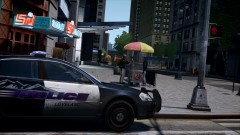 Looks GREAT! Skin made by my self! Nice shot!
 -
Hope you get some help!
-
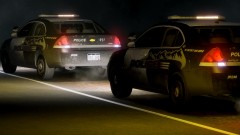 Looking really good! Thanks
 -
![[WIP] Loveland Police Department](//s3-gallery.int-cdn.lcpdfrusercontent.com/gallery/album_1328/sml_gallery_3938_1328_23995.jpg) Yep, 911EP Galaxy
Yep, 911EP Galaxy -
Yes , It will make it run smoother. Just a few suggestions(really up to you) http://www.newegg.com/Product/Product.aspx?Item=N82E16814127725 http://www.newegg.com/Product/Product.aspx?Item=N82E16814121632
-
No problem, whats your budget? That's what it depends on.
-
Yes, upgrade your graphics card.
-
-
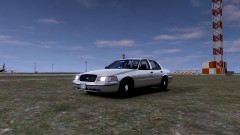 Looks Good!
 -
No problem!
-
Here you go! - http://www.4shared.com/get/3ZBRHZ8H/2011_ford_police_interceptor_v.html;jsessionid=B7D7929CFCA254CFD77379F2400DEAF2.dc323
-
Any ideas?

![[WIP] Loveland Police Department](http://s3-gallery.int-cdn.lcpdfrusercontent.com/gallery/album_1328/sml_gallery_3938_1328_23995.jpg)
