GTAIVCode3
Friends of LSPDFR
-
Joined
-
Last visited
Everything posted by GTAIVCode3
-
1. Lab 2. German Sheppard. 3 IDk
-
that's a +1
-
'?do=embed' frameborder='0' data-embedContent>>
-
Not as funny as NB. hehe
-
This is awesome
-
Just get the normal one unless you want the story line for EFLC. You can get the added cars for EFLC and put them to the regular IV
-
Do you have trainer? if you do disable the trainer keys in the options
-
You using the latest patch?
-
-
Taser
-
Make sure you are using the latest patch
-
Haters gonna hate
-
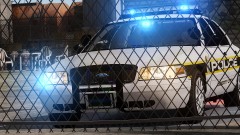 Stellar picture. Love it
 -
Kinda that and there are also just countless clans of 1 or 2 members
-
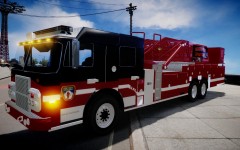 I do not think it is released yet
 -
please delete
-
I have one on these Jk i actually have this iphone 4s
-
-
You should come to Chatham next year. My dads a firemen and we throw a GIANT 4th
-
SAPDFR is not hosted on LCPDFR. You will find better support on their website then you will here
-
I play online
-
This has been recently updated by Rockstar
-
Here is the information. Some Information about PC is in there. I do not take credit for any of this. Source: http://www.rockstargames.com/newswire/article/50871/asked-answered-gtav.html
-
This one http://gtapolicemods.com/downloads.php?do=file&id=592
-
arnt we all. As Sam said he wants to have like a cop engine then have scipts like bravehearts and police helper play a role to. Try using some of those scripts. It's fun