


Rich Sobilo
Members
-
Joined
-
Last visited
Everything posted by Rich Sobilo
-
ummm that is the correct model, you just have to change the flash pattern to your liking, that tahoe is part of the NYSP Pack correct?
-
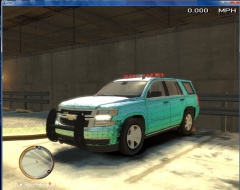 Thanks I will fix the ram bar, didnt realize it should go all the way up! And yes im going to put the ppv rims on it, thanks for the heads up.
 -
Sadly I havent seen a 2015 yet, so its scaled to fit the truck best.
-
-
From the album: New York State Police
NYSP Takes a look at the 2015 Tahoe, they are in the talks of replacing all the older Tahoes. ~Not For Release NYSP Clan Only~ -
From the album: New York State Police
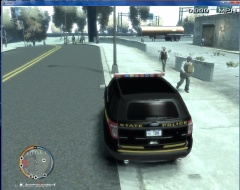
NYSP First Marked FPIU hits the street as a pilot program, Troopers will leave there feedback and if its positive, they will complete the vehicle. ~Not For Release NYSP Clan Only~ -
From the album: New York State Police
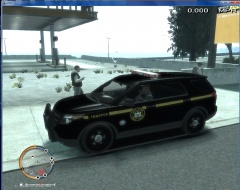
NYSP First Marked FPIU hits the street as a pilot program, Troopers will leave there feedback and if its positive, they will complete the vehicle. ~Not For Release NYSP Clan Only~ -
From the album: New York State Police
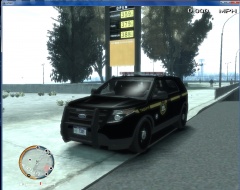
NYSP First Marked FPIU hits the street as a pilot program, Troopers will leave there feedback and if its positive, they will complete the vehicle. ~Not For Release NYSP Clan Only~ -
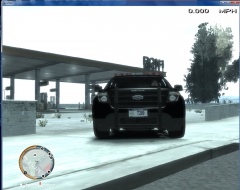
From the album: New York State Police
NYSP First Marked FPIU hits the street as a pilot program, Troopers will leave there feedback and if its positive, they will complete the vehicle. ~Not For Release NYSP Clan Only~ -
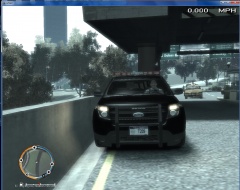
From the album: New York State Police
1st Trooper testing this unit parked outside the Toll Bridge. Looking sharp! ~Not For Release NYSP Clan Only~ -
 They are not, at least I haven't seen them! My clan has all of these! If your interested in joining!
 -
There was a unreleased version of PoliceHelper that had warrants on it!
-
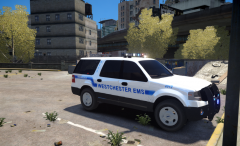 very nice job! Deff should release!
 -
whos base model is that?
-
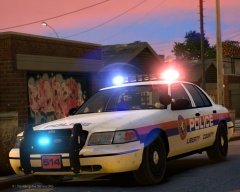 Anthony? I worked for his dad!
 -
Get out!! I used to work for No Limit in Island Park What part?
-
What part? Im from LB
-
![[WIP] TSFD Pack V2.1](//s3-gallery.int-cdn.lcpdfrusercontent.com/gallery/album_722/sml_gallery_3386_722_236042.jpg) since you are not releasing these, will you be releasing the white ones?
since you are not releasing these, will you be releasing the white ones? -
If the head light is flashing on ELS 7 car, it will work but not the correct way, because ELS7 headlights are an extra not a corona! So your best bet to to turn off the corona for the head lights or find a ELS8 car to use! Hope this helps!
-
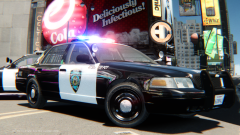 I agree, great job, clean... a whole pack would be very fitting! I would like to see what the ESU Truck would like! LOL!
 -
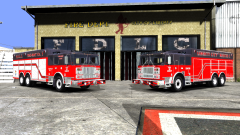 "The Big Red Train" Nice man!!
 -
NYSP Clan has them, Marked and Slicktop
-
I havent done it yet, but couldnt you just make the dirt.png a clear transparent texture? Then it wouldnt show up? IDK just my idea.
-
Keep it up! I use this on my Tablet and to me it works just fine! Love this whole thing!
-
![[WIP] PHFD V1.0](//s3-gallery.int-cdn.lcpdfrusercontent.com/gallery/album_722/sml_gallery_3386_722_237623.jpg) I am a walk-in rescue type of guy! BUT, that my friend is something we dont have and pretty excited to see both units! Will you be doing a Truck Company as well?
I am a walk-in rescue type of guy! BUT, that my friend is something we dont have and pretty excited to see both units! Will you be doing a Truck Company as well?


![[WIP] TSFD Pack V2.1](http://s3-gallery.int-cdn.lcpdfrusercontent.com/gallery/album_722/sml_gallery_3386_722_236042.jpg)
![[WIP] PHFD V1.0](http://s3-gallery.int-cdn.lcpdfrusercontent.com/gallery/album_722/sml_gallery_3386_722_237623.jpg)