


.png.2f115a38dd269531ea6c38f28604d1fe.png)

Michael Vavere
Members
-
Joined
-
Last visited
Everything posted by Michael Vavere
-
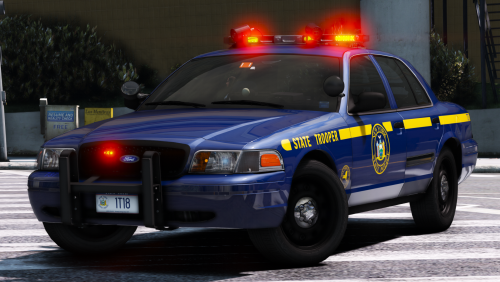 This is my favorite pack thank you for putting the time in to make this. When I installed the addon the unmarked Tahoe was missing a VCF file.
- 125 comments
- 51 reviews
-
-

- 1
-
-
 I love it and I had another question what car was that in the video I really love that car too
- 30 comments
- 15 reviews
-
Hello, I Currently am apart of ocrp so my gta5 installation is made for the fivem side of things and if I have LSPDFR installed in the same location it wont allow me to connect to fivem. I have tried just copying the base game into another folder and the launcher works but it makes me log into social club and when I try to log in it says there was an error with steam.
-
I’m having an issue with studdering
-
-
-
 I reinstalled computer+ and now its working idk what the dea was I checked my ini before and it was set to true for display image
- 1,743 comments
- 172 reviews
-
-
I need help I cant get ped images or vic images to show up maybe im doing something wrong
- 1,743 comments
- 172 reviews
-
-
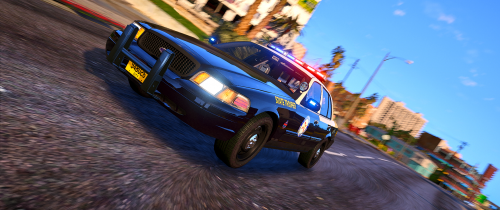 Ive been having an issue with the vic the middle section seems to not exist I can walk right through my car. but I bet its something on my end
- 58 comments
- 8 reviews
-
I recently downloaded a model with a black light bar I have set diffuse tint to 0x00FFFFFF and have also tried cleaning the vehicle and nothing seems to work.

.png.57a6f9ef98563d3d4e0bb3e39fad5d1d.png)
