


Tactical Donut
-
Joined
Everything posted by Tactical Donut
-
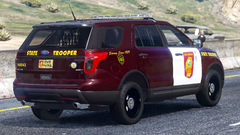
From the album: [WIP] Minnesota State Patrol Rework
-
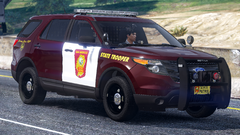
From the album: [WIP] Minnesota State Patrol Rework
-
 Add it to the texture browser and set the “black” material to use it
 -
Use this specmap
-
I would recommend just doing the LODs up to and including L2. OfficerUnderwood did that for his 2014 Tahoe and 2016 FPIU bases so I wouldn't imagine people would get pissy about that. It's less work for you and a quicker release for the rest of us. Edit: Could you also consider maybe changing the light emissives since they're extremely bright (i.e. blobs of light)? I've already fixed the center screen and gauge ones but the front headlights/DRLs are also super bright as well. Thanks!
-
Great vehicle with some minor issues (minor enough I fixed them myself): Exterior black parts display as completely chrome in-game because of the specmap Dials are horribly UV-mapped so they clip through stuff Gauge texture is flipped Trunk is reversed on the template Screen is extremely bright Gauge emissives are extremely bright And one major issue: No LODs
-
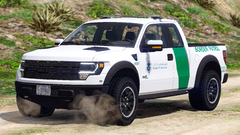
From the album: [WIP] Department of Homeland Security Mega-Pack
-
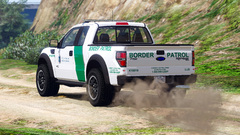
From the album: [WIP] Department of Homeland Security Mega-Pack
-
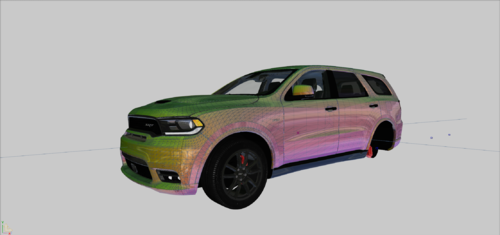 Looks great! Out of curiosity though, what bugs did you fix from the original? That way I can decide whether I should replace the Durango in my PPD pack with this one or just leave it. Oh, and please quote me in your reply because I'm not following this topic.
 -
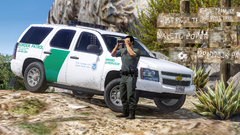
From the album: [WIP] Department of Homeland Security Mega-Pack
-
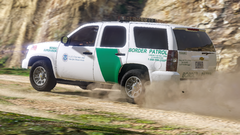
From the album: [WIP] Department of Homeland Security Mega-Pack
-
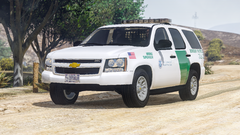
From the album: [WIP] Department of Homeland Security Mega-Pack
-
-
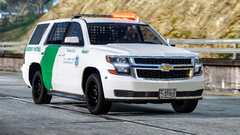
From the album: [WIP] Department of Homeland Security Mega-Pack
-
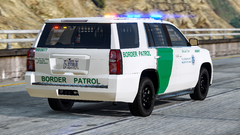
From the album: [WIP] Department of Homeland Security Mega-Pack
-
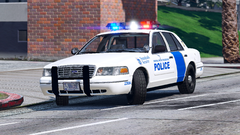
From the album: [WIP] Department of Homeland Security Mega-Pack
-
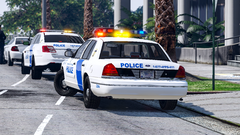
From the album: [WIP] Department of Homeland Security Mega-Pack
-
-
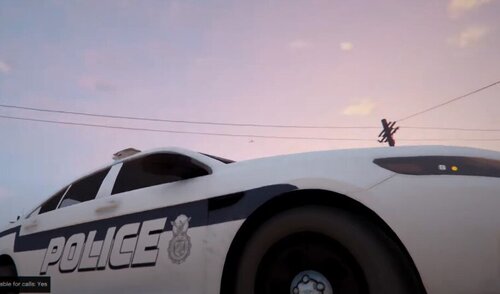 fyi both vehicles are mid-size sedans so they should use the G11 license plate classification. I wouldn't usually say something but judging by the description and the fact you included real-life reference pictures tells me you're going for accuracy.
 -
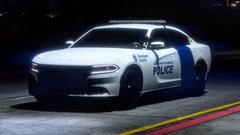
From the album: [WIP] Department of Homeland Security Mega-Pack
-
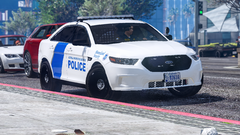
From the album: [WIP] Department of Homeland Security Mega-Pack
-
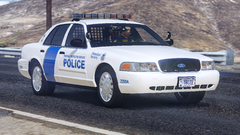
From the album: [WIP] Department of Homeland Security Mega-Pack
Special thanks to 0taku for the new Freedom base -
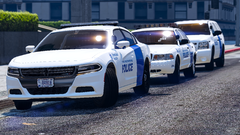
From the album: [WIP] Department of Homeland Security Mega-Pack
-
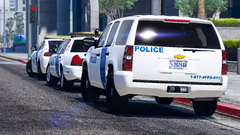
From the album: [WIP] Department of Homeland Security Mega-Pack
-
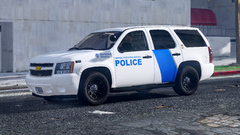
From the album: [WIP] Department of Homeland Security Mega-Pack
Waiting on the 52/58-inch RX2700

.thumb.png.98c375ec525fd44eda600d751f900946.png)

