


Baby Buffalo
Members
-
Joined
-
Last visited
Everything posted by Baby Buffalo
-
-
Be careful when uploading someone elses model.
-
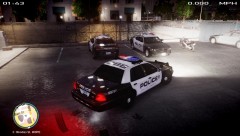 Cruel and unusual punishment not giving out that CVPI...
 -
-
-
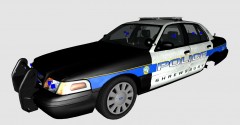 This looks awesome, can't wait. Please include an all blue light option if it won't be already. I will love you long time if you do. Also a NO RAMBAR option would be neat but I don't know how hard that is to do lol.
 -
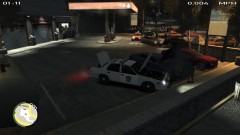 Def looks like a NY gas station.. lol
 -
Not sure how you can claim this car when there are probably 50 with the same set up that look 100% the same.
- 12 comments
- 3 reviews
-
I shall wait for the next version of Police Helper but once that is released I will try it out, any ETA on that? This looks awesome can't wait to play around with it.
- 90 comments
- 40 reviews
-
-
Awesome job, thanks for the speedy work. Only thing wrong is the license plate but that's nothing big.
- 6 comments
- 1 review
-
-
-
I live near Ft. Lauderdale and this is simply amazing. Do you take requests, if you do it would just be a for a pretty simple CVPI skin. Message me if you do.
- 11 comments
- 2 reviews
-
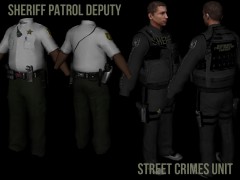 I live in Broward County and can't wait for these, just noticed you don't have a stripe on the pants like they do.
 -
There really can't be credit when you copy an actual police departments texture...
-
-
-
I wouldn't suggest using any Traffic altering mod, just play online or LAN and the service vehicles bug is fixed, I never play in singleplayer. Traffic altering mods will lower your game performance.
-


