
Narva95
Members
-
Joined
-
Last visited
Everything posted by Narva95
-
 Great Mod!
 -
 check the files before you replace/update them, there is no "full version" only the "missing files" one
- 47 comments
- 5 reviews
-
-
-
 look at video "how to install dlc pack/addon" to see if you did something wrong, cause its not the car, just in case you do have a game config and all that stuff right ?
- 15 comments
- 2 reviews
-
 i only changed the name of the car since all the modder call the car the same but i always do that i have 500+ car and never have issue with this (issue happen with the 4 car of the pack), gonna try what you said
 -
-
im having issues with the lights when going code 3 with the 4 car in the pack (code 1 and 2 are fine) do you have any idea why that happen ?
-
-
-
-
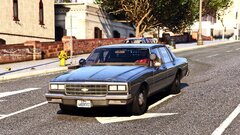 UNMARKED 85'IMPALA
-
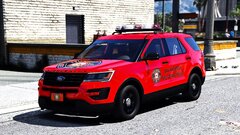 FD
FD
-
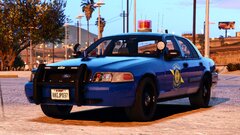 MICHIGAN STATE POLICE CROWN VIC
-
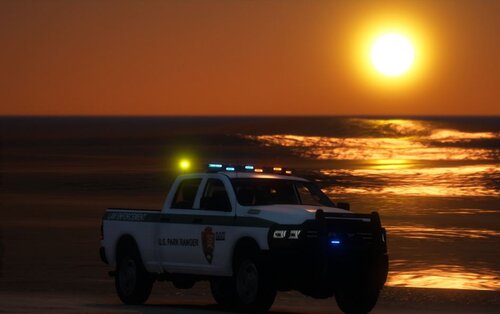
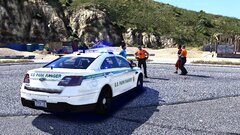 PARK RANGER
-
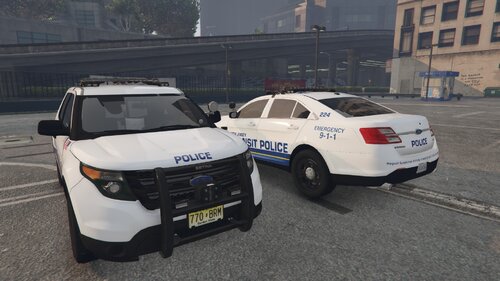
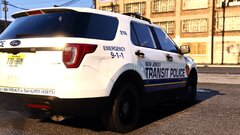 New Jersey Transit Police
-
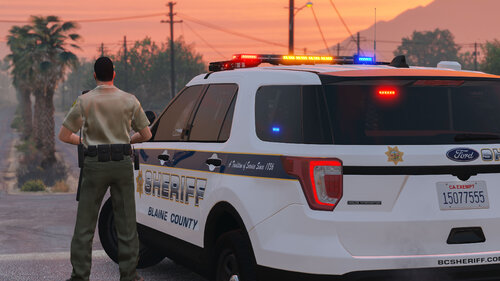
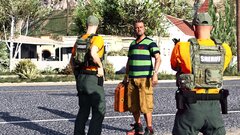 SHERIFF
-
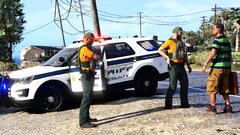 SHERIFF
-
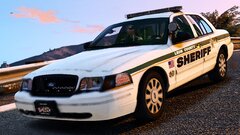 SHERIFF CROWN VIC
-
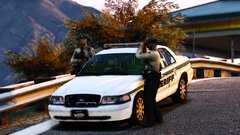 SHERIFF CROWN VIC
-
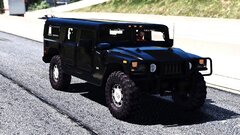 UNMARKED HUMMER
-
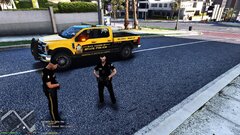 F250 <3
-
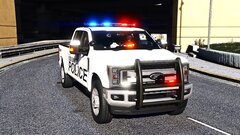 I LOVE THAT F250
-
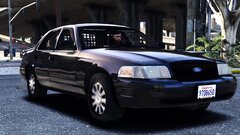 UNMARKED CROWN VIC
-
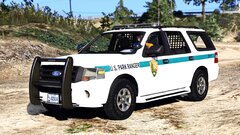 PARK RANGER
-
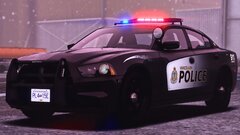 VANCOUVER POLICE
-
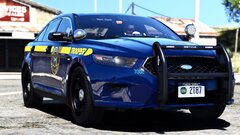 NY STATE POLICE
-
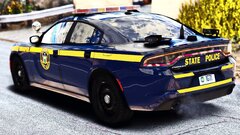 NY STATE POLICE
-
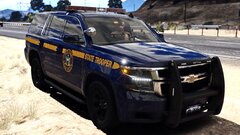 NY STATE POLICE
-
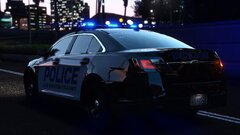 POLICE TRANSIT
-
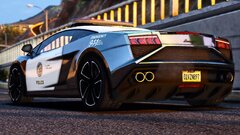 LAMBO LAPD
-
-
-
-
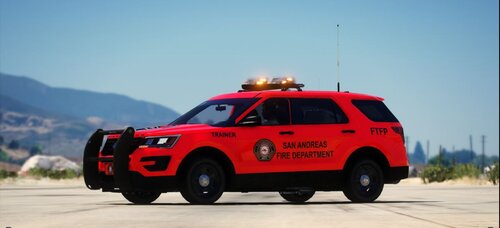 The red is a bit to "red" to bright for me other than that i like it its a keeper
- 6 comments
- 2 reviews
-
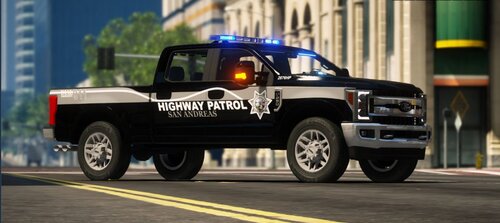 Loving the all blue
 -
-
-
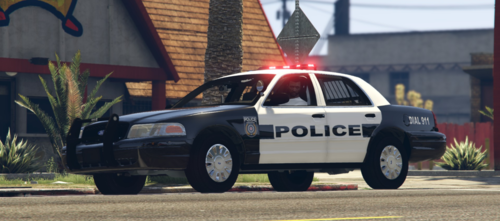 She's a keeper thats obvious, great work 👍
 -
-
 thanks
 -
This looks good do you have a link for that pack please ?
-
-
🤣
-
 great work and thanks
 -
oh okay sorry i wasnt sure lol