
Narva95
Members
-
Joined
-
Last visited
Everything posted by Narva95
-
 no its not that and i may be wrong my english isnt the best but the "spelling" i think that how you say, its not the same on the crown vic and the explorer, but may be its intended that i dont know
 -
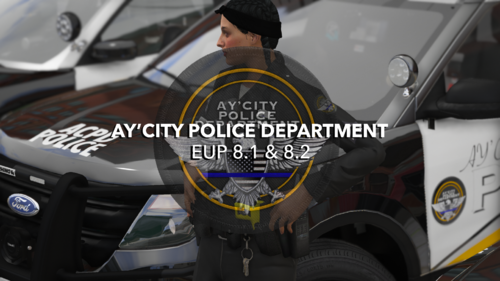 looks real good, but looks like a pain to install this right im gonna pass for now
 -
-
i like it a lot but looks like the 2016 Explorer livery got a problem with the " New Jersey "
-
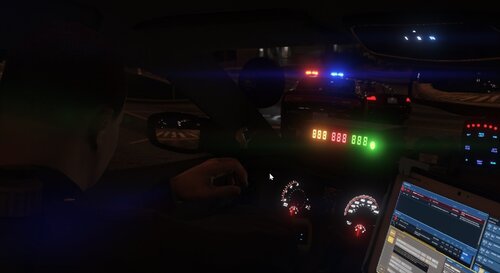 sometimes they do that for me to and i didnt reported it cause for me it what just a case of "dumb ai" you know.
- 395 comments
- 30 reviews
-
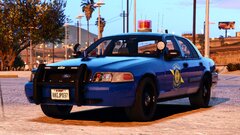
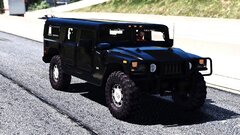
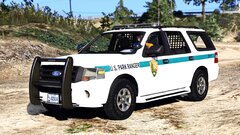
From the album: GTA
MOD USED -
-
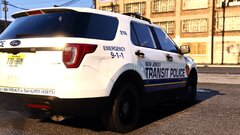
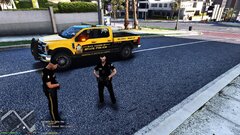
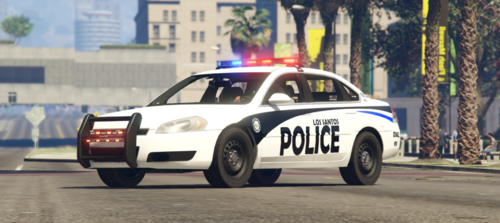
From the album: GTA
MOD USED -
-
-
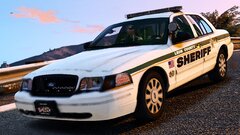
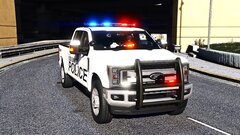
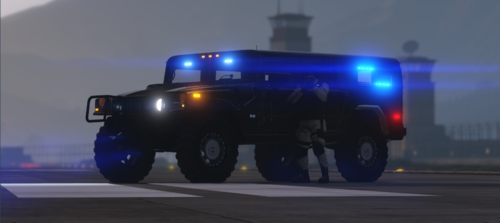
From the album: GTA
MOD USED: Can't find the link on this one -
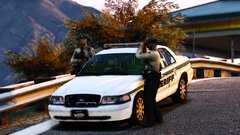
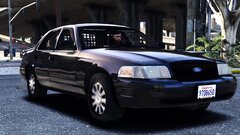
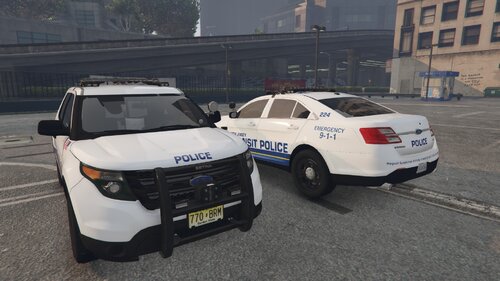
From the album: GTA
MOD USED: Can't find the link on this one -
-
-
-
-
-
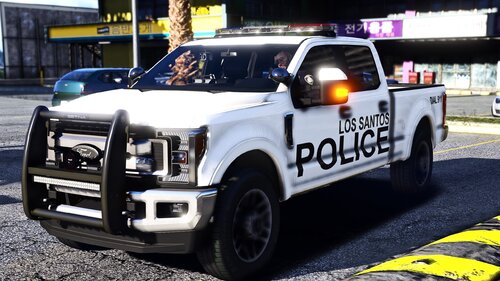 Like i told you i love it, this one will be part on my daily's for sure, thanks
- 8 comments
- 2 reviews
-
-

- 1
-
-
-
-
-
-
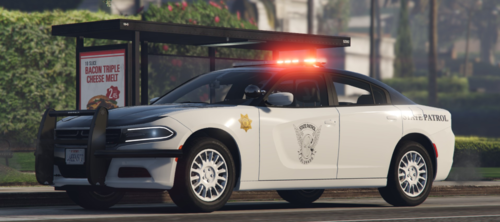 A pack would be nice yes 👍
 -
i dont know if its intended but when i put "high beam" the light is on the back on both car. Other than that love it
-
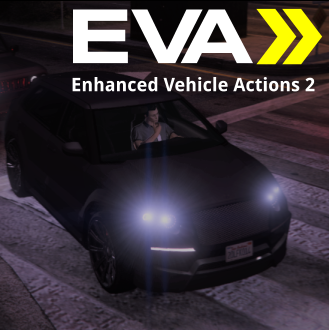 im so surprise this made such a big change on my experience its a must have. thanks
- 262 comments
- 21 reviews