



MrKingPotato511
Members
-
Joined
-
Last visited
Everything posted by MrKingPotato511
-
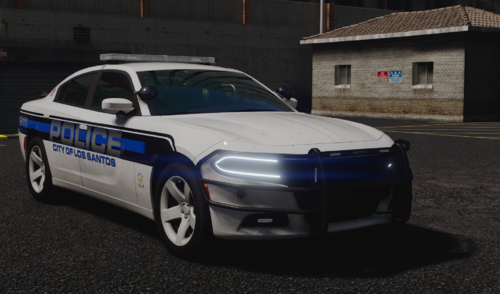 This is by far, my favorite vehicle to use in my FiveM server. Love it! Keep up the good work!
 -
.thumb.png.52127a669a024711ca858241c52ac9f3.png) Very Nice!
Very Nice! -
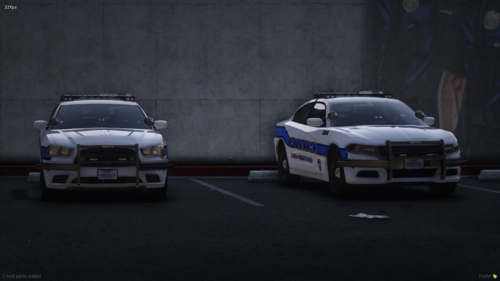 I really like this pack. You did a great job. I love the lighting setup for sure. That being said, there were 2 vehicles that had kinda squirrely handling. The Durango and the CVPI. Not a huge deal, just trying to give some feedback. Overall the pack is awesome regardless 🙂
- 22 comments
- 1 review
-
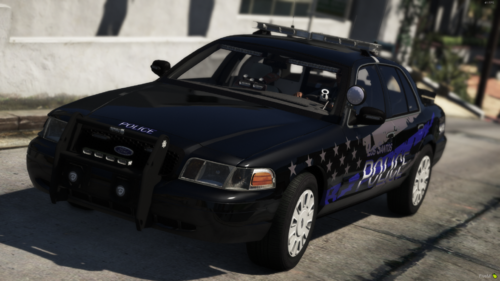 I put this in my server a little while ago and I absolutely love it! Thank you for the release. Keep up the good work!
- 7 comments
- 1 review
-
-

- 1
-
-
.thumb.png.4148b5f20ef18f1284650283f2ad2ee6.png) Awesome. I cant wait to see what you are coming out with next
Awesome. I cant wait to see what you are coming out with next -
I just put this in my server and i absolutely love it. Lighting looks good. The only minor thing that i've noticed is that when it gets dirty, the rear lights in the back window get covered. Not a big issue for me. 10/10 in my opinion, Keep up the good work
-
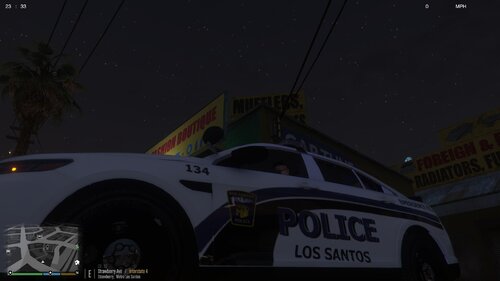 I used to live in Toledo! That is crazy to see these on here! They look awesome!
 -
 Its not bad but it could use some work
 -
-
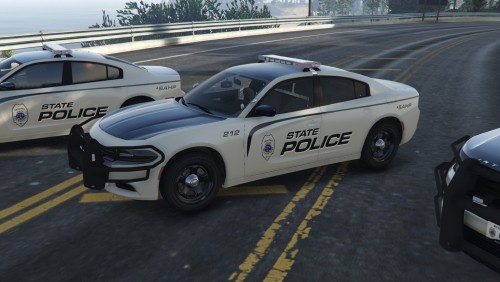 I most definitely agree with the State Police aspect. These are the current state skins in my fiveM server. Wish there were more models for it though. Overall a very good sleek pack. Love it. Keep up the good work
- 4 comments
- 5 reviews
-
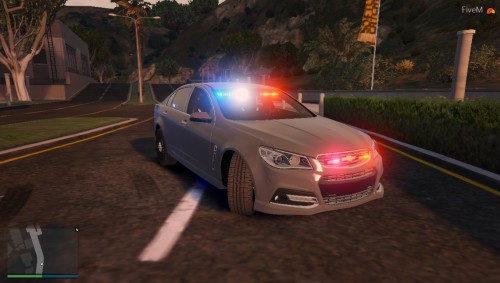 I wouldn't say that this is FiveM ready. Luckily I know what im doing but "FiveM ready" to me means that's its already set up with the stream and the resource.lua and the vehicle data files. It wouldn't be me having to do all this myself. Just a thought for next time maybe
- 14 comments
- 1 review

.thumb.png.52127a669a024711ca858241c52ac9f3.png)
.thumb.png.4148b5f20ef18f1284650283f2ad2ee6.png)
