Skip to content
View in the app

A better way to browse. Learn more.

LCPDFR.com

A full-screen app on your home screen with push notifications, badges and more.

To install this app on iOS and iPadOS
  1. Tap the Share icon in Safari
  2. Scroll the menu and tap Add to Home Screen.
  3. Tap Add in the top-right corner.
To install this app on Android
  1. Tap the 3-dot menu (⋮) in the top-right corner of the browser.
  2. Tap Add to Home screen or Install app.
  3. Confirm by tapping Install.

[4K] ​​​​​​​San Andreas State Police Pack 1.0.0

(5 reviews)

10 Screenshots

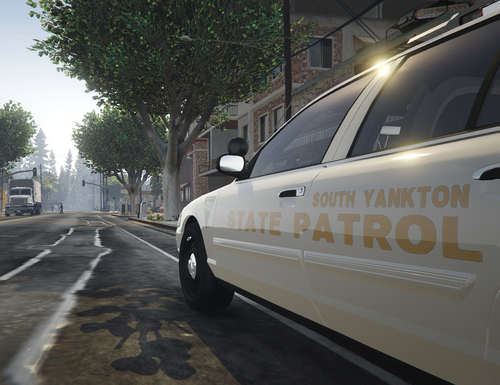
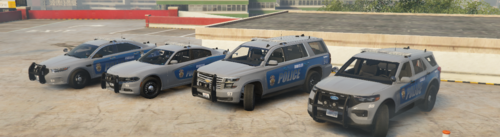
Here is a State Police pack created to look sleek and modern (Except for the Crown Vic).


Cars included in the Pack:

CVPI

14' Charger

18' Charger

13' Tahoe

FPIU


Feel free to use this texture in any video, community, or model.


The textures are made to fit Kilroy95's BCSO Pack.


User Feedback

Recommended Comments

Shotgun2212

Members Author

I have gotten alot of people point out my pack has "State Police" written on the side, but "SAHP" written toward the rear. My thought process was SAHP was the State Police. This is how my fictional deparntment looks, and I personally like it this way. Thanks for pointing it out though!

MrKingPotato511

Members

I most definitely agree with the State Police aspect. These are the current state skins in my fiveM server. Wish there were more models for it though. Overall a very good sleek pack. Love it. Keep up the good work 

Shotgun2212

Members Author

On 6/22/2019 at 10:44 AM, Mike 1K22 said:

I most definitely agree with the State Police aspect. These are the current state skins in my fiveM server. Wish there were more models for it though. Overall a very good sleek pack. Love it. Keep up the good work 

Awesome, what server you with?

MrKingPotato511

Members

I run my own server called Code 7 Gaming 

Create an account or sign in to comment

Account

Navigation

Search

Search

Configure browser push notifications

Chrome (Android)
  1. Tap the lock icon next to the address bar.
  2. Tap Permissions → Notifications.
  3. Adjust your preference.
Chrome (Desktop)
  1. Click the padlock icon in the address bar.
  2. Select Site settings.
  3. Find Notifications and adjust your preference.