adam23x2
Members
-
Joined
-
Last visited
Everything posted by adam23x2
-
What problems are you experiencing?
-
Update: Go into OpenIV, uninstall both ASI mangers. Close OpenIV, restart your computer, reopen OpenIV reinstall ASI managers. Launch LSPDFR, should work!! Lmk
-
I have the same issue. It seemed to come up out of the blue. I've re-installed: ELS, LSPDFR, Sirenadjuster, the cars themselves, scripthook and even ASI manager. No luck
-
 😍😍😍😍😍
😍😍😍😍😍 -
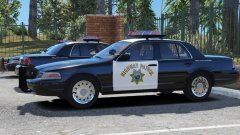 omg yes
 -
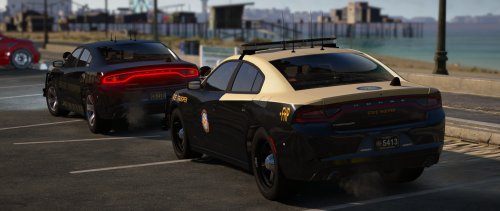 @TaylorSwift any chance you could release the Vic’s to go with these....this is such a great pack
- 76 comments
- 55 reviews
-
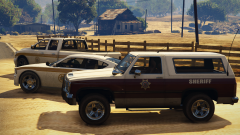 LONGMIRE!!!!!
 -
-
-
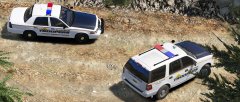 please release!!!!!!!
 -
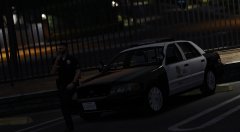 OMG YESSS
 -
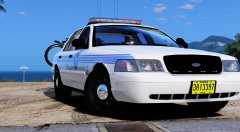 I'm really sad to hear to hear about the la pack....I was really looking forward to it
 -
-
-
-
-
-
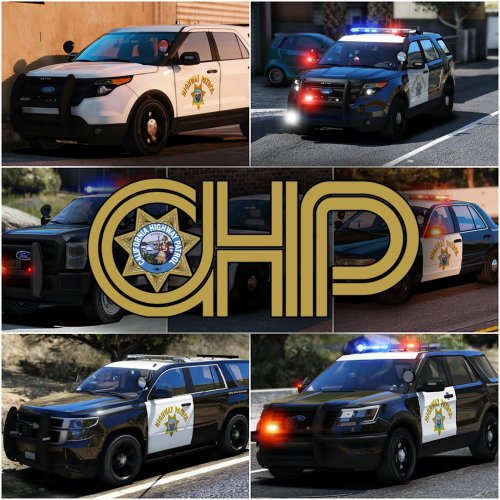 Hey I really love this pack but there's a few issues: the expedition lights on stage 3 aren't correct pls fix, another issue is the traffic advisor on the 2006 vic, it goes off at stage 3 lighting. But otherwise an amazing pack. If you Could pls review these issues I'd appreciate it.
- 966 comments
- 158 reviews
-
Exactly, also If you want chp or the Vic VOTE!!!!