Voit Turyv
Members
-
Joined
-
Last visited
Everything posted by Voit Turyv
-
 >1995 Just in time to enjoy new PlayStation. Or rather, Degenatron.
 -
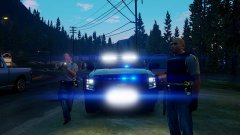 I wish the Bison didn't have such stumpy rear doors.
 -
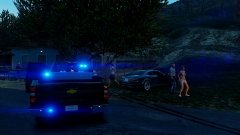 Lies. You don't drive lore.
 -
I wonder what happens next to the Felon. Will it be sold on a police auction? Will it be repurposed into a cop car?
-
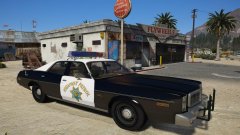 @badass22 @Illusionyary Quit being buzzkills. :P Everyone knows two doors less equal two times more fun.
 -
Who says the car is for transporting suspects? It's an interceptor.
-
Where is my 1969 Vigero Rumbler? Maybe it has just two doors, but it fits right in.
-
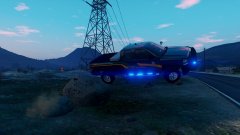 This looks like a DeLorean on its way to the past.
 -
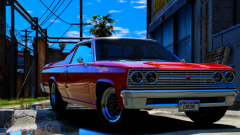 I wish Picador had a coupe version.
 -
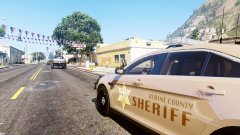 You are welcome to map any of VWE Sandkings and outfit them with sheriff livery.
 -
Man, what an intimidating monster. The Sandking, I mean.
-
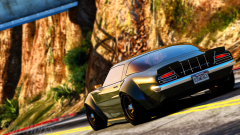 I should make a cop Nightshade one day.
 -
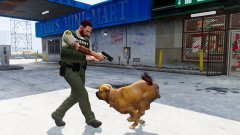 Direct ass shot.
 -
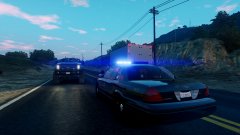 You are blocking the way of the Sandking. Make the road clear or it'll obliterate you.
 -
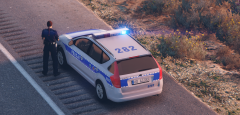 Co oni robią w Ameryce?
 -
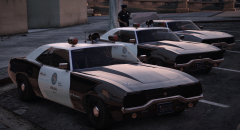
From the album: Voit's Garage
OUT NOW! https://www.gta5-mods.com/vehicles/declasse-vigero-rumbler-pack-add-on-template Picture by 11john11. -
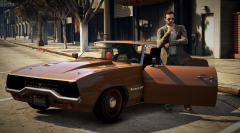
From the album: Voit's Garage
1969 Declasse Vigero Rumbler affiliated with LSPD detectives. Coming soon to GTA5-Mods. Picture by 11john11. -
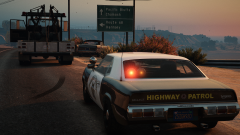
From the album: Voit's Garage
1969 Declasse Vigero Rumbler in service of San Andreas Highway Patrol. Coming soon to GTA5-Mods. Picture by 11john11. -
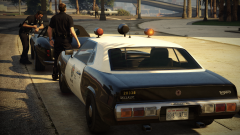
From the album: Voit's Garage
1969 Declasse Vigero Rumbler suited for Los Santos Police Department. Coming soon to GTA5-Mods. Picture by 11john11. -

From the album: Voit's Garage
Declasse Vigero Rumbler belonging to Los Santos Sheriff's Department. Coming soon to GTA5-Mods. Picture by 11john11. -
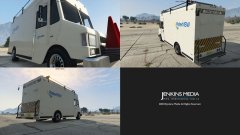 Just an RHD conversion would suffice. Some cars already feature them. https://www.gta5-mods.com/vehicles/annis-elegy-rh-5-pack-add-on-tuning-liveries-wheels#comments_tab
 -
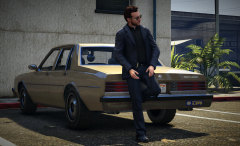 That bumper sticker can't have been placed there for no purpose.
 -
It will be not be truly Australian if it's not right-hand drive.
-
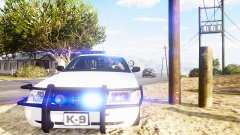 I should do something with that car one day. There are many cars that need some proper modding treatment, such as the Sultan in the background.
 -
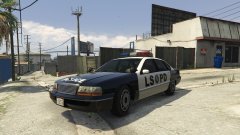 Nah, you ain't never been clean, Carl. - Frank Tenpenny, 1992