



tckpolicefire
Members
-
Joined
-
Last visited
-
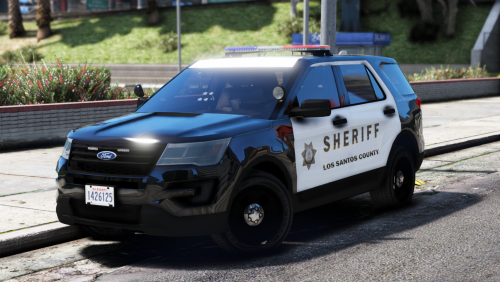 best by far... my buddy works for Sac sheriff and ive been wanting to do this for awhile now. could use a better light bar system tho...
- 18 comments
- 16 reviews
-
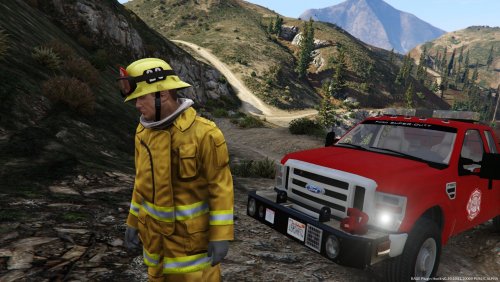 well when 99% of everything is ELS people aren't going to download it if it isn't. so whatever. and 90% of all fire departments in the USA use all red... so whatever. there was only one person that made a good fire engine. everyone else just fails at it.
- 16 comments
- 3 reviews
-
-
-
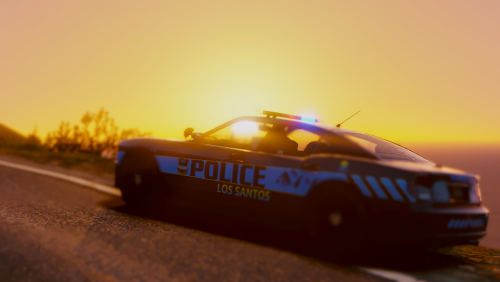 light set up is amazing... sad that the makers couldn't do something this good.
- 82 comments
- 30 reviews
-
-

- 1
-
-
-
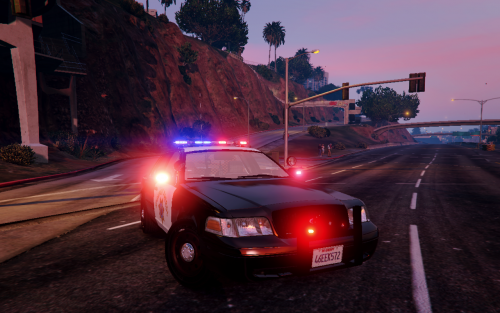 can't really call this ELS when you can't change the light patterns or anything... the point of ELS is to be able to change the patterns and when light are on and off.
- 45 comments
- 16 reviews
-
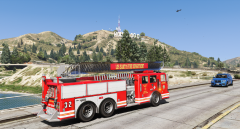 when will this work of beauty be finished?
 -
-
-
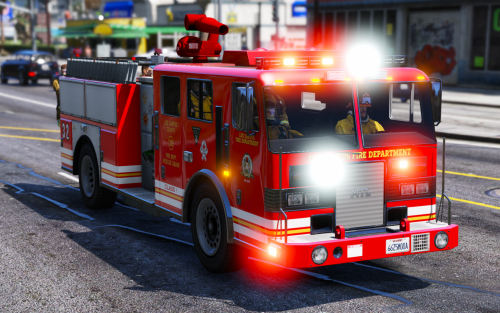 Best fire engine that works with ELS. only thing I don't like is the water cannon on top. IDK WHY lol just don't but ill live. Id love to see this set up with the smaller light bars on the top of the 2 FF jump seats. ( like in the picture ) . Thats something id donate some more for.
- 24 comments
- 14 reviews
-
-
- 3
-
