



DcK
Members
-
Joined
-
Last visited
Everything posted by DcK
-
I gotta agree, its getting that Dart look. I think the front looks hella mean but the rear just looks to curvy and not right, think they should've kept the original rear. Not a fan of the new steering wheel either.
-
 I think this was a part of an old pack I had so I do not believe it is public, there are many good ones here on LCPDFR.com though
 -
Ok guys so I figured out the issue with the new OpenIV update. When you go to import a new file it doesn't replace the file, it simply adds it as a new vehicle no matter if it is the same vehicle or not. Easiest fix is to delete the file you want to replace and add the new file or simply replace each .wtf and .wtd as one. I found that when I wasn't doing this that when I got in game I either crashed immediately or none of my cars would spawn. If this helped please give it a thumbs up. If you find any additional issues post them here or if you find other ways to fix it post them here.
-
From the album: FDLC In Action
-
From the album: FDLC In Action
-
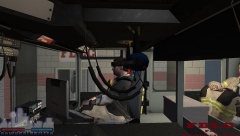
From the album: FDLC In Action
-
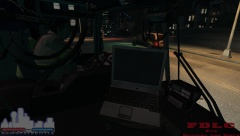
From the album: FDLC In Action
-
From the album: FDLC In Action
-
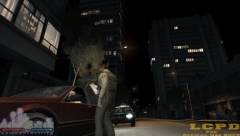 Yeah its a part of evenscornelius custom ped pack
 -
From the album: LCPDFR In Action
-
Yeah seems like a issue with the new OpenIV Edit: I would use SparkIV
-
Pretty cool to see all the different vehicles used around the world!!
-
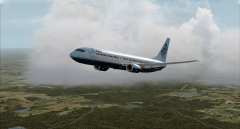 Huge fan of the PMDG planes! Ive got them all except the MD-11
 -
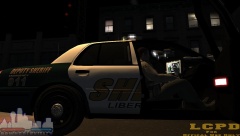
From the album: LCPDFR In Action
-Model is Solex PPV by Evenscornelius available here at LCPDFR.com -
Is that the new Boeing 737-900?
-
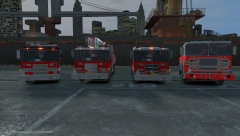
From the album: Mod Showcase
New FDLC trucks fresh off the boat. New Pierce Rescue, Pumper, and Ladder, as well as a Seagrave Pumper Tanker. All expected to be put into service this week. S/O to Firefighter767 for the models. All available here at LCPDFR.com -
Love it! 5/5 but I gotta ask. Being
-
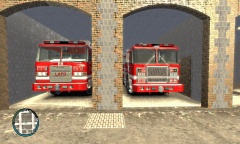 That light bar isn't new, just stretched it and put it on there. Its a Whelen Edge by BxBuggs
 -
The Pierce pumper is already on LCPDFR, just check his profile
-
-
-
-
-
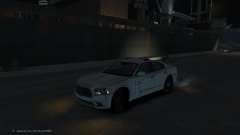
From the album: W.I.P
Charger equipped with a Code 3 21TR Arma Console Watchdog in car Video system Stalker Radar system CF 31 Toughbook with stand Setina Bodycard More to come.... -
 Lol that's the thing, I didn't XD




