
sixium
Friends of LSPDFR
-
Joined
Everything posted by sixium
-
 Bugs's K9 Suburban doesn't have trim. It's my favorite Suburban to skin =) http://gtapolicemods.com/downloads.php?do=file&id=1411
 -
-
-
 So this must be an '04 CVPI.
 -
-
Happy b-day!!! I LOVE LCPDFR!! Here's to many more years! :thumbsup:
-
If I were you, I would just spend the extra pocket change (almost literally) for a GTX 760 vs. a GTX 660 Ti. The price difference is almost non-existent, and the 760 is so much better than the 660.
-
 Thank you so much! =D
 -
-
From the album: Liberty Views
Following the second straight day of a raging rainstorm and massive state-wide power outages, Middle Park is being sealed off under LCPD-guard by order of the Mayor. -
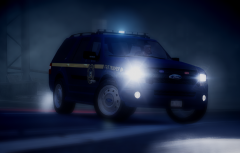 Can't wait!! I would love to make an Airport Ops skin for this!
 -
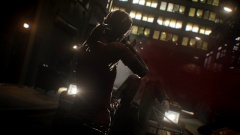 OUCH =O What ped model is that?
 -
-
Just kids being kids, like when they touch the stove when they know it's hot, just to see how hot. Let's move on here, folks.
-
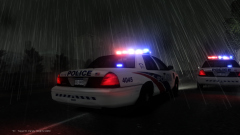 Thanks. This is actually an anomaly I encountered, so I decided to take a couple pics before I revert back. I wanted to make it perpetually night in Liberty City by modifying the timecycle, but apparently that couldn't really be done. This picture is actually taken at "noon." It stayed dark, like night time, but everything else in the city acts like it's the middle of the day, which means none of the buildings or street lights remain on even though it's pitch black lol
 -
From the album: Liberty Views
Two LCPD units patrolling midnight Algonquin during the second day of the most severe storm in Liberty City history which brought down power to the entire eastern part of Liberty State. -
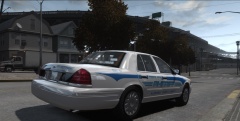 Is that a CHP model?
 -
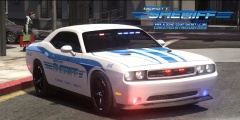 OMG dude, that's amazing =DDD
 -
Check to make sure you aren't saving it as an interlaced PNG or using any kind of compression algorithm. That's all I can think of, not even sure if it makes any difference actually...
-
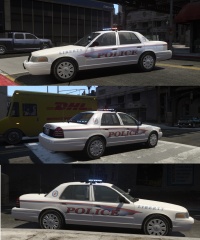 If you only had one image to go off of, then major props to you man. You have amazing talent! Keep up the good work! =D
 -
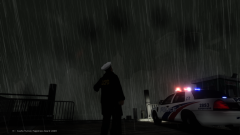
From the album: Liberty Views
An LCPD Sergeant patrolling Happiness Island looks on in horrow as one of the worst rainstorms in Liberty City history just knocked out power to the entire city. -
-
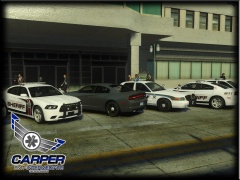 AWESOME skins!! =D
 -
Yes, it will work with any ENB. Any game. Anything you see on screen and hear from the speakers (including your mic) can be recorded. It's hardware-based (baked into the GPU) so it doesn't have any compatibility issues (that I know of). =( Does ATI cards have something similar? I know you probably need an R series card to get it, but do you know if those high-end Radeon cards have a similar video recording capability?
-
I think it's pretty good considering it's your second skin, the white/black edges are good and don't "bleed" over, a good "technical" skill.
- 26 comments
- 1 review