
sixium
Friends of LSPDFR
-
Joined
Everything posted by sixium
-
 AWESOMESAUSS
 -
Judging by the second pic, assuming you guys didn't remove the FlexFuel badge, and assuming all three of your CVPIs are from the same year, they're either 2006 or 2007. 2008> CVPIs are FlexFuel, thus having the FlexFuel badge on the right panel of the trunk lid.
-
-
 Holy moly that skin is sharp! =O
 -
-
 WRAPAROUNDS!!!! XDXD
 -
6... ium lol
-
"Changing textures is allowed for personal use" But regardless, Cj24 has a standing declaration that any mod he released before 2014 will not require permission to modify or re-release, providing the correct credit be given.
-
Hey Morpheus, it actually wouldn't matter if the vehicle already has a dog modeled into it, you can just make the dog texture completely transparent and it would be like the dog was never there ;)
-
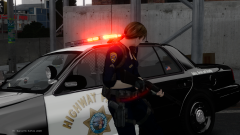 Hey Phill, I don't think I will be releasing this =( It's just a skin, the model is not mine. The skin still needs a few tweaks, if it looks good, I'll probably send you the skins privately.
 -
From the album: sixium's WIP
Jill Valentine in CHP getup. Fashioned after CHP's night/Class B tactical uniform. More after the break =) -
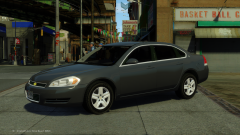 Love the old-livery cars =)
 -
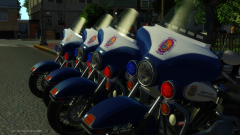 These are amazing!
 -
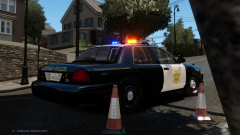 Woohoo!! Same here 408 for life! =DDD Are you still here, or have you moved away?
 -
You're from Milpitas?!?! =O Oh, and I lied. It's not completely accurate, I've made a couple slight tweaks since these pics. V1.1 is completely accurate, I'd say this is 98% lol
-
From the album: sixium's WIP
Finally got around to doing it. Might be kinda plain, I know, but it's a California livery, and it's my hometown. Milpitas sits in the heart of Silicon Valley, next to San Jose, in the southern part of the San Francisco Bay Area in Northern California. Might get to doing the FPI and FPIU (which we are switching to after the CVPIs retire), but there aren't enough of them around for me to get a good look at them yet. Completely accurate. CHP model by Sentinel55. -
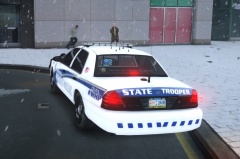 I think this is a fictional livery. I can't seem to find pictures of it anywhere, unless they're so elusive no one has actually taken a picture of one =P
 -
Yes, kinda, but their cars don't say "Highway Patrol" and they look like this: Trust me, if I've seen the Highway Patrol variant before, I would've recreated that livery since I really like the look of it. =)
-
Well, Washington has a State Police, but I didn't know they also have a Highway Patrol. Never seen these before.
-
You say there is a large amount of lighting to the rear, but from the looks of it, it's pretty tame in this day and age of increasingly over-lit cars. And I didn't know Washington has a Highway Patrol
-
-
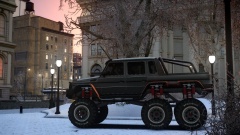 Unimog? Where find can I???
 -
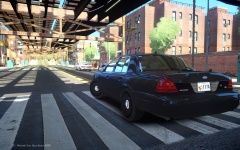 Cool, Maryland plates.
 -
-
Yes, but this still doesn't eliminate that bothersome conscience-attacking red authoritative-pink banner that shows up on the top of the page for every page you visit on LCPDFR. Having a specific feature that turns off ads for a requirements-meeting donation would be better in that regard.