
sixium
Friends of LSPDFR
-
Joined
Everything posted by sixium
-
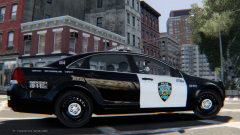 You mean, like this? Also, if it's any consolation, NYSP switched to black ;)
 -
From the album: Liberty Views
Caprice PPV wearing NYPD CA Concept livery. Love it!!!! XDXD -
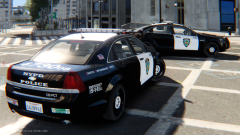
From the album: Liberty Views
Caprice PPV wearing NYPD CA Concept livery. My god I love it so much =D -
 A CHP Caprice PPV would blow my wad. Now you got me curious lol =)
 -
-
-
I would change the California flag to a New York flag, or a Liberty State flag if that exists. I don't think I've found any... // Perhaps something like this:
-
-
-
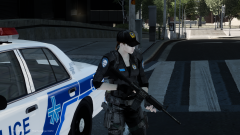 I had to cut it out of a photo of an SPVM officer I found on Flickr.
 -
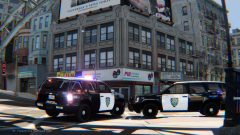
From the album: Liberty Views
Previous-gen Chevrolet Tahoe in NYPD California Concept livery. Both regular and K-9 units. Models by Foward. -
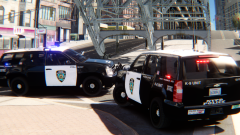
From the album: Liberty Views
Previous-gen Chevrolet Tahoe in NYPD California Concept livery. Both regular and K-9 units. Models by Foward. -
-
It looks more like a skewed Arial Black, but the 'O' has a different shape. That's Futura Black. Very confusing, I agree. The new Boston cruisers uses Futura Extra Bold. I know this because I made a set of Boston CVPI skins, both old font and new font. =) Yes, you are right :) Also, the Excalibur is somewhat similar to the MX7000 in that they have interchangeable upper domes and rotators, but that's pretty much where the similarities end.
-
The font is Futura (Univers, courtesy of MichaelV). There are lots of Toronto stuff already, you shouldn't have much trouble finding what you're looking for. Oops, spoke to soon, haha, saw you mentioned DSF models. :) If I remember correctly, I believe awesomeburodude (the same guy who made the Toronto slicktop you mentioned) is making an entire Toronto pack. I think.
-
 I love the color of your sun =D
 -
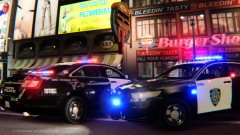
From the album: Liberty Views
FPI clad in NYPD California Concept livery. Door shot. In front of Burger Shot. Model by Joker Mods -
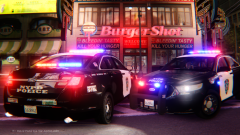
From the album: Liberty Views
FPI clad in NYPD California Concept livery. Ass shot. In front of Burger Shot. Model by Joker Mods -
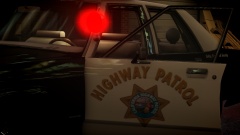 I believe the CHP cruisers of that era still had the old "monochrome" image star, not the full colored image ones the modern CHP cars have.
 -
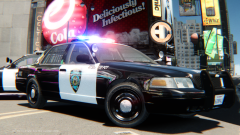 Thanks everyone =) I'll see about creating a pack...
 -
Thanks! Means a lot coming from you =)
-
I was actually thinking about doing a Houston pack back when I was working on my Hartford, CT pack (they look very similar to each other, and I really like the look), but Houston skins already existed, so I didn't.
-
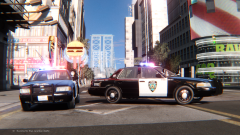
From the album: Liberty Views
What would NYPD RMPs look like if New York happened to be in California??? A concept... Model by Cj24. -
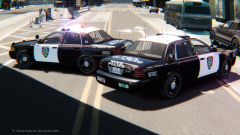
From the album: Liberty Views
What would NYPD RMPs look like if New York happened to be in California??? A concept... Model by Cj24. -
From the album: Liberty Views
What would NYPD RMPs look like if New York happened to be in California??? A concept... Model by Cj24. Should I perhaps create a pack? =)