TrooperA1868
Members
-
Joined
-
Last visited
Everything posted by TrooperA1868
-
-
any updates?
-
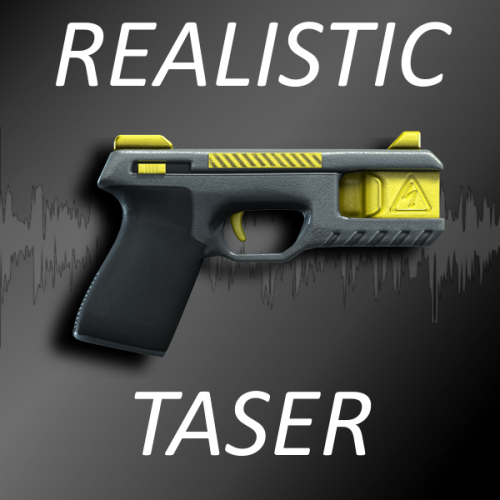 dont understand the install instructions can u plz do a video i found out how to do it but the sound is so low in game plz make an update to make the sound a little louder
- 24 comments
- 13 reviews
-
-

- 1
-
-
.
-
-
police smart radio came out now all i have to do is wait for this and my life will be complete lol
-
-
y r u so great?
-
 when i dispatched an ambulance it doesn't use all the liveries available only 2
- 783 comments
- 86 reviews
-
cant wait looks great!! Coming along so fast im so happy
-
is it the same template as the old version?
-
will it have traffic advisory lights in the back?
-
Gonna be the best vehicle in gta v period.!!!!
-
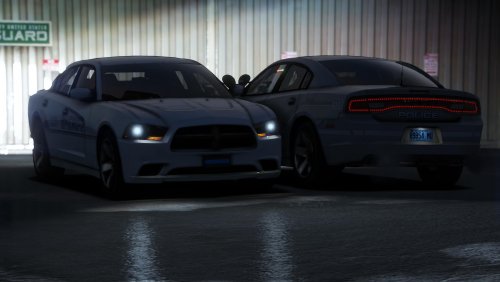 NO WAY!!!!!!!! itS CHRISTMAS 2K17 EARLY I LOVED THE OLD TAHOE,CANT WAIT FOR U TO WORK UR MAGIC AND MAKE A NEW ONE!!! CAN U PLZ DO A WIP THREAD!?
- 17 comments
- 7 reviews
-
-
 CAN YOU DO A NON LAPD ONE PLZ?!
 -
-
looking great
-
well thats sad i was looking forward to it
-
Any updates on this?
-
-
-
-
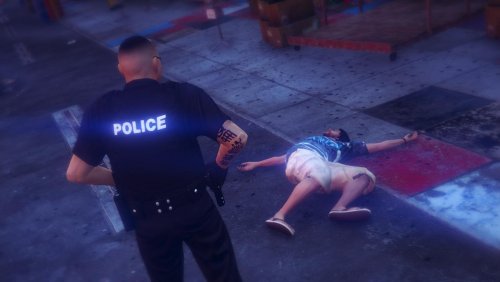 Do we put all the files in Grand Theft Auto V\mods\update\x64\dlcpacks\patchday9ng\dlc.rpf\x64\models\cdimages\patchday9ng.rpf\ even the option for the new hats and glasses if so there are 6 files there and instead of 4
- 273 comments
- 61 reviews
-
-
- 1
-
-