Joe C Wilson
Members
-
Joined
Everything posted by Joe C Wilson
-
-
-
-
-
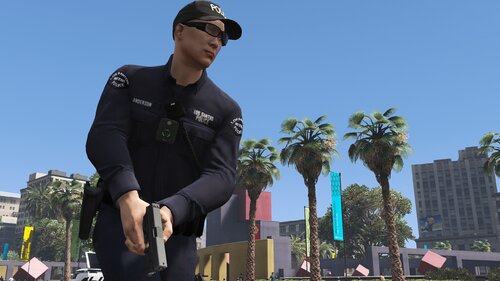 The original Ultimate Backup config does not offer EUP or MP freemode ped-based uniforms. All my mod does is add all available EUP uniforms from Law and Order and Serve and Rescue to LSPDFR, Ultimate Backup, and EUP Menu.
- 944 comments
- 23 reviews
-
-
-
-
-
 In the patch notes, you mentioned that STP and UB are outdated, which is accurate, but they still work for me. If you originally designed this callout pack to depend on STP and its functionality-based code, it would be better to say that using PR is now necessary due to the coding changes from the recent update. It really annoys me when people, especially staff, suggest removing things just because they're old. LCPDFR with GTA 4 is older than GTA 5, and it still works perfectly to this day. The idea of removing a mod solely based on its age is merely wishful thinking that fails to tackle the actual issue. In this case, it's obvious that the coding for the callout functionality was changed to rely on PR, and it would have been much simpler to have communicated that from the start. I just wish that modifications that have been in development for a long time weren't edited overnight to become usable for me personally.
- 45 comments
- 5 reviews
-
-

- 1
-
-
Perhaps one day, but I intend to do it on the enhanced version of GTA 5 LSPDFR. Assuming that either PR or UB receives a compatibility update first. Whichever happens first.
- 944 comments
- 23 reviews
-
So, OP was curious about partner plugins, and you mentioned there are quite a few. But now you're saying you can't name any just because you have your own plugins? I don't mean to come across as 'that guy', but I've noticed you keep mentioning this supposed plugin, and honestly, it's a bit annoying to keep hearing about it when it's not yet ready for release. I've been observing this for a long time now, kept my thoughts to myself, but the fact that you just had to promote your plugin when it's not available yet, just bothers me. You're the only person I see on these boards who repeatedly talks about a plugin without actually giving updates on its completion. If you are truly working on this plugin, I encourage you to keep at it and not give up. But please, stop shoving it down our throats repeatedly when it's not ready. I'm not trying to be rude, but I believe my opinions reflect how many others feel too—people looking for help only to be redirected to bloated answers. I hope this makes sense.
-
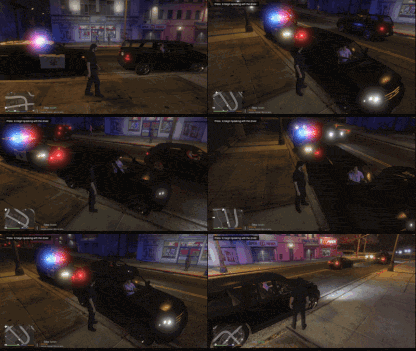 I was a little concerned about possible issues after checking out some comments and reviews before I installed this plugin, but to my surprise, it actually worked for me. I no longer get run over while doing police work, and cars are moving over more easily when I'm in my car with the lights on. It works great with ELS, and I tried it out without any other traffic-related plugins like ClearTheWayV. Just make sure to turn on your emergency stage lighting; otherwise, traffic will keep piling up behind you. I had used ClearTheWayV before and still got run over, so I thought I'd give this plugin a try. It works really well, and I suggest that anyone having issues check that they don't have ClearTheWayV installed. I've attached screenshots as proof that this plugin works for me. Highly recommend.
- 27 comments
- 3 reviews
-
Could you please mention a partner plugin that has a follow me feature? I use UB, but it's not quite what OP is describing.
-
They should be in the optional config folder, but I did not create patrol vests configs for them because it's just too much work as it is. Maybe, one day, I could add patrol vests to them, but right now, I just don't see it happening. I just looked, and I guess I did delete them. I suppose I'll re-add them in the future, but I'm unsure when they'll be back.
- 944 comments
- 23 reviews
-
STP and UB will always be my baby, but someday, I do want to play LSPDFR on the enhanced edition of GTA 5, and it's safe to assume STP and UB won't be made compatible due to how long Bejoijo has been out of public eyes. We'll see.
- 944 comments
- 23 reviews
-
No, I do not. Sorry. Tom should have them, but I do not know how long he will be supporting paid EUP UB configs now that PR is the new hot thing, etc.
- 944 comments
- 23 reviews
-
 Since this is the only mod that provides the paid version of EUP Backup Configs, I suggest you save the UB Configs in your downloads folder instead of removing them. I've sent a lot of people to this page because I don't create configs for the paid EUP versions, and if the UB configs from this mod are deleted, there won't be any EUP UB configs available. I appreciate you considering this suggestion.
- 366 comments
- 17 reviews
-
-

- 1
-
-
I just want to point out that someone from the LCPDFR team recently mentioned PR in this chat. But then, another team member reminded us that talking about PR is totally off-limits because it’s seen as "rude" to make comparisons. Still, it was PR that claimed to be better than everything else, which really stirred the pot. It seems like PR gets a free pass to call itself the best just because it’s the new kid on the block. I’m interested in trying PR out someday, but if we can’t discuss it openly, I don’t think that’s the right approach. To sum it up, PR is an exciting release since it brings a lot of features that, notoriously, may I add, STP never made public in its Paetron versions from many years ago, but saying we can’t compare the two feels like a recipe for disaster. No chance to discuss them openly means no feedback for PR, which basically means we can’t figure out how to improve PR beyond just saying STP or LSPDFR+ is better. That’s not enough to make me want to hit download. If PR can let us explore this question ourselves without pressuring us to download PR before we can form our own opinions, then I would happily support PR.
-
I haven't had the chance to try out the policing redefined mod yet. To be honest, I don't play LSPDFR as much as I used to, and I probably won't be adding it anytime soon. Personally, I hope to move away from Stop the Ped and Ultimate Backup eventually, especially since I'm planning my future LSPDFR builds around the Enhanced Edition of GTA 5, but I can't give you an answer to that yet. For the time being, I don't foresee it happening, especially since I only play LSPDFR for my YouTube channel, and I haven't felt the urge to upload it as often as I used to for various reasons, with the primary one being that it's simply not popular on my channel anymore.
- 944 comments
- 23 reviews
-
I'll take a look soon. Could you tell me which folder you are using? Thank you.
- 944 comments
- 23 reviews
-
I realized that I accidentally duplicated the outfits_doa_eup.xml file. I use keyboard shortcuts to save and copy files while editing, and I think I must have pressed a button and missed pasting the right line to replace. It should be sorted out now. Thanks for bringing this to my attention, and I'm sorry for the inconvenience.
- 944 comments
- 23 reviews
-
Could you please upload the entire log file? I can't seem to find any errors based on line 417, which I assume RPH will be checking the outfits_dppd_eup.xml file at the time of this crash. Also, please specify which config folder you are using. Thank you.
- 944 comments
- 23 reviews
-
GTA 5 LSPDFR #95 - Officer Involved Shooting | BCSO '18 Tahoe via @YouTube
-

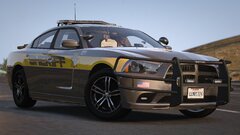
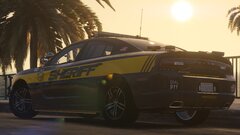
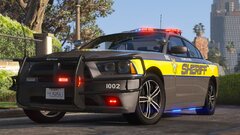
.png.0bd8a69a2dc58d86394a7f99a7915fe7.png)
.png.c66b0548484a355fec4991e59483f48c.png)