


Creators: Due to background reprocessing of files, approvals and file security checks may be delayed. Thanks for your patience.


Joe C Wilson
Members
-
Joined
Everything posted by Joe C Wilson
-
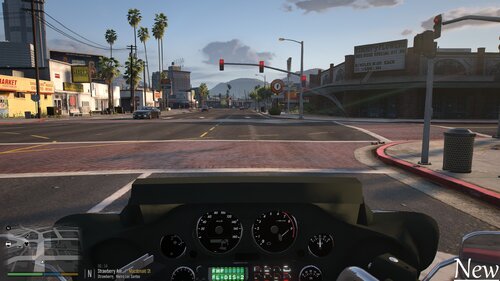 If you've recently replaced the default police bike with the Electra Glide or installed it as an addon and are experiencing issues with the camera obstructing your view, there's a simple fix. By installing a modified meta file over your existing one, you can enhance your camera's range of view while riding the Electra Glide. To implement this solution, locate and open the vehicles.meta file, find the entry for either the police bike or the addon vehicle, and replace the relevant text with the updated information. <cameraName>FOLLOW_BIKE_CAMERA</cameraName> <aimCameraName>BIKE_AIM_CAMERA</aimCameraName> <bonnetCameraName>BIKE_PCJ_POV_CAMERA</bonnetCameraName> <povCameraName>BIKE_PCJ_POV_CAMERA</povCameraName>
 -
GTA 4 LCPDFR #31 - Vehicular Manslaughter | LCPD '08 Suburban via @YouTube
-
-
-
-
-
-
-
-
I'm gonna go out on a whim and guess it's that ambient escaped suspect event from the LSPDFR ini file.
-
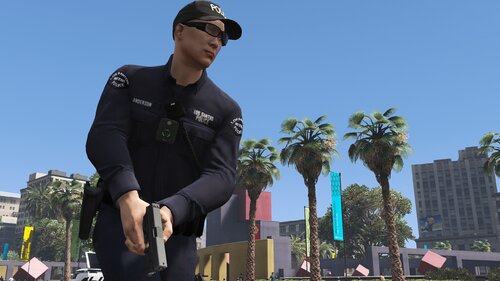 This EUP Backup configuration only includes vanilla vehicles. If you want to use the new DLC cars, you can find their names here. Simply add them to the duty selection EUP file and the agency EUP file if you want them to spawn as backup vehicles and be available for selection in the menu.
- 942 comments
- 23 reviews
-
No, but if the next EUP update ever comes out for free, I will certainly make it compatible.
- 942 comments
- 23 reviews
-
-

- 1
-
I vaguely remember that they reopened their website during the summer, presumably under new management, but now they are closed yet again? Seems odd. Nothing personal to MU, but 90% of the time I was on there, whether it was before their 2022 shutdown or recently, I only saw Medic's vehicles or liveries being featured, and maybe 10% of community contributions. In retrospect, it honestly feels like it was just another site for people to download their mods on, with Medic using it as his own mod archive. You couldn't open MU without seeing a Medic car, and I gave up trying to find new mods to use because I kept seeing the same thing over and over again. I am not surprised, for lack of better words, that MU is dying out.
I guess the stations xml file was duplicated when editing. I'll take a look at EUP Menu, but I am pretty sure I updated them already. Also, what folder exactly hasn't been updated?- 942 comments
- 23 reviews
GTA 5 LSPDFR #97 - Shoot To Kill | LSSD '14 Charger via @YouTubeSome of the best of the best-
 20251104203149_1.jpg
-
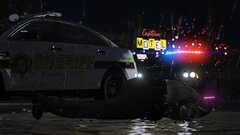 20251104203043_1.jpg
-
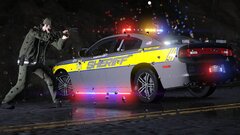 20251104201725_1.jpg
-
 20251104201641_1.jpg
-
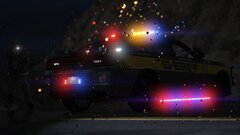 20251104201552_1.jpg
-
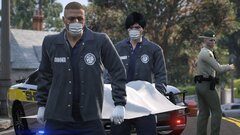 20251030212742_1.jpg
-
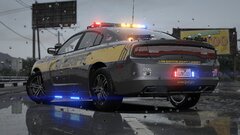 20251007221548_1.jpg
-
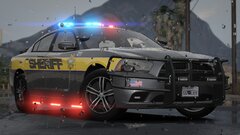 20251007221404_1.jpg
-
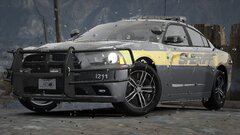 20251007221303_1.jpg
-
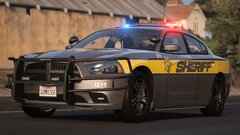 20251007221144_1.jpg
-
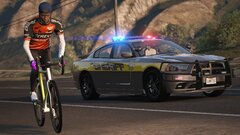 20251007221112_1.jpg
-
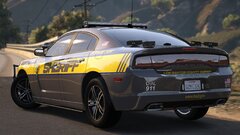 20251007220922_1.jpg
-
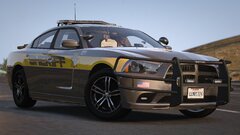 20251007220751_1.jpg
-
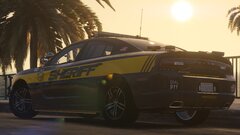 20251006184351_1.jpg
-
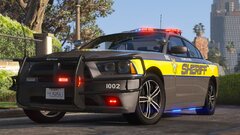 20251006184018_1.jpg
-
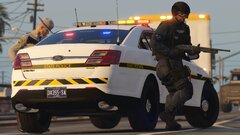 20251004180457_1.jpg
-
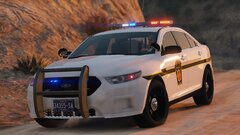 20251004180024_1.jpg
-
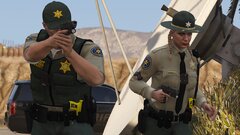 20250911163128_1.jpg
-
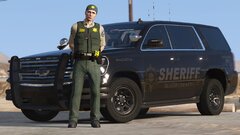 20250911162620_1.jpg
-
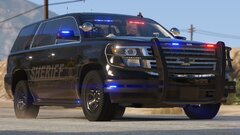 20250911162526_1.jpg
This EUP backup config uses version 9.3 of EUP Law and Order and 1.5 of Serve and Rescue, so I am unable to add them because they are not included in the files.- 942 comments
- 23 reviews

.png.868fa9d24562cd57daabd0da0951d406.png)
.png.1b72f7f9f7ccb2d83fe572cb299003b0.png)
.png.54dc78bfa9bd8d2c0fefc88f871c4581.png)
.png.bde404896607988d0644eddc39c2d4ad.png)
.png.591b97ef2c17ed7d9329f73c03dc0757.png)
.png.8af11bf31d0a9c11d50ab91c85a93ef2.png)

