


Reddington
Members
-
Joined
Everything posted by Reddington
-
Add the replace files in the very newest patchday, which is the highest number.
-
Your topic has been moved to LSPDFR 0.4 Support. Please post in the correct location in the future.
-
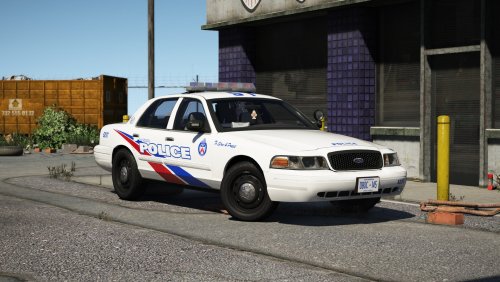 Hi there, I think there's a misunderstanding. The reason Jedahdiah has you use sirensetting 15 is because he edited the carcols file to have custom settings for his vehicles. Sirensetting 15 does not exist normally, he made it. Yes, 13 may work, but the outcome is not perfect as Jed has set it up. 15, plus using his carcol gets the result he intended.
- 154 comments
- 46 reviews
-
-

- 1
-
-
Welcome, Ray! Glad to see you've joined us. 🙂 Do you currently play LCPDFR or LSPDFR? or are you trying to get back into it?
-
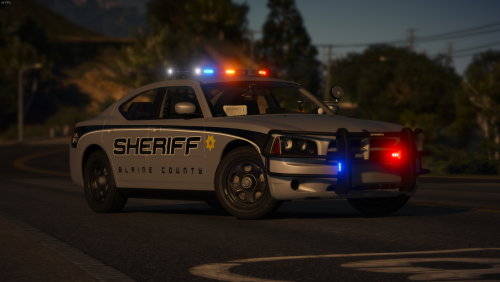 Just to add to this, I personally would like to see this pack updated with a few more cars, but we don't know if Kilroy is busy or if he had no plans of more vehicles.
- 131 comments
- 45 reviews
-
-
- 2
-
-
 Love the livery. I know who it's from, but can't recall the name.
 -
This is a really nice pack. If you prefer blue/blue lights, you can grab those from my file. (Yes, Donut, red/blue sucks :P)
-
Just download STP and Ultimate Backup again, but only use the new .dlls. There's no need for a full reinstall of the mods.
-
Just in case, if you haven't already, send him an email and let him know! I was emailing with him a while back about some stuff, so he does read and respond.
-
 Thanks!
 -
Either it's a bug with the new .dll version, or people are doing fresh installs. There are some people on a FB group with the same issue. I updated (just replaced dlls), but haven't played yet to verify.
-
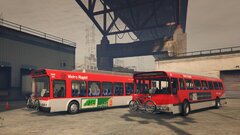
Can you link to the bus on the right?
-
From the album: Red's LSPDFR chaos
-
-
Just to clarify, you don't merge any folders together. The assorted callouts.dll and INI go into the LSPDFR folder that is inside plugins. It should look like this: GTA main directory -->Plugins-->LSPDFR.
-
I didn't do anything other than follow install instructions. 😛 Check the readme for assorted callouts.
-
I'm sorry to say,, but you may of installed it wrong. I use Assorted Callouts and haven't had a major issue yet.
-
Double check your GTA directory, make sure you still have all the files needed, including advancedhookv.dll
-
For now, delete your mods folder. When it comes time for you to install weapons, vehicles, etc remake the folder.
-
At what point did the mods folder stop working? What did you install leading up to this?
-
If you've dropped the gameconfig back into the mods folder, then start the game with Rage. However, I'll go over the process again. In OpenIV, navigate to update / update / common / data Drag the gameconfig to your desktop. In OpenIV, navigate to mods / update / update / common / data Click "edit mode" Drag the gameconfig from your desktop to OpenIV. Then you can try going in game with Rage.
-
That red box is just a warning that you should not edit anything in the vanilla/unmodified folder. You can ignore this. Navigate to where I told you and just drag and drop. 🙂
-
Yes, it is in the data folder. Scroll down to find it.
-
This means there's an issue with your mods folder. You can either delete the mods folder and remake it, or In OpenIV, navigate to update / update / common / data Drag the gameconfig to your desktop. In OpenIV, navigate to mods / update / update / common / data Click "edit mode" Drag the gameconfig from your desktop to OpenIV.
-
Okay, let me know if it helps.

