


Reddington
Members
-
Joined
Everything posted by Reddington
-
You're the reason they keep releasing updates. Members, please aim your spears towards him!
-
Your topic has been moved to GTA V Support, this is not LSPDFR related. Please post in the correct location in the future.
-
It's not 'digging through' files, and it's a very simple copy. paste them in a folder, and when you need to, drag and drop in the main folder. This way you know for sure your back up is safe and there to use whenever. It's all about whatever the person wants to do and thinks is better for them.
-
That's not necessary, it's very, very easy. I go by the same method in this thread. Back up the update.rpf in the vanilla update folder, back up GTA 5.exe and GTAVLauncher. (ignore bright taxi sign folder)
-
This topic has been moved to the appropriate forum. Please post in the correct location in the future.
-
You're making life harder on yourself, lol. I refuse to ever update unless forced (IE new computer, or something corrupts beyond repair). I'll constantly back my stuff up.
-
Yes, you delete the one already there then add to it. So if you have <Vehicle>police</Vehicle> You would replace that with <Vehicle extra_1=true>police</Vehicle> However, looking back at a post you made, you said yo hate extras. To my knowledge there isn't a way to prevent an extra from being used.
-
You can also look here for information on backing up your game - I'm half surprised and half not surprised they are still doing this. Rockstar wants to milk the fuck out of GTAO for as long as possible, and it makes me wonder what they are going to do come GTA VI. Either they will shut down GTAO on GTA V, or they will try to milk online from V and VI.
-
-
Strange. The backup.xml even says You can also specify what extras should be enabled: <Vehicle extra_1=true>police3</Vehicle> I'm not sure it would stop working. Try copy and pasting that exact line and see if it makes a difference.
-
This topic has been moved to the appropriate forum. Please post in the correct location in the future.
-
This has been brought up before, and is not something that is being considered to my knowledge, as the main focus on police mods. I'm not speaking on behalf of the devs, it's just what I've seen said in the past concerning it.
-
For right now, leave it at <Vehicle>police</Vehicle Just to see if the backup.xml works again.
-
This topic has been moved to the appropriate forum. Please post in the correct location in the future.
-
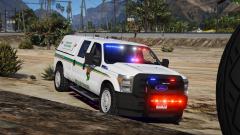 I wondered if it was Hurk's, but wasn't sure.
 -
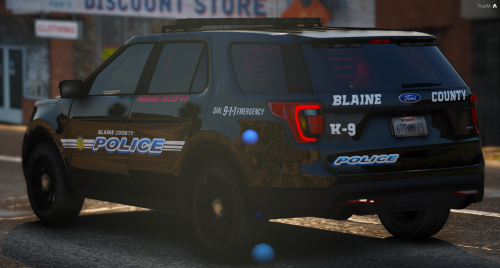
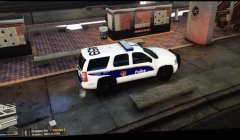 Whose pack is this? Love the Phoenix textures.
 -
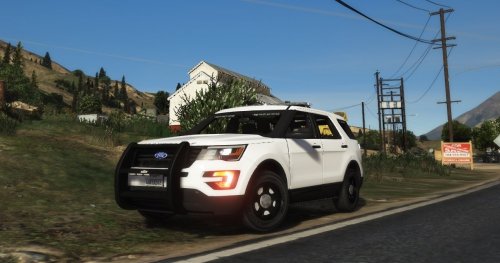 I recommend PM'ing some of the skin makers and see if they'd be willing to let you use one of theirs.
- 14 comments
- 2 reviews
-
.png.6aa57f1e2a27bd5fc02b6095e56d9af0.png) Perfect timing with the train!
Perfect timing with the train! -
Where can we get this truck?
-
Remove my line and then try and see if it works.
-
Your topic has been moved to GTA V Support, this is not LSPDFR related. Please post in the correct location in the future.
-
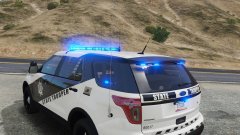
From the album: Red's LSPDFR chaos
-
Your topic has been moved to GTA V Support, this is not LSPDFR related. Please post in the correct location in the future.
-
Double check that you have no missing brackets, and that everything you've edited is correct.
-
Your topic has been moved to GTA V Support, this is not LSPDFR related. Please post in the correct location in the future.


.png.6aa57f1e2a27bd5fc02b6095e56d9af0.png)
