
wantedelf
Members
-
Joined
-
Last visited
Everything posted by wantedelf
-
-
-
-
-
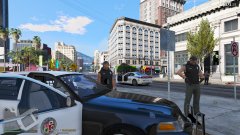
From the album: Sheriff's Dept.
Damn she shot my car -
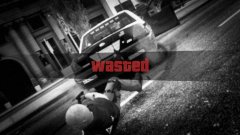
From the album: Sheriff's Dept.
Damn it she she shot me !! OFFICER DOWN -
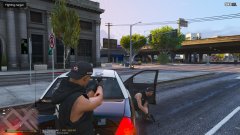
From the album: Sheriff's Dept.
SHOTS FIRED !!!!! -
-
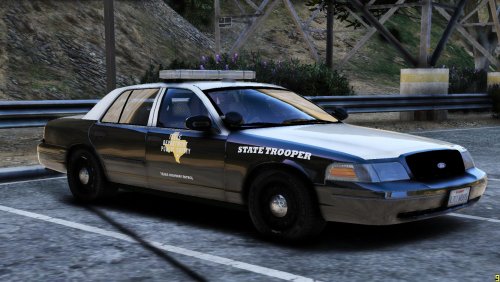 The title is not misleading It says Texas DPS Texture Pack. now what he quoted at the bottom about the rework for ELS.... Then yeah there is no ELS when it comes to textures they are two different things and one has nothing to do with the other.....BUT THE TITLE IS STILL RIGHT.......TEXAS DPS TEXTURE PACK 1.0.0
- 9 comments
- 2 reviews
-
-
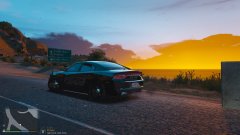
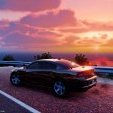
From the album: Sheriff's Dept.
Sunset in Paradise -
-
-
-
-
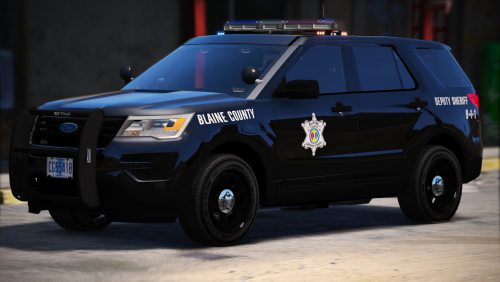 Clean and crisp...... Looks really good. Love a black police unit with white !!
- 17 comments
- 14 reviews
-
-

- 1
-
-
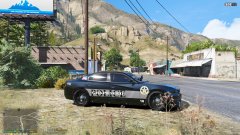
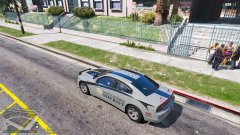
From the album: Sheriff's Dept.
Welcome to Grapeseed , Please obey the SPEED LIMIT ! -
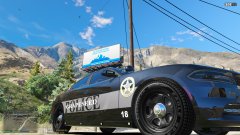
From the album: Sheriff's Dept.
-
-
-
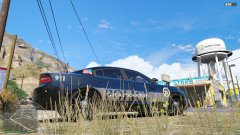
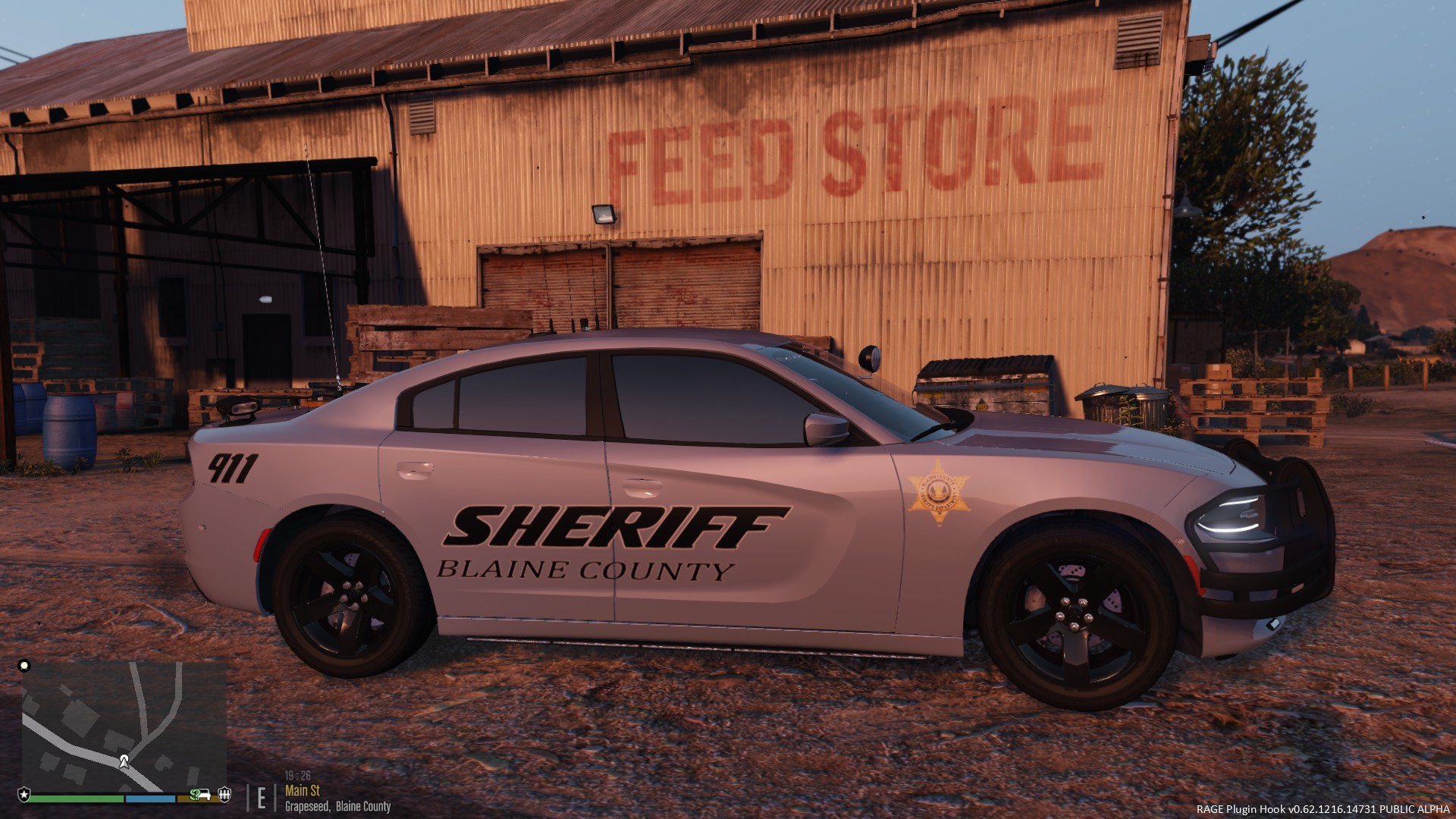
From the album: Sheriff's Dept.
-
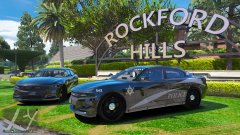
From the album: Sheriff's Dept.
-
-
-