
wantedelf
Members
-
Joined
-
Last visited
Everything posted by wantedelf
-
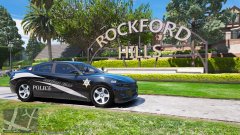
From the album: Sheriff's Dept.
New Units arrive in Rockford Hills -
-
-
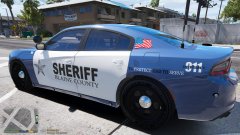
From the album: Sheriff's Dept.
UPDATE changed the flag on the roof quarter panel Thanks to Nils Carlson for the flags !! They look much better than what i had. -
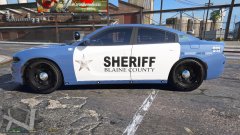 Thank you I appreciate that alot. Gonna change it right now
 -
I don't have it ...where can i get ?
-
From the album: Sheriff's Dept.
OK so i think i'm going with this one -
-
-
-
-
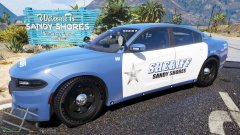
From the album: Sheriff's Dept.
-
-
-
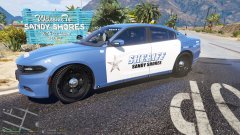
From the album: Sheriff's Dept.
-
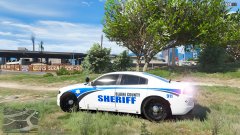
From the album: Sheriff's Dept.
Blaine County Texture-- Spin-off from my LSPD Texture pack Making this pack for for the lspd mega pack by JJDawkins -
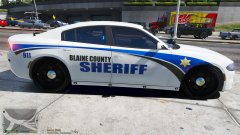
From the album: Sheriff's Dept.
-
-
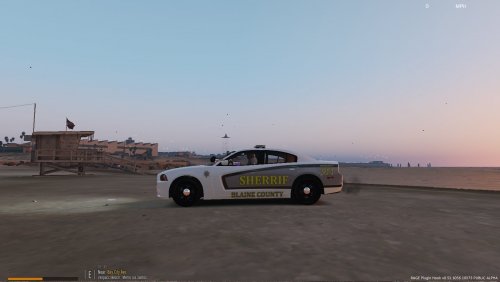 Yep, no problem just keep doing them, the more you do the better they will get The car also if you hadn't noticed which i'm sure you didn't lol
- 4 comments
- 1 review
-
You might want to pull the file and spell Sheriff the correct way, then put it back up. ( SHERIFF )
- 4 comments
- 1 review
-
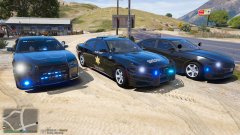
From the album: Sheriff's Dept.
Triple Threat !! -
-
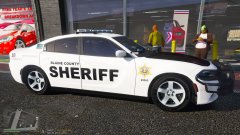
From the album: Sheriff's Dept.
New texture for Policesco's Charger -
-