


razed08
Members
-
Joined
-
Last visited
Everything posted by razed08
-
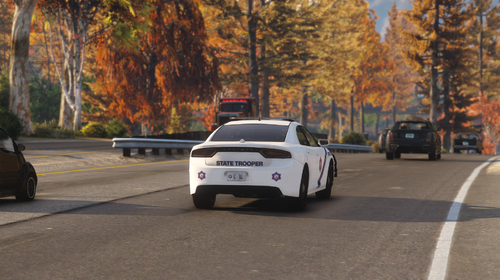 Love these! I've been following your progress on this pack, and I can't wait to see what the rest look like. Fantastic start!
 -
Can you launch it directly from Steam? Or does it give the same error?
-
Did you get in to OpenIV and let it copy the new update.rpf to your mods folder?
-
Had the same issue. If you're running the Steam version, try this: End all Steam processes in Task Manager. Go to C:\Program Files\Steam (or the Steam directory that was specified during installation). Locate ClientRegistry.blob and rename this file to ClientRegistryOld.blob Restart Steam to allow the file to be recreated. It still took a little while to start on the first try, but I've been able to launch everything since I've done this.
-
Glad I could help!
-
Do you have Simple Fuel Mod installed? I had to uninstall that in order for it to stop crashing when entering a car.
-
Just installed this one and it's working: https://www.gta5-mods.com/scripts/simple-fuel
-
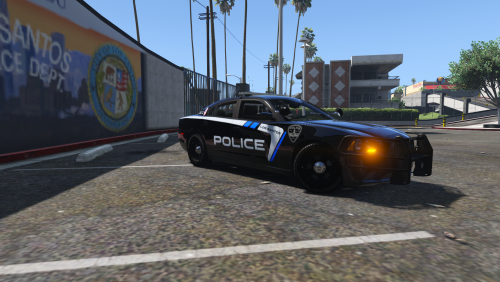 Love the way these look. I hope in a future update you consider captain14's sheriff pack. I find it hard to use those without this skin. :-) Great job!
- 10 comments
- 4 reviews
-
-

- 1
-
-
-
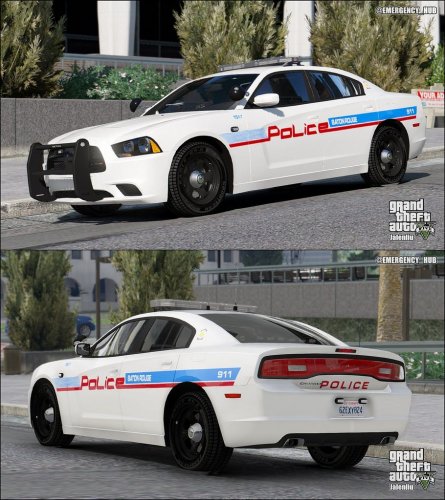 Thank you for this. I'm not much for leaving comments on mods, in fact, this is my first. This will be a permanent skin. 10/10
- 1 comment
- 2 reviews
-
-
- 2
-
