Interference
Members
-
Joined
-
Last visited
Everything posted by Interference
-
Source code leak is fake.... or not?
-
Oh wait it's hours... I thought days.
-
Yes indeed I say my good chap! Tally-ho!
-
All testers kiddos should check the hub, LCPDFR source code got leaked. :O
-
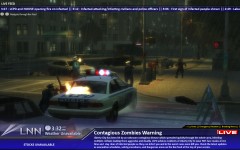 Thanks, the zombie mod is Contagium.
 -
From the album: Liberty City TV
New news channel! Part 2 out of the 5 zombie outbreak story!© Interferece Pictures
-
 I feel like installing Zombocalypse.... ^^
 -
I like white, but the transparency through the pictures kinda sucks.
-
Dude you didn't install 1.0.7.0 correctly try again
-
Since you're a tester post your suggestion on the hub.
-
Post a new diagnostic log.What the hairballs are you doing?! Can you at least say what steps you've done?
 1. Not possible 2. Yeah that sounds sweet 3. Hmm sorta like that 4. Yeah! 5. Not possible atm I think 6. I heard about a fuel mod but I don't think it works with AI
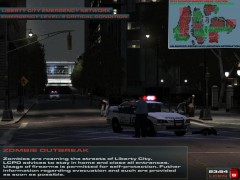 This is an old picture, check out the first part of the Zombie outbreak story! http://www.lcpdfr.com/cops/forum/gallery/image/727-emergency-broadcasting-system-contagious-disease-warning/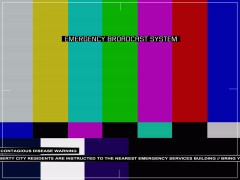
From the album: Liberty City TV
Part 1 out of 5 of the zombie outbreak story!© Interference Pictures
Did you run it as Administrator? Right click => Run as administratorWell it's not SATA or IDE either, it's USB 2.0Mobile County based LCPD tahoe requested by Iconography Car Download Skin DownloadNevermind I accidently bought an external HDD which sucks for gaming, I found that out after I bought it :lRCMP Tahoe requested by mitch0913 Car Download Skin DownloadChevrolet Impala Skin some old project i found on my hdd Car Download Skin Download