Laqueesha
Members
-
Joined
-
Last visited
Everything posted by Laqueesha
-
 Thanks!
 -
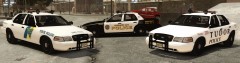 No problem, you're welcome. I based the Tudor police car on the livery of the Elizabeth, New Jersey Police Department, as the city of Tudor in Alderney is based off of the city of Elizabeth, New Jersey. Combined with the Area Livery Mod, these "New Alderney" liveries are a sight to behold. Now, driving around the streets of Alderney really feels like you're in an entirely different state, which is what Rockstar intended, but never really got around to actually doing.
 -
From the album: Laqueesha's Pictures
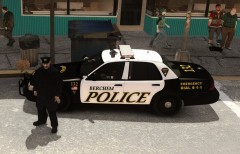
A Berchem police officer stands next to his patrol car. -
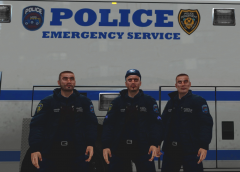 Those are some sexy jackets.
 -
Who knew a Dodge Charger would look nice as a taxi? Speaking of which, NYC should use the LX platform Dodge Chargers as their replacement taxis for the FCV instead of those Nissan contraptions.
- 8 comments
- 4 reviews
-
-

- 1
-
-
I didn't make the State Police skin, so I honestly do not know. As for the Alderney City police car, I believe it is "Arial Black". Thank you. I only created the Tudor Police Department one from scratch. The others were created by other people, and I just edited them for personal use.
-
-
From the album: Laqueesha's Pictures
Ford Crown Victoria Police Interceptor patrol cars from (left to right) the New Alderney State Police, the Alderney City Police Department, and the Tudor Police Department. -
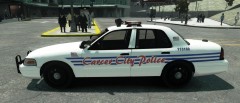 You have a good eye. I used the AR Berkley font, which is what the Detroit Police uses on their patrol cars, to my knowledge. Link to download the font: http://fontzone.net/font-details/AR+BERKLEY/
 -
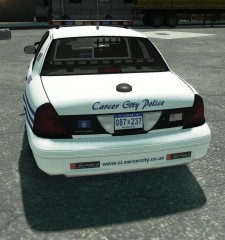
From the album: Laqueesha's Pictures
A Ford Crown Victoria Police Interceptor patrol car with the Carcer City Police Department. -
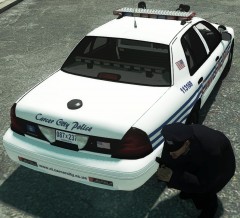
From the album: Laqueesha's Pictures
A Carcer City police officer takes cover behind his patrol car. -
From the album: Laqueesha's Pictures
A Ford Crown Victoria Police Interceptor patrol car with the Carcer City Police Department. -
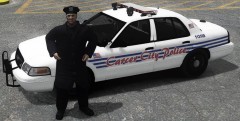
From the album: Laqueesha's Pictures
A Carcer City police officer stands next to his patrol car. -
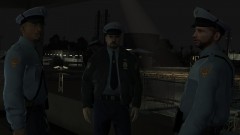 Looking good there. If I were you, I'd slap the State Trooper arm patch over the LCPD one, and replace the LCPD badge on the jacket with the State Police triangluar-shaped tie tack. Anyway, keep up the good work!
 -
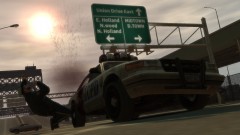 Well, serves him right for going way out of his jurisdiction. :yes:
 -
I have the same issue with weberstudios, and I'm running this on a desktop. If you need absolutely need a traffic fix mod, I'd recommend using the TrafficControlSystem Mod, if this one is too system-intensive for your computer. It's the same concept, although it selects from a wider variety of cars (not just twenty), and doesn't drain system resources as much. However, since the car choice is completely random, you'll get some weird, and sometimes funny occurrences, like old ladies riding on Harley-Davidson motorcycles, homeless men driving FDLC fire trucks, and businessmen in 1000$ Italian suits driving Trashmaster garbage trucks, etc.
- 97 comments
- 67 reviews
-
-
- 3
-
-
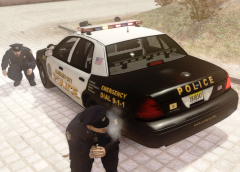
From the album: Laqueesha's Pictures
Two Alderney City police officers take cover behind their patrol car. -
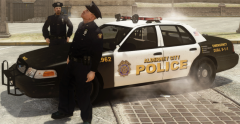
From the album: Laqueesha's Pictures
Two Alderney City police officers decide to take a quick break before they begin their shift. -
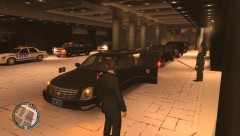 Is that President Obama, or Niko Bellic? :thumbsup:
 -
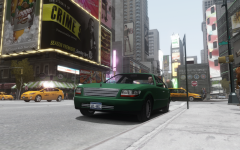
From the album: Laqueesha's Pictures
Niko Bellic relaxing and taking a break in an Albany Washington, parked in the middle of Star Junction. -
-
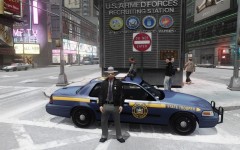 I used the "Player Selector" mod.
 -
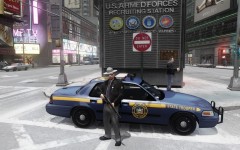 Thank you.
 -
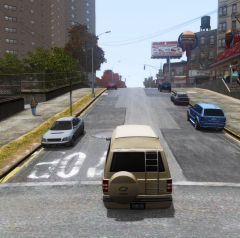
From the album: Laqueesha's Pictures
Driving down the streets of northern Liberty City in a Moonbeam van. -
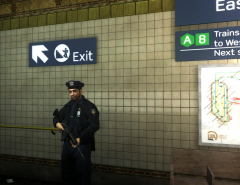
From the album: Laqueesha's Pictures
An LCPD officer stands guard at an LTA subway station with his AR-15 carbine.