




Walters
Members
-
Joined
-
Last visited
Everything posted by Walters
-
 ???
??? -
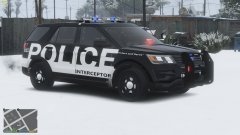
If you are trying to recreate those vehicles, I'm sorry to say this but you did a horrible job.
-
-
-
-
-
-
-
-
-
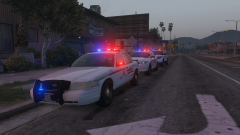
From the album: RCMP MegaPack
-
-
-
-
POLICE3 should be good.It was successful, there were no files missingI repeat I'm using a fresh installation. No mods at all installed.Should be back at prologue since I reinstalled it. But I don't know since I cant get in the game.Just tried it. Still is crashingWhat would I be looking for?So. My GTA was working one day. Then the next day. I can't even get in the game because GTA started crashing. I haven't changed anything since the day it was working. Note this was with mods. So I took out every mod I had installed, tried to go on GTA and still keeps crashing. I don't even get to get in the game. The launcher closes then right after my game crashes. So after frustration, I decided to reinstall GTA so now I have a completely fresh copy of GTA. I launch the game and it still crashes. I really don't know what to do and I can't finish any of my projects.
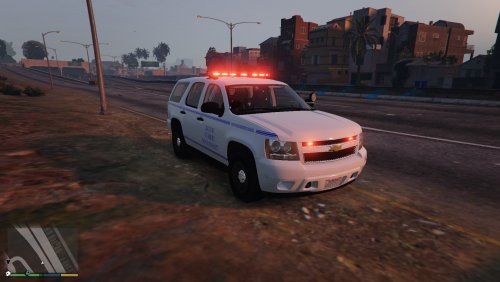 No antennas. No effort on the interior. Not realistic at all. Just some overused stuff that was thrown together. Incorrect partition. Correct me if I'm wrong but OSHP vehicles don't have rear white lights flashing at the same time.
- 9 comments
- 3 reviews
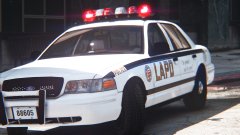 Where can I file a restraining order





