
Griswald
Members
-
Joined
-
Last visited
Everything posted by Griswald
-
 True, I was never able to get my lights working in GTA 5.
 -
I wish vehicle modeling was as easy in gta 5 as it was in gta 4.
-
Contemplating whether or not to reinstall my gta 4.
-
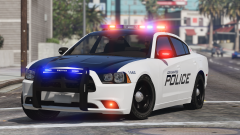 Can't wait, love the amount of Northwest city cars you are releasing.
 -
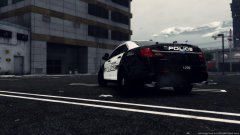
From the album: SA police
Loving this sedan from @Captain14, texture is a WIP release soon. -
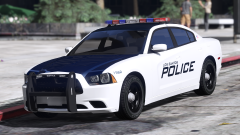 Whats up with all the northwest department packs? I like it.
 -
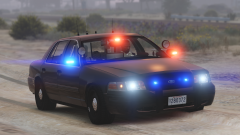 Frick YASSS!!!
 -
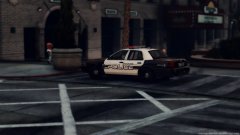
From the album: SA police
WIP texture pack design based off the city of Temecula California. (release soon) -
 Thanks man
 -
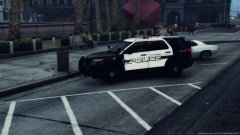
From the album: SA police
WIP texture pack design based off the city of Temecula California. -
-
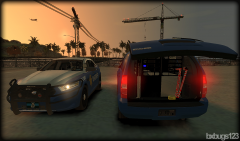 If only they were in GTA V.
 -
-
-
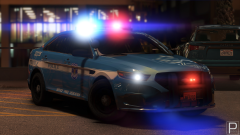 Waiting...
 -
Ya that sucks I just updated my pc and reinstalled my whole game.
-
When was the last time you reinstalled your whole game?
-
I would uninstall these ones and see what happens. Law Callouts CalloutsV More Callouts then if that doesnt work uninstall lspdfr+ and run it because I know that changes a lot of AI response.
-
What was the last thing you installed before this happened? If worst comes to worst you can just reinstall the whole game.
-
Are you running lspdfr+ or keep calm?
-
Are you on the latest version of RPH, plugins, and callouts?
-
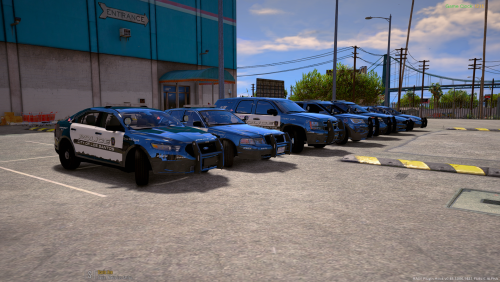 Im loving the K9 tahoe but the front visor lights need to be bigger, they look like they are too small for the car.
- 779 comments
- 187 reviews
-
-

- 1
-
-
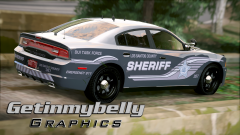 Better than my version I made a while back lol.
 -
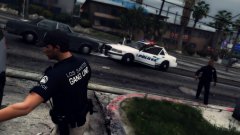
From the album: SA police
Gang unit 10-8 from a possible gang fight in South Los Santos. -
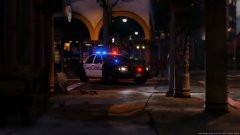
From the album: SA police
Del Perro PD.