Compeast
Members
-
Joined
-
Last visited
Everything posted by Compeast
-
-snip-
-
-snip-
-
-snip-
-
-snip-
-
-snip--snip--snip-INTENSIVE MODIFICATIONS -snip-Neat videos''Eight Days'' the game, I've been told.Waukegan is one of my favorites too.
 Probably EFLC.They're great, you should definitely share them. it would even be more neat if it was possible top only let a state trooper drive one of those certain vehicle's. Like Police2, for example. Cool mod anyways. +REP.It´s enormous, just as always. If you have only seen what I saw...
 You disgusting basterd...Gruppe Sechs... haha joking. Loving the car & texture.
 The optimist... LOLI've seen documentaries about it. It even has a computer in the trunk, haha. really awesome!Wow, that model looks just great! Kinda unfortunate there are no textures include. Still great model.Looks legit. About the interior; Isn't the 1997 interior the same as the 1998? Perhaps we could borrow that.So do I. Also: The Impala can be easily edited to a 1996/1998 Chevy Caprice, since Caprice started using the Impala base those years. Yeah, I'd love to see this in game myself! As well an Impala as a Caprice.
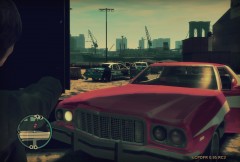 Love the old vehicles. Soon I'll release some I made.
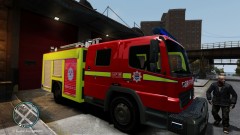 I liked the Original more...