


11john11
Members
-
Joined
-
Last visited
Everything posted by 11john11
-
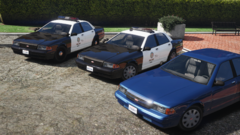
From the album: John's Workshop
-
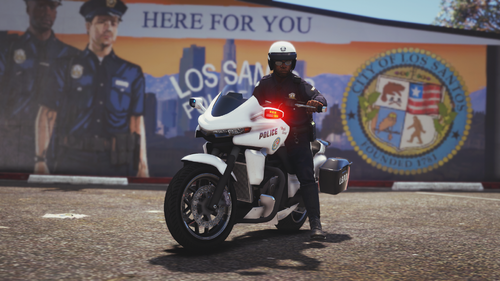 The issue you described is most likely caused by the lack of mods folder, you should always use it
- 14 comments
- 3 reviews
-
Are you using a mods folder? also, GTA V just got a update, your problem might be related to that too
- 14 comments
- 3 reviews
-
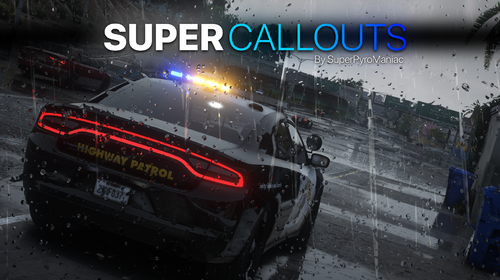 Really like the callouts, one thing I would suggest is adding more car variety to the high value car stolen callout, as I have only seen the Tempesta and Zentorno spawn in those callouts so far, would be cool to have more variety. You can find a list of all super car models that V offers here: https://gta.fandom.com/wiki/Category:Super_Cars
- 1,007 comments
- 63 reviews
https://www.youtube.com/watch?v=TREc9Ouk_mgNext update for the LSSD Pack will feature: - Improved base models, lighting setups, liveries and equipment - A redone LSPDFR config - Possibly a new car.LSFD Paramedics transporting a unconscious person discovered by LSPD Officers on a sidewalk in Vinewoodhubcaps have been replaced with steeliesUpcoming bonus content for the LSPD pack: 04' Vapid Police Cruiser Stay tuned for more updates on LSPD pack and LSSD pack 1.2 progress.gangland patrolTraffic Stop on a Boxville RetroLSSD South LS patrol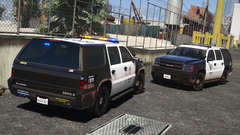
From the album: John's Workshop
Will be featured in the next update of the LSPD Pack: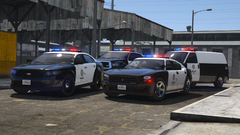
From the album: John's Workshop
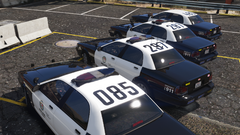
From the album: John's Workshop
fleet almost complete Stanier has received a slicktop setup as extra for variation


Account
Navigation
Search
Configure browser push notifications
Chrome (Android)
- Tap the lock icon next to the address bar.
- Tap Permissions → Notifications.
- Adjust your preference.
Chrome (Desktop)
- Click the padlock icon in the address bar.
- Select Site settings.
- Find Notifications and adjust your preference.
Safari (iOS 16.4+)
- Ensure the site is installed via Add to Home Screen.
- Open Settings App → Notifications.
- Find your app name and adjust your preference.
Safari (macOS)
- Go to Safari → Preferences.
- Click the Websites tab.
- Select Notifications in the sidebar.
- Find this website and adjust your preference.
Edge (Android)
- Tap the lock icon next to the address bar.
- Tap Permissions.
- Find Notifications and adjust your preference.
Edge (Desktop)
- Click the padlock icon in the address bar.
- Click Permissions for this site.
- Find Notifications and adjust your preference.
Firefox (Android)
- Go to Settings → Site permissions.
- Tap Notifications.
- Find this site in the list and adjust your preference.
Firefox (Desktop)
- Open Firefox Settings.
- Search for Notifications.
- Find this site in the list and adjust your preference.