
Slendis
Members
-
Joined
Everything posted by Slendis
-
-
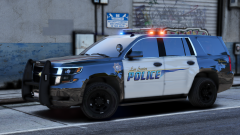 You freaking god.
 -
-
-
-
Yes. But the AMBULANCE_WARNING will not play from the start.
-
Thats not possible.
-
-
No, it's not possible.
-
Yes.
-
Ugly as shit
-
-
-
-
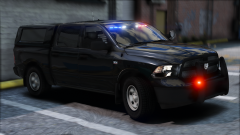
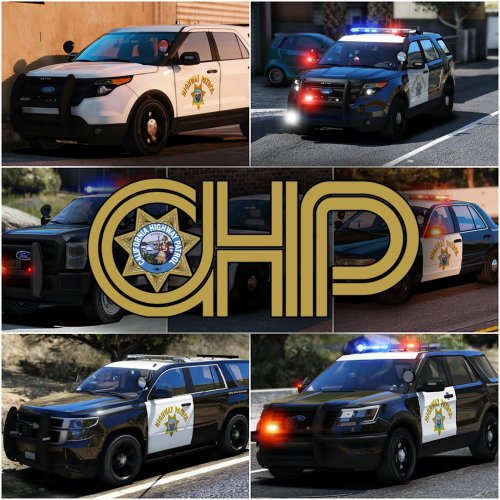 It has licenseplates if the vehicle is far away, but close up it has none. I can give you a screenshot if you want.
- 955 comments
- 158 reviews
-
-
-
-
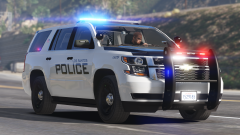
I've never stood next to either a Tahoe or a Utility, but i still know that Hurk scaled them to fit the other ingame vehicles.
- 955 comments
- 158 reviews
-
-

- 3
-
-
Please tell me about it Don't start with this shit again. Hurk has multiple times said he scaled the vehicles to make it fit with the other ingame SUVs.
- 955 comments
- 158 reviews
-
-
- 2
-
-
-
-
-
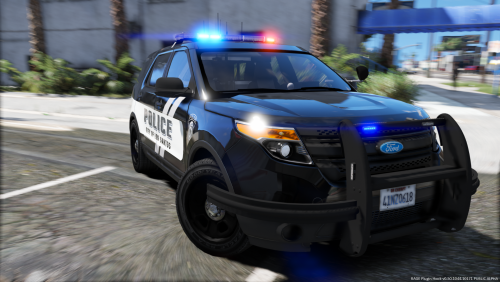 Mountlake Terrace Police does not use CVPI's. And for the skin you'll have to ask @iansonwheels
- 18 comments
- 22 reviews
-
 Looks sick but don't you dare forget this