




Slendis
Members
-
Joined
Everything posted by Slendis
-
 Dude i love how this is looking! Great job so far!
 -

-
Yep thats the one. Download 'Button Config #02' and ELS and your controller will work perfectly.
-
 I really like how that is looking!
 -
-
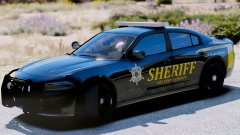 It should say ''State of San Andreas'' or ''City of Los Santos''
 -
San Andreas is still not a city lol
-
San Andreas is not a city, San Andreas is a state.
-
-
It has been stated multiple times that ''Free my controller'' does not work with ELS.
-
Right now, i can't. It looks like the file has been taken down from LCPDFR.com
-
ELS works really good with a controller. Download ''Button Config #2'' from ''Who needs them?'' and it will unbind all the controller bindings you don't need and ELS will work without any problem whilst using a controler.
-
 Slide me a PM
Probably as Wilson Sellars said, different graphics mods and higher settings.
Oooooh looooord jesuuuus staaaaaph this manDude you gotta stop this. This is not a Questions and Answers thread, neither is it a thread where you show off your releases. So insted of posting here asking all your questions use google and please google before posting here. And please never again link your own mod on this thread.The top clearly looks black lmaoNo FHP's new RX2700's are dual mapped.
Slide me a PM
Probably as Wilson Sellars said, different graphics mods and higher settings.
Oooooh looooord jesuuuus staaaaaph this manDude you gotta stop this. This is not a Questions and Answers thread, neither is it a thread where you show off your releases. So insted of posting here asking all your questions use google and please google before posting here. And please never again link your own mod on this thread.The top clearly looks black lmaoNo FHP's new RX2700's are dual mapped. No idea. Use the search bar.No it does not. Why does it work for me then?My bad, it's a Code3 Z3


.thumb.png.debb2e8fd42b234303e9e2473fb894e8.png)
