



Ersteman
Members
-
Joined
-
Last visited
Everything posted by Ersteman
-
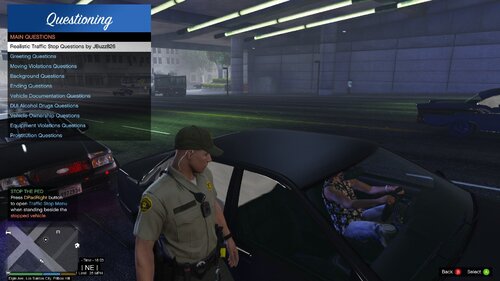 Absolutely great work. Adds so much to the LEO role. A must have for ' serious ' play.
- 53 comments
- 9 reviews
-
-

- 1
-
-
-
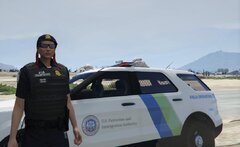
From the album: Return to Patrol
Back to being PIA. -
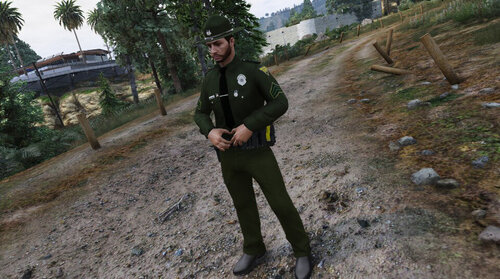 Oh Yeah!!!!!
 -
-
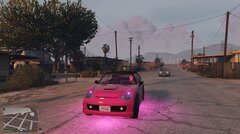
From the album: Return to Patrol
-
-
-
-
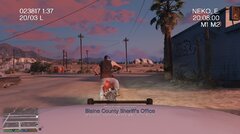
From the album: Return to Patrol
Glad it still works -
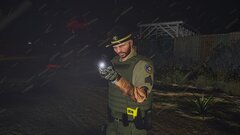 💋
💋 -
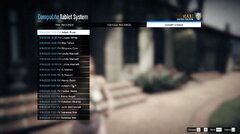
From the album: Return to Patrol
That my STP stuff doesn't show on my listing, part of my current court docket. I ve been a busy girl :) -
Hey those are not regulation Duty Gloves.. Dork 😉
-
 Danger Close
 -
 yep.. hey sister! You got.. umm.. a weird light problem 😕
 -
 Sweet shot!
 -
-
From the album: Return to Patrol
Profiling on a Professional Level :-/ -
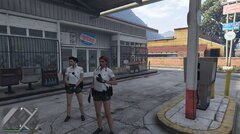
From the album: Return to Patrol
Had to get my Coffee up. -
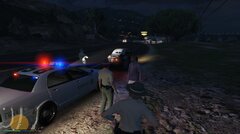
From the album: Return to Patrol
Early in the amazing stop of tonight -
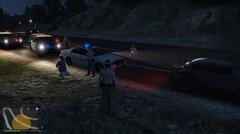
From the album: Return to Patrol
This traffic stop was great. Everything went right :) Found lots of drugs and illegal weapon in vehicle.. backup's all worked.. and the scene LIGHTING.. was GREAT in live play. -
 This is a great mod for not only immersion, but tie in to your character and duty / traffic / busy / transport etc. No problems at all with it, and love the flow with it 🙂 Thanks for this one!
- 132 comments
- 26 reviews
-
-
- 1
-
-
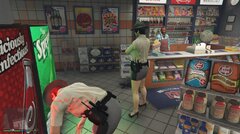 Trust me @Otaku, @Reddington has no issues with skirts, booty shorts, legging or yoga accessories. I see no reason why not @Vampyre
 -
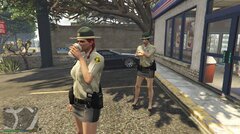 Anyone who knows me.. knows I do a lot of this 😉
 -
It's my variation of Class A😉 It always was sort of that.. (which you know )Love the new EUP and LSPDFR WOW great stuff..


