GreenAid
Members
-
Joined
-
Last visited
Everything posted by GreenAid
-
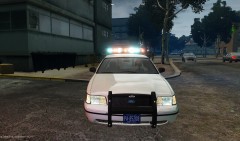
From the album: New Hex Skin
My progress with the pack, now I'm missing only the 2012 Charger but I'm not sure about it, I have to see how it look on it :) -
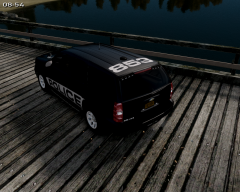
From the album: New Hex Skin
My progress with the pack, now I'm missing only the 2012 Charger but I'm not sure about it, I have to see how it look on it :) -
 SNT.
SNT. -
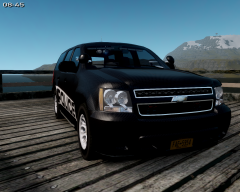
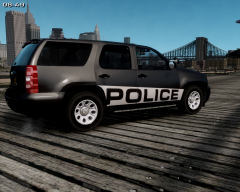
From the album: New Hex Skin
My progress with the pack, now I'm missing only the 2012 Charger but I'm not sure about it, I have to see how it look on it :) -
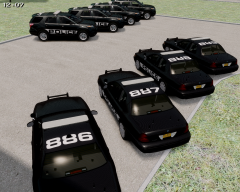
From the album: New Hex Skin
My progress with the pack, now I'm missing only the 2012 Charger but I'm not sure about it, I have to see how it look on it :) -
-
Did this get abandoned? D:
-
-
-
-
-
 Thank you very much mate ;) Yeah I know his cars are awesome while low-poly.... I think he deserves more attention as he's bringing us awesome models :D
 -
:O :O Where do you get that car?? I like very much those rimssss!!
-
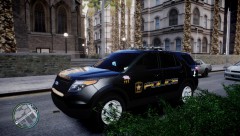 Haha very nice mate, thanks to you ;) (Your skin is very good too!)
 -
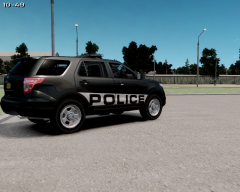
From the album: New Hex Skin
I reuploaded the pics since previously they were more than five & got deleted... >_< Current plans anyway: -Tahoe -2012 Charger -
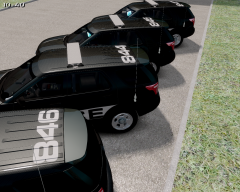
From the album: New Hex Skin
I reuploaded the pics since previously they were more than five & got deleted... >_< Current plans anyway: -Tahoe -2012 Charger -
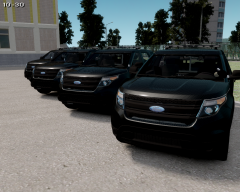
From the album: New Hex Skin
I reuploaded the pics since previously they were more than five & got deleted... >_< Current plans anyway: -Tahoe -2012 Charger -
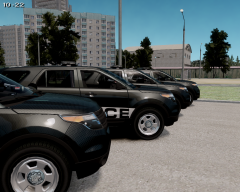
From the album: New Hex Skin
I reuploaded the pics since previously they were more than five & got deleted... >_< Current plans anyway: -Tahoe -2012 Charger -
I think there are two links to it, try the other.
-
Awesome thing!! My only request would be being able to press a button while in pursuit or on callout to make the cars move more out of the way or also the stopped cars (that won't move when they hear sirens) because it's pretty hard not to crash in them if you have heavy traffic that is stopped in middle of road....
-
-
-
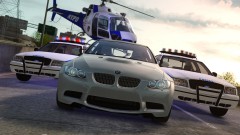 Helo with no one :) & anyway cool to see you here too ;) (You might know me... xD )
 -
Can I ask how it doesn't work? :D That's sad news :|
-
By reading the Read me....