
Officer27
Members
-
Joined
Everything posted by Officer27
-
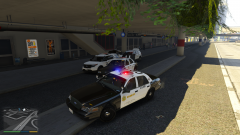
From the album: Random GTA V Pics
Canines taking over -
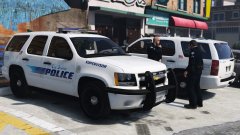 Can't wait when this is released so I can make some BHPD skins for it
 -
Thats not mine i haven't done any work on it, It was given to me by @FightingNote to make some skins, its WIP. I'll release all the skins right after the model is released
-
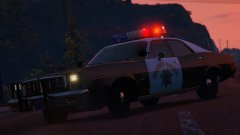 LOL your curosr is underneath the lightbar
 -
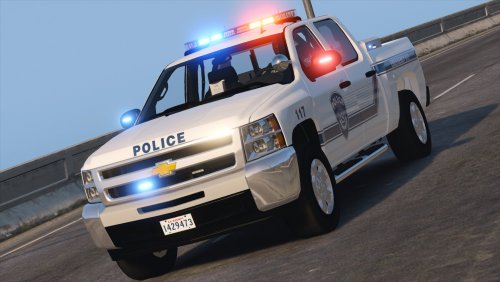
It looks great with a CHP livery
-
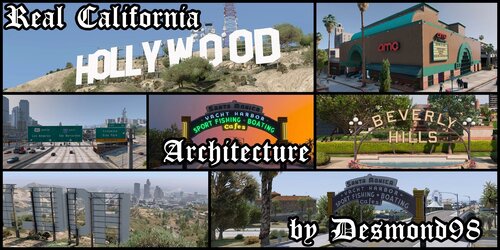
Nice :) fwy_01_fwysign_text_057 looks really nice, Hollywood Downtown and its bent.
-
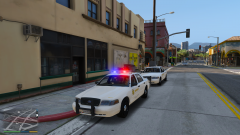
From the album: Random GTA V Pics
Michael volunteered for the LASD -
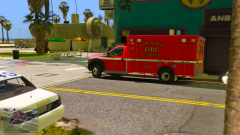
From the album: Random GTA V Pics
-
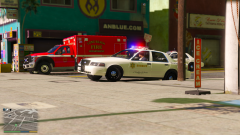
From the album: Random GTA V Pics
-
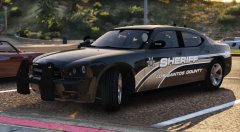 are you using the transparent color thing?
 -
-
-
-
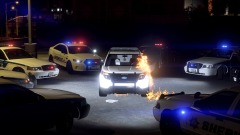 When you were surrounded by bullies but you needed to pee badly
 -
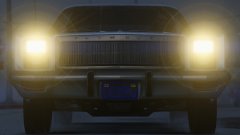 Lundy can't leave his precious fury behind! look at that beast!
 -
-
thats a hard one
-
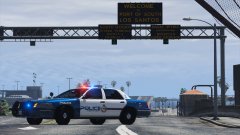 are those steady burns ! :) can't wait for ELS!!
 -
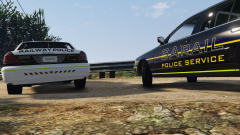 these look great !
 -
-
Woah that must be booooring
-
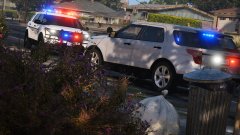 YES!
YES! -
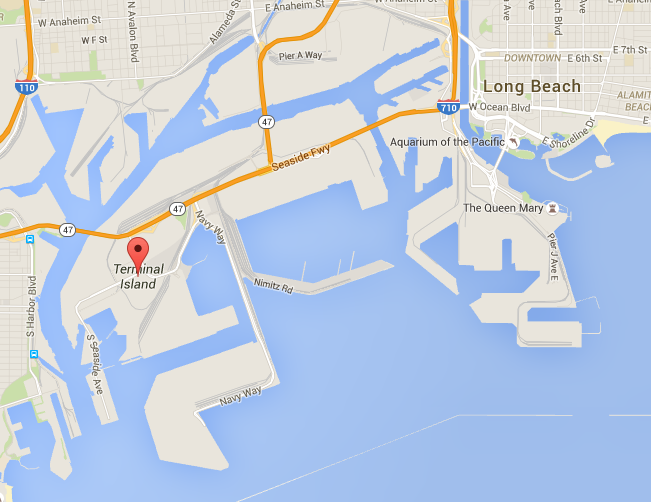
you could name it Seaside Fwy. as thats the main freeway on google maps the layout could be like this on the sign: TERMINAL ISLAND LONG BEACH
-
its based on port of Los Angeles and Port of Long Beach: http://gta.wikia.com/wiki/Port_of_Los_Santos I'd say its HIGHLY based on Terminal Island and Port of Long Beach
-