




ScrimpyData
Members
-
Joined
-
Last visited
Everything posted by ScrimpyData
-
It's an amazing model, and I'm glad I could test it for ya! Just like Dillon said, I'm always available to help you out :)
- 21 comments
- 3 reviews
-
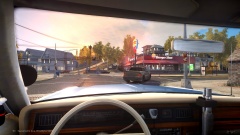 Dayum :O Dat screenshot! Amazing!
 -
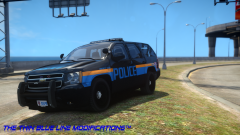 Well, just as I said, the person designing the skin is redoing it right as we speak. But thanks for the feedback :)
 -
-
From the album: Scrimps Mods
Another W.I.P Let me know what you think (skin will be fixed up) -
-
-
Thanks man! I'm glad you love it. btw, keep an eye on my gallery to see what's in the works ;)
- 16 comments
- 3 reviews
-
-
-
-
-
![Chicago PD - 2014 Dodge Charger [REL]](//s3-gallery.int-cdn.lcpdfrusercontent.com/gallery/album_1302/sml_gallery_23070_1302_850636.png)
From the album: Scrimps Mods
It's approved! :D -
Here is the 2014 Dodge Charger, based off the Chicago Police Department. I did the best I could to replicate the real vehicle as accurate as possible (with the available resources). The download includes the following things: - A pre-made ELS config file - A, as accurate as possible, lighting setup. - 4 high-quality liveries by kode103/RK Textures The following files can be found in the file: - police2.wft - police2.wtd - Screenshots - cpd_charger.ini I hope you enjoy the model! -Scrimpy
- 21 comments
- 9 reviews
-
I did the best I could to keep the file size as low as possible. But it's not as low poly as the original vehicles of course.
- 16 comments
- 3 reviews
-
-
-
I'm sorry to cause confusion with the big file size, but the wft file is only 2.3MB, and the wtd is 2.4MB. It are the screenshots included in the download that cause the file size.
- 16 comments
- 3 reviews
-
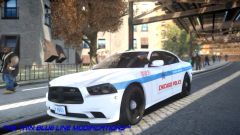 Thanks :D
 -
Time to revert some changes then lol. I'd like to keep it as accurate as I can.
-
Thanks anyways :) I've made the Red/Blue setup as the only picture with lights on had a red vertex on on the side of the vehicle, so I made it Red/Blue on the sides, and blue/blue in the front now.
-
I'm taking care of the front facing red lights right now. But just a question about it, do they exist facing to the sides?
-
I see...The picture had red and blue lights (only a few of them were on), so I made it red and blue
-
I did the best I can to make it as correct as possible (with the pictures I had)
-
From the album: Scrimps Mods
Another W.I.P. I know it (probably) isn't 100% accurate, but I tried :)


![Chicago PD - 2014 Dodge Charger [REL]](http://s3-gallery.int-cdn.lcpdfrusercontent.com/gallery/album_1302/sml_gallery_23070_1302_850636.png)
