
Evox_Franky
Members
-
Joined
-
Last visited
-
Evox_Franky changed their profile photo
-
-
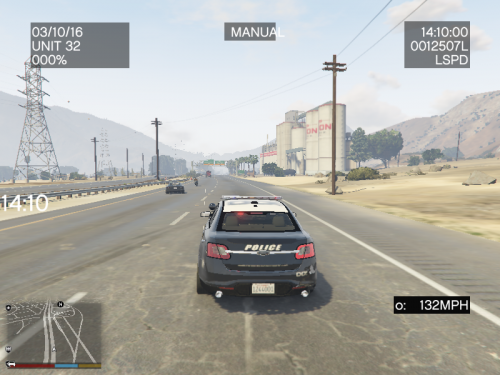 Quick question guys, which one is the most recent update file!? The one that saids ClearTheWayV_ORIG.zip or ClearTheWayV.zip
- 535 comments
- 42 reviews
-
 Evox_Franky reacted to a comment on a file:
Los Santos County Sheriff slicktop crown vic (fictional)
Evox_Franky reacted to a comment on a file:
Los Santos County Sheriff slicktop crown vic (fictional)
-
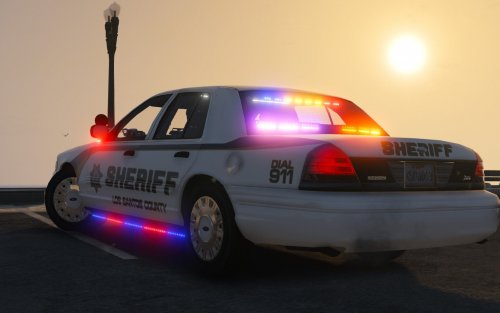 THIS LOOKS GREAT! QUICK QUESTION, CAN I USE THIS VEHICLE MODEL ON THE SHERIFF SLOT!? THANKS IN ADVANCE.
- 51 comments
- 27 reviews
-
-
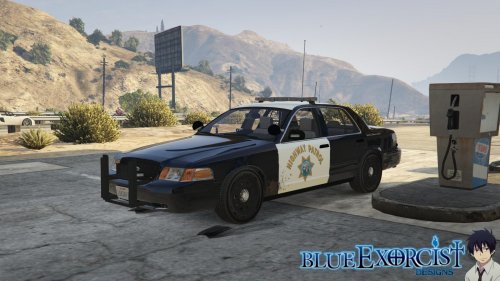 THANKS FOR YOUR REPLIED. BUT I AM INSTALLING IT IN THAT LOCATION AND STILL NOTHING!? ANY IDEAS?
- 77 comments
- 10 reviews
-
How do i correctly install this model! IDK what im doing wrong, I follow every step using openIV and when i install the police.yft and I click to view the model it doesnt apper there like there is no car to look!!? any help would be appreciated it.. thanks in advanced! how did you installed this model!? for some reason my wont work!
- 77 comments
- 10 reviews
-
-
 Thanks for the replying!! and yes the problem was my internet connection. thanks for the advised.!
- 54 comments
- 10 reviews
-
-
- 1
-
-
-
why when I download this file, my winrar saids is a broken file and it wont let me open it!? Thanks!
- 54 comments
- 10 reviews
-
-
 Thanks for the answers! But what you mean by saying the ENB is cryenb v3 + eyecandy... meaning install cryenb first ans than eyecandy on top!?
- 15 comments
- 8 reviews
-