

Patchy319
Members
-
Joined
Everything posted by Patchy319
-
 Nice! Just wish the speech recognition was better :/ But, what do you ever get from windows? xD Awesome mod
- 587 comments
- 106 reviews
-
 Cool! Thanks :) Note: There is already one, but the audio is crappy: https://www.gta5-mods.com/misc/cops-theme-song-on-loading-screen
- 9 comments
- 2 reviews
-
Cool, but I would really like it if you come out with a "Bad Boys" (COPS TV Show Theme Song) loading screen! :D
- 9 comments
- 2 reviews
-
-

- 1
-
-
-
 Oh, ok. So, just install everything else first, then edit and install the dlclist.xml last?
- 1,524 comments
- 85 reviews
-
-
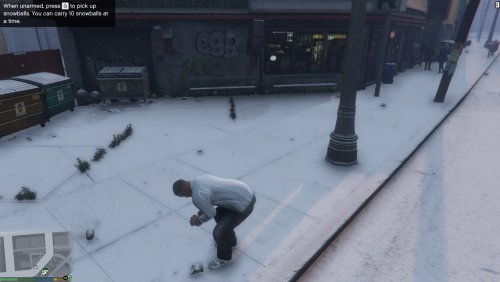 Awesome mod! Only thing that could be better is if there were footprints in the snow when you walked :) Either way, I still enjoyed the mod! As you can only get snow on GTA Online during Christmas, and not at all on single player! :D
- 85 comments
- 33 reviews
-
Hello, My Simple Native Trainer 6.5 on GTA 4 is glitching... When I startup the game, the bottem reads "No Car Found", my Mini-Map is blinking red & god mode keeps being toggled... This interferes with my GTA 4 LCPDFR 1.1 experience, causes crashes, & removes the realism... Below are my configuration files for my trainer, & a list I made of my computer specs... Trainer.asi trainer.ini Computer Specs.txt
-