FRGamer
Members
-
Joined
-
Last visited
Everything posted by FRGamer
-
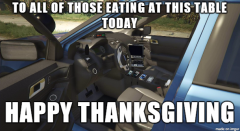 If they're eating in that carbon monoxide utility, it'll be their last.
 -
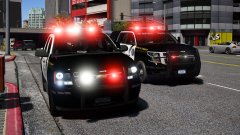 Pricefield NY mod
 -
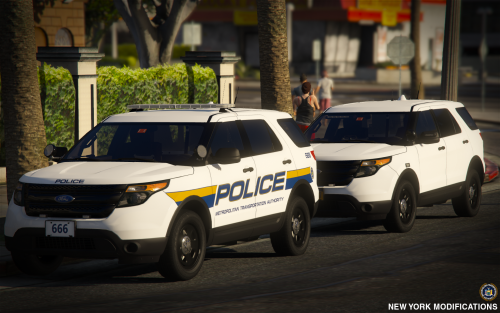
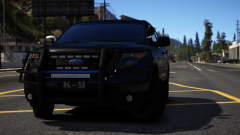
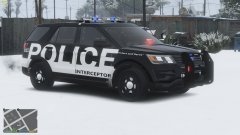 ???????????????????????????????????????Freedom/Liberty FPIUs are done. Once T201 is finished I'll release a mini pack.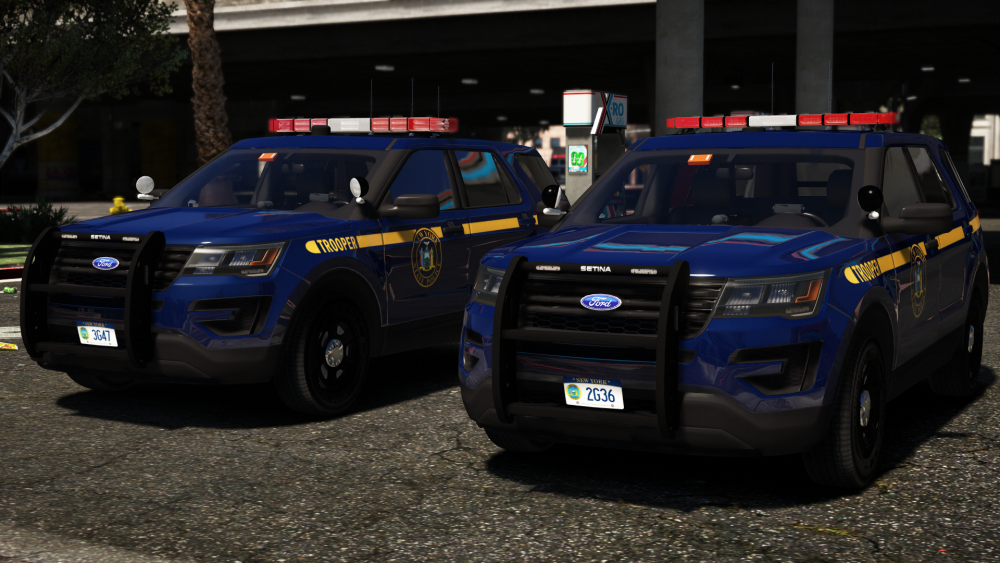
 Can't wait to get those super illegal terrible drugs off the streets in these!!!!!!! (marijuana)Plates have been mapped. Starting T201. Thanks to @Slendis for making the skin<333333333333333333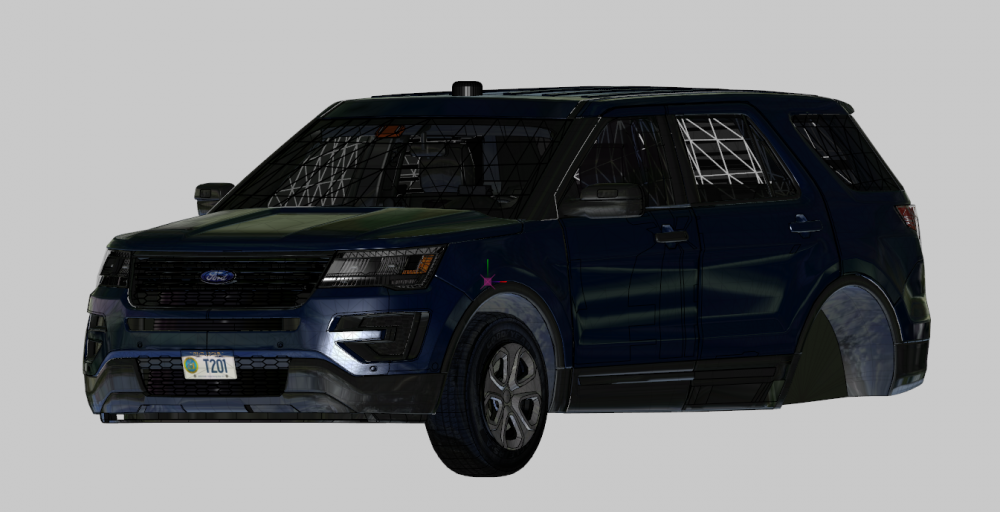
 hmu
Releasing as a mini pack soon. Yeah I will add that and the plates.
hmu
Releasing as a mini pack soon. Yeah I will add that and the plates.
From the album: FR Gamer's GTA V Images
From the album: FR Gamer's GTA V Images
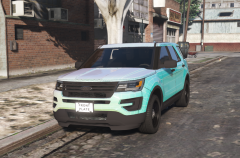 Aaaand I never said that you said that. I just thought you were trying to make it as realistic as possible.
You shouldn't of added the LEDs around the headlights on this, Ford Explorers only have those, FPIUS don't. Jason had it right.First photo of the man behind the attack. (29 years old, identity isn't being revealed at this time.)
Aaaand I never said that you said that. I just thought you were trying to make it as realistic as possible.
You shouldn't of added the LEDs around the headlights on this, Ford Explorers only have those, FPIUS don't. Jason had it right.First photo of the man behind the attack. (29 years old, identity isn't being revealed at this time.)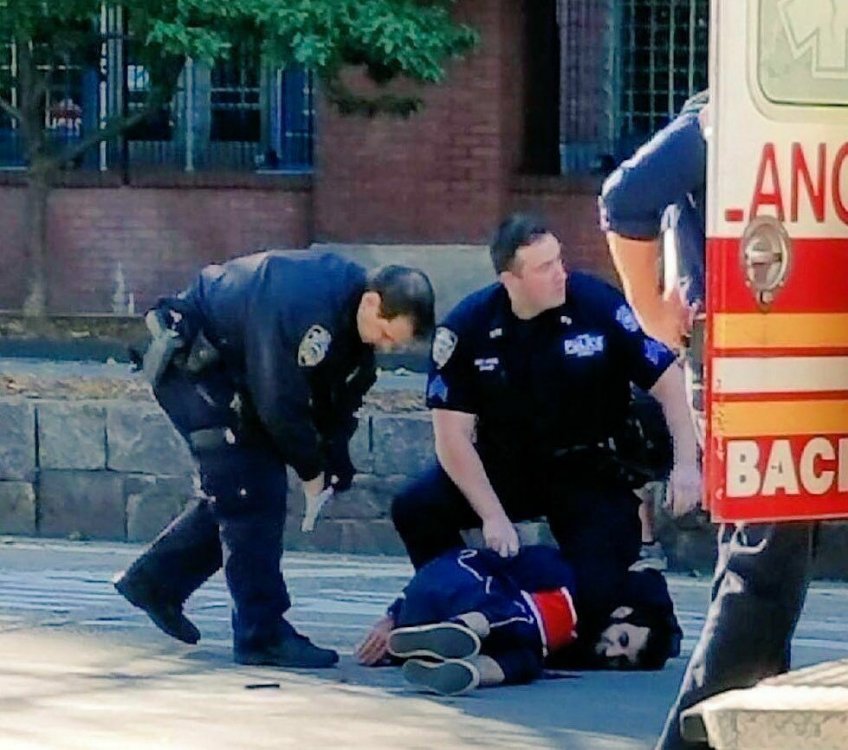
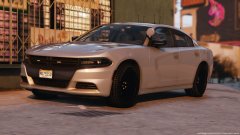 nut busted
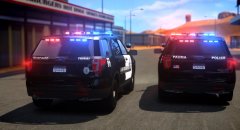 gorgeous. Glad you're still modelling for IV.
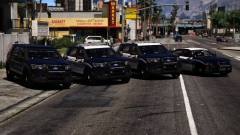 Yeah they will be released. STEALTH b0i
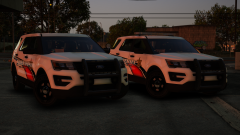 high on speed designs
From the album: FR Gamer's GTA V Images
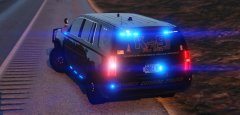 and they need to be off brand
From the album: FR Gamer's GTA V Images